VoIP
Telavox Flow
Connect Telavox Flow to Leexi to automatically import your recorded calls.
| Who is this for? | Required permissions and licenses |
|---|---|
| • All users: each user connects their own Flow account. • A Flow administrator must first grant recording permission to the relevant users. | • License required: depending on your plan, check availability in Settings > Integrations. • Recorded Calls permission enabled in the Flow admin portal for each user. |
How to use it
Estimated time: 5 minutes.
Grant recording permission (administrator)
This step only needs to be done once, by an administrator of your account.
- Log in to your Flow admin portal.
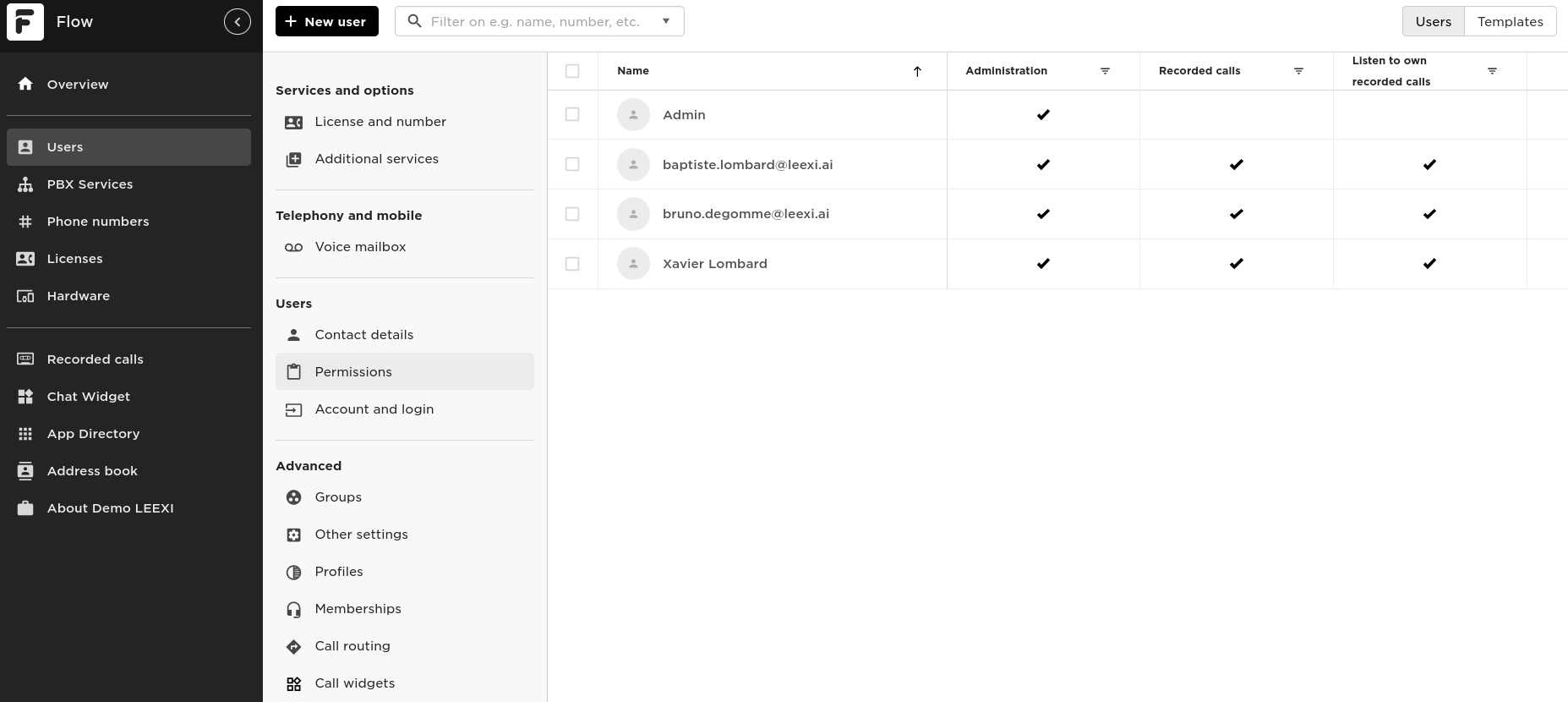
- Go to Users → Permissions and check that the Recorded Calls column is checked for all relevant users.
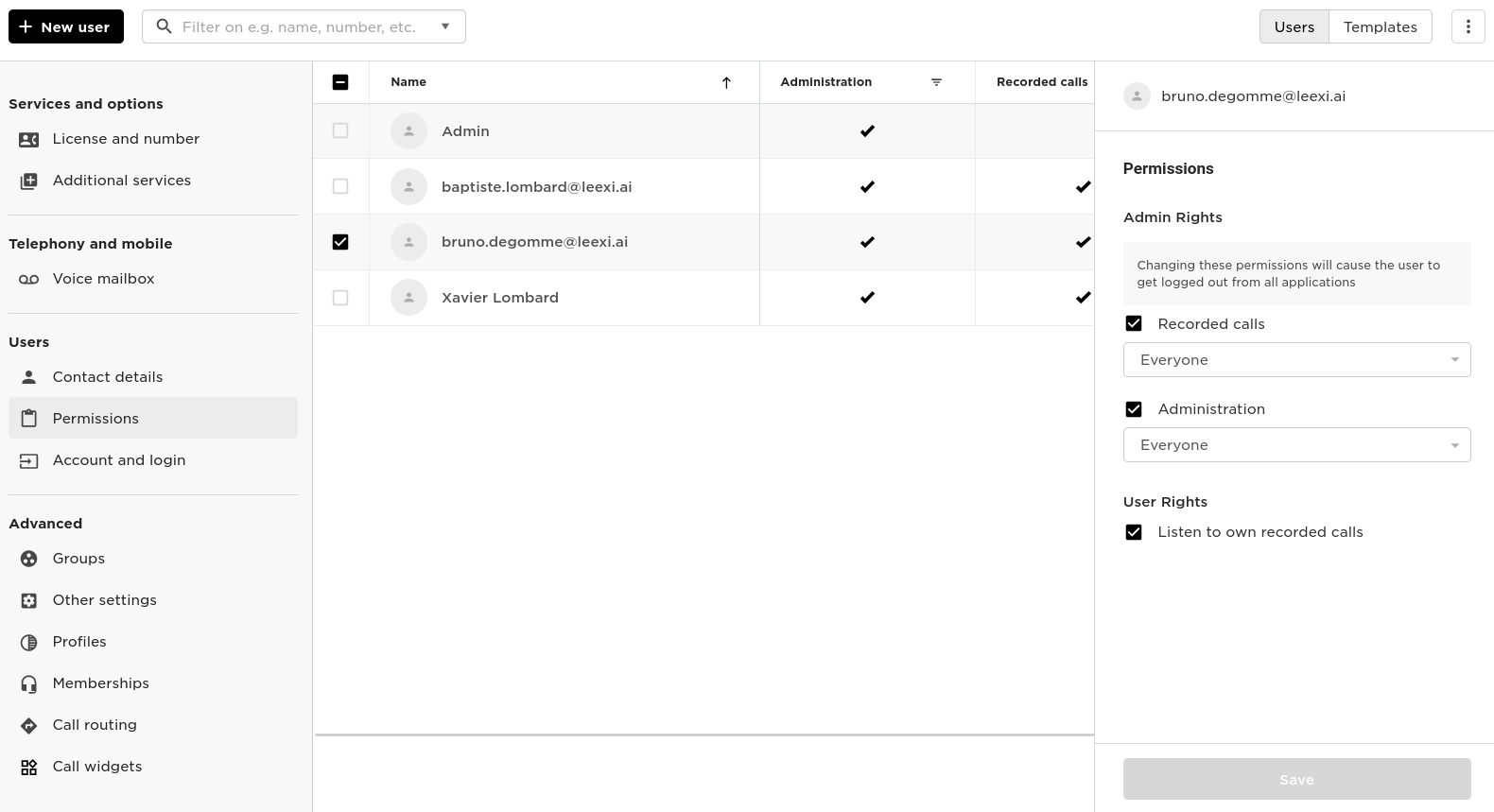
- If the Recorded calls permission is not enabled for some users, click on the user and check the Recorded calls box.
Enable call recording (each user)
Each user of your account must follow the instructions below.
- Log in to your Flow account.
- Go to Settings → Call Recording & Co-listening.
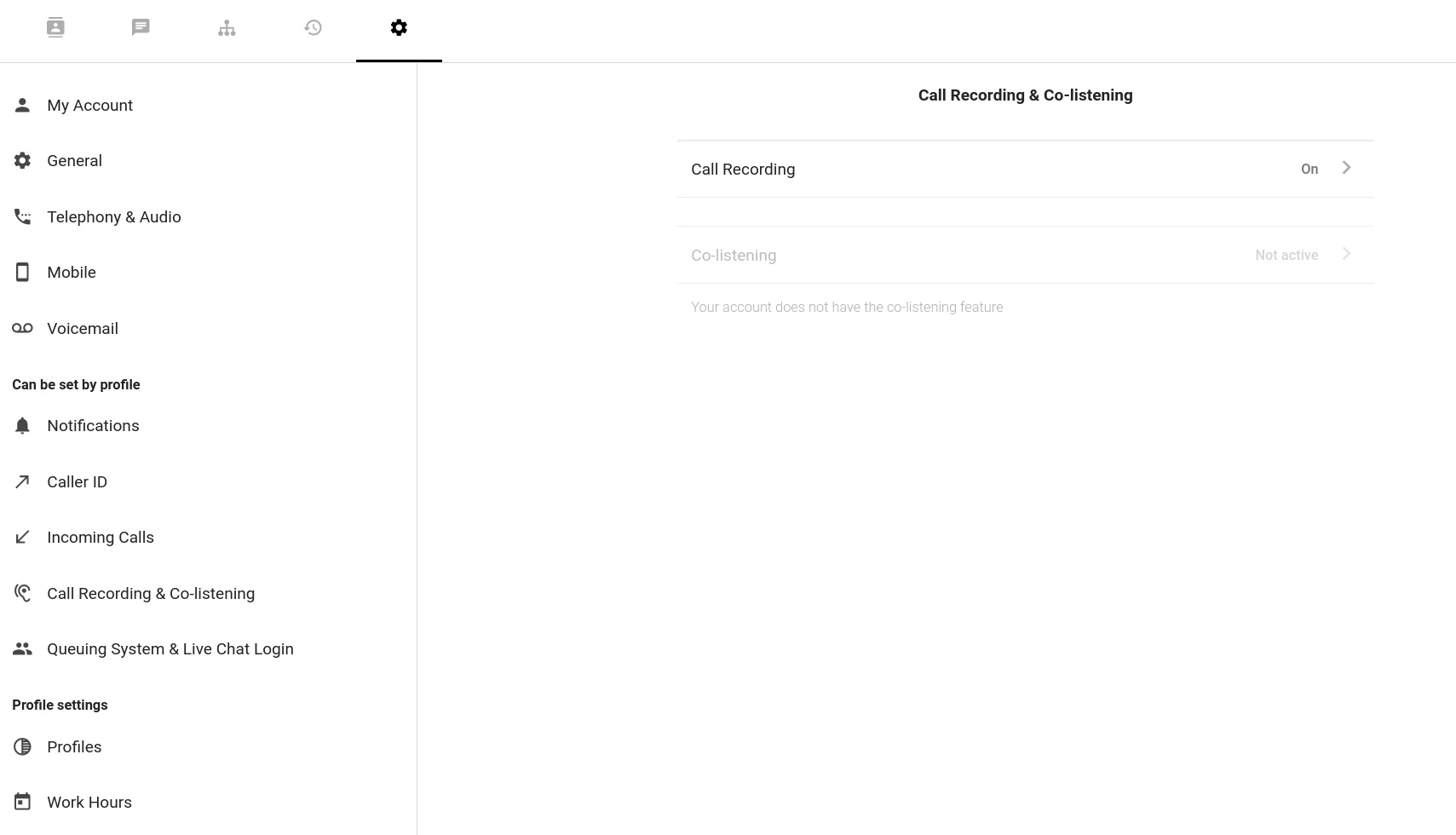
- Click Call Recording and enable Record Calls (this setting can also be set per profile).
Create a token in Flow
- Go to My Account → Username and password.
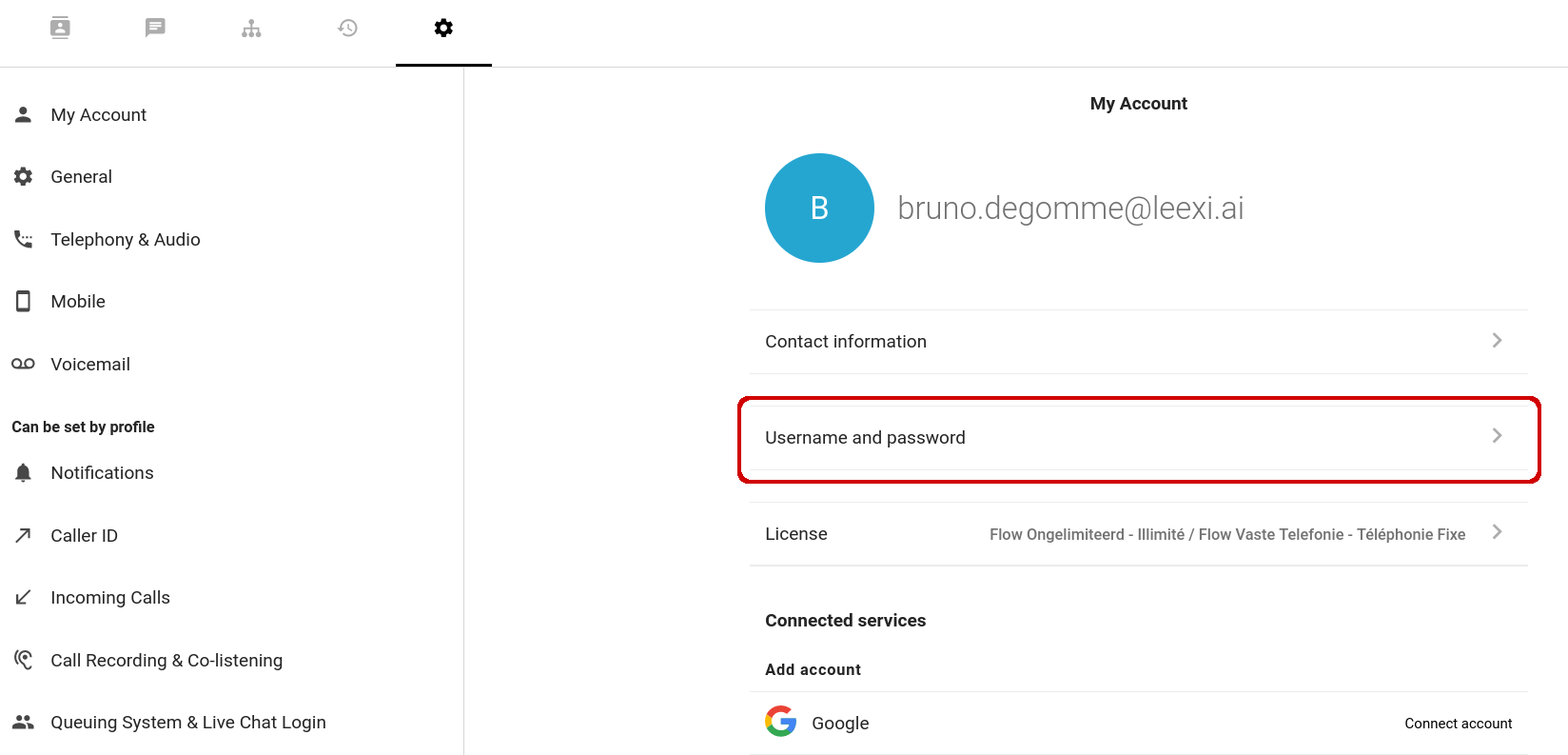
- Click Manage Tokens, then Create new token.
- Select Custom integration, give it the description
Leexi, then click Create token.
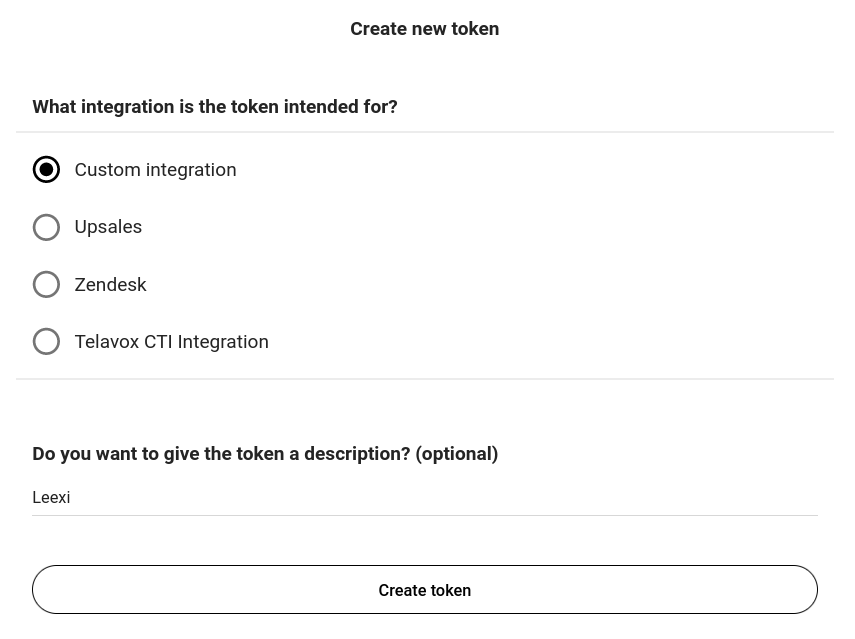
- Copy the created token.
Enable the integration in Leexi
- Go to My integrations.
- Find the Telavox Flow integration and paste your token.
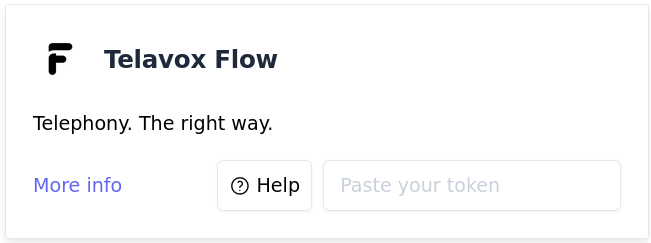
Your next recorded Flow calls will appear in Leexi!
Frequently asked questions
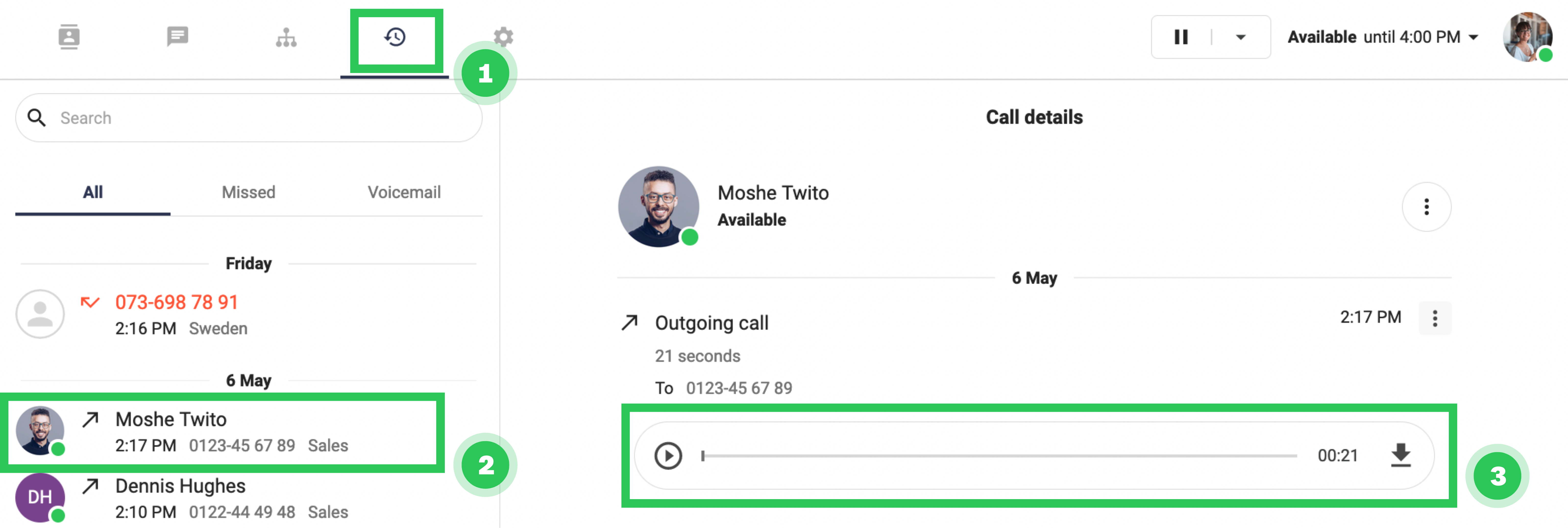
First check that calls are actually being recorded in Flow: open your call history and check that you can see the recording. If not, double-check your recording settings or contact Telavox Flow support.
Things to watch out for
- Only calls actually recorded in Flow are imported into Leexi.
- Each user must connect their own account: the recording permission granted by the administrator is not enough.