VoIP
Ringover
Connect Ringover to Leexi via an API key to automatically import your call recordings.
| Who is this for? | Required permissions and licenses |
|---|---|
| • Administrators who manage company integrations. | • Administrator rights required on your Leexi and Ringover accounts. • License required: depending on your plan, check availability in Settings > Integrations. |
How to use it
Enable call recording in Ringover
Enable recording of your Ringover calls by following Ringover's instructions.
Open the API menu
In Ringover, go to Activities.
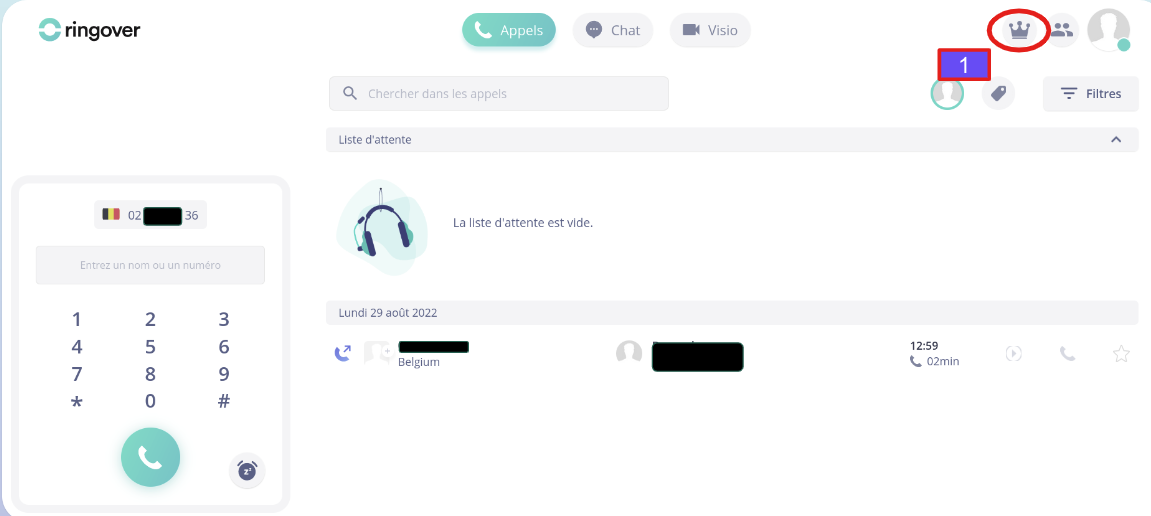
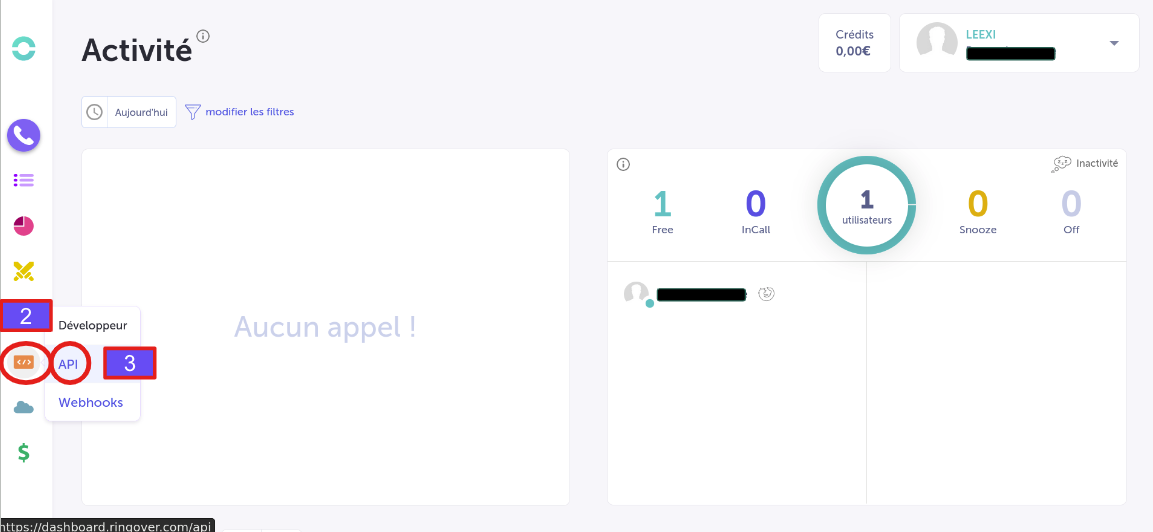
In the sidebar, select "</>", then "API".
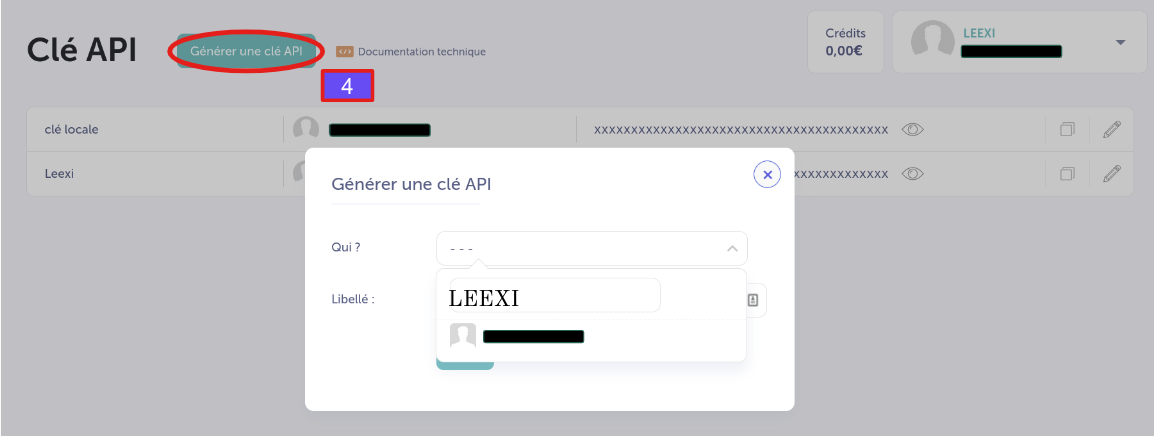
Generate an API key
Generate an API key and give it a name.
Grant permissions and copy the key
Grant the permissions needed for Leexi to work properly, then copy your API key.
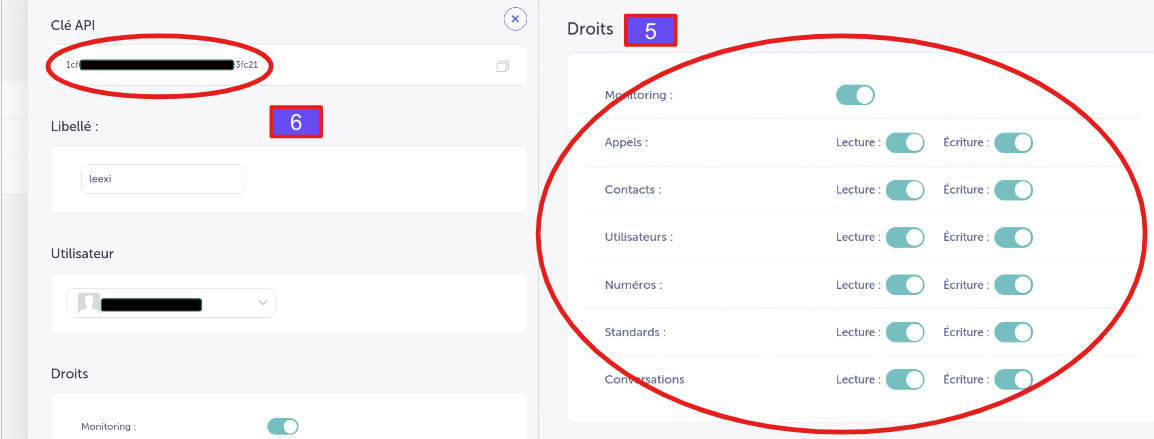
Make sure to enable all permissions (blue toggle switched to the right). A permission is disabled if its toggle is grey and switched to the left: the display can be confusing and is a frequent source of errors.
Connect Ringover in Leexi
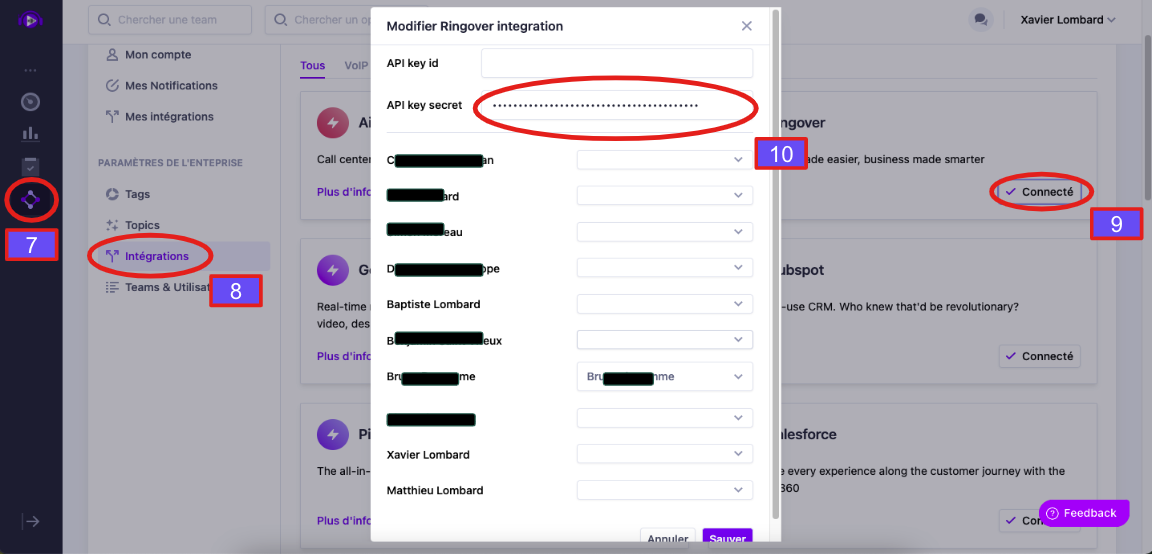
In your Leexi account, go to Settings → Integrations, find Ringover and click Connect. Enter your API key, match the corresponding Leexi and Ringover accounts, then save.
Frequently asked questions
In Ringover, call recording must be enabled individually for each user. If recording is not enabled for a given user, their calls may not appear in Leexi.
More information: Activating and downloading call recordings.
Things to watch out for
- All API key permissions must be enabled, otherwise the integration will not work correctly.
- Call recording is configured per user in Ringover: a user without recording enabled will not have their calls in Leexi.