Fathom migration
| Who is this for? | Required permissions and licenses |
|---|---|
| • Administrators for the company-wide setup, then each user who enters their own Fathom API key. | • License required: depending on your plan, check availability in Settings > Integrations. |
How to use it
Activate your CRM integration first (recommended)
We recommend activating your CRM integration before starting the Fathom migration: this way, call summaries will contain the correct contact names.
Open Fathom's API settings
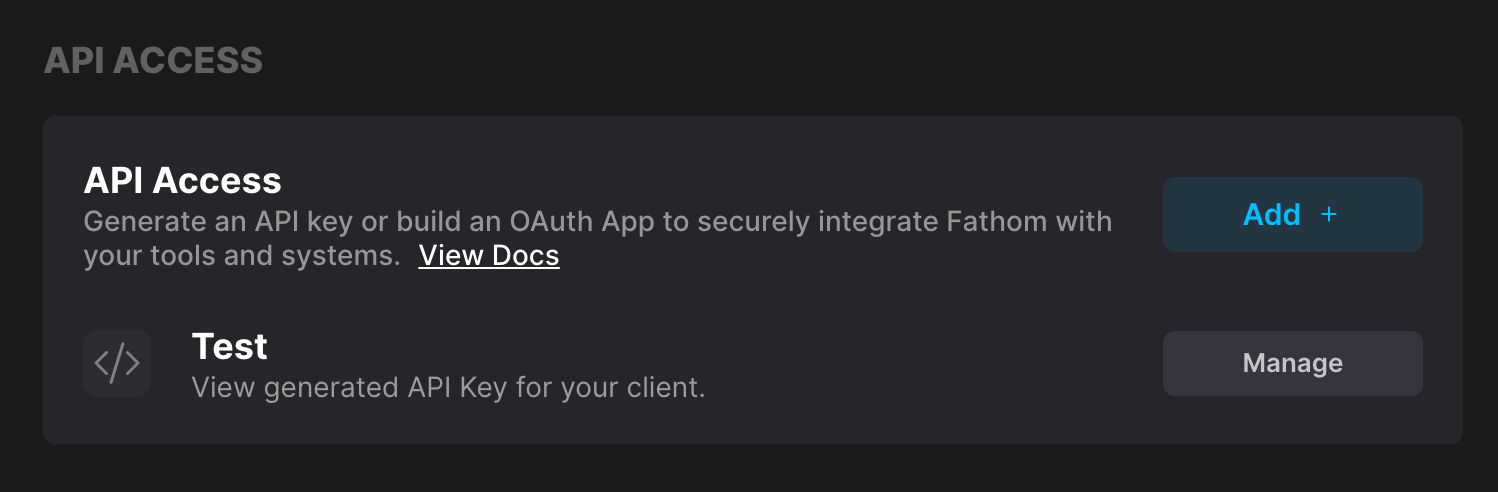
Go to the Fathom API access page and click Add +.
Generate an API key
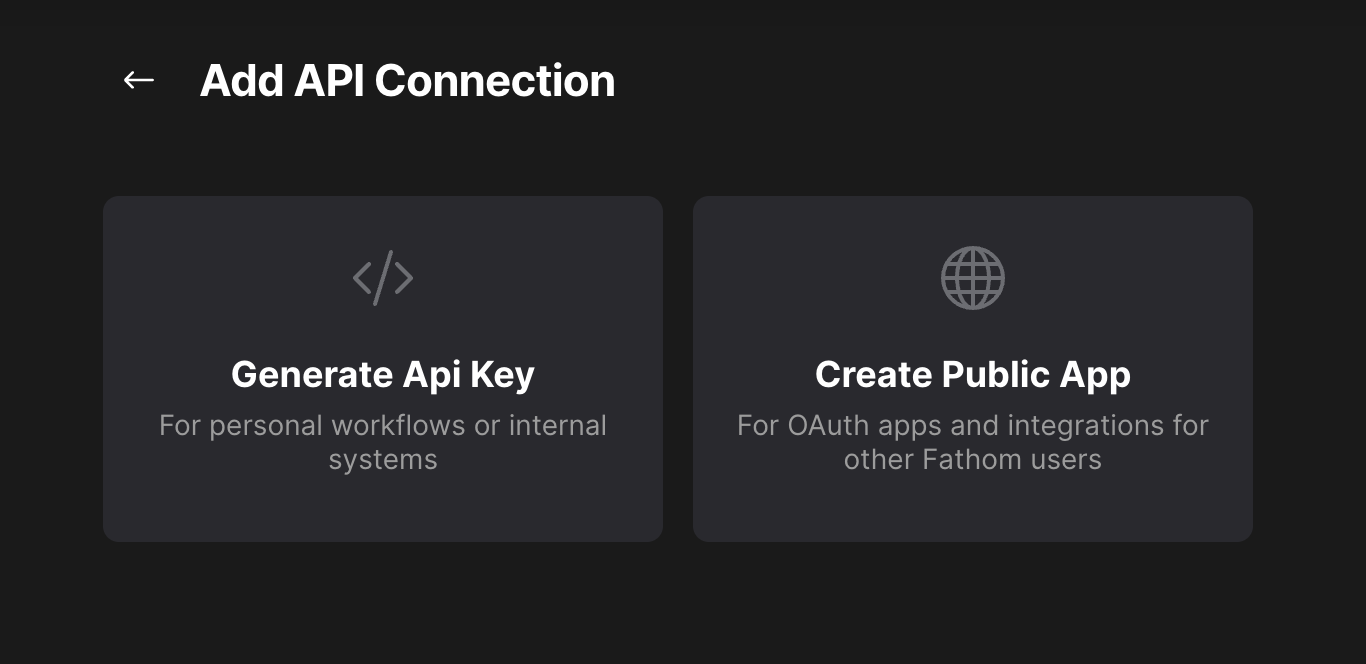
Click Generate Api Key.
Create the API client
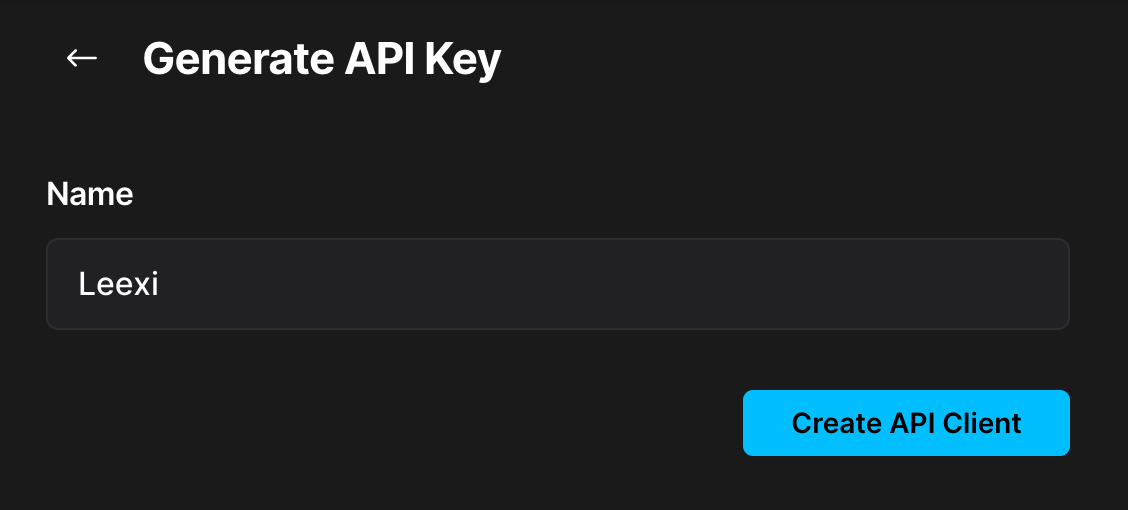
Enter a name (of your choosing, for example Leexi), then click Create API client.
Copy your API key
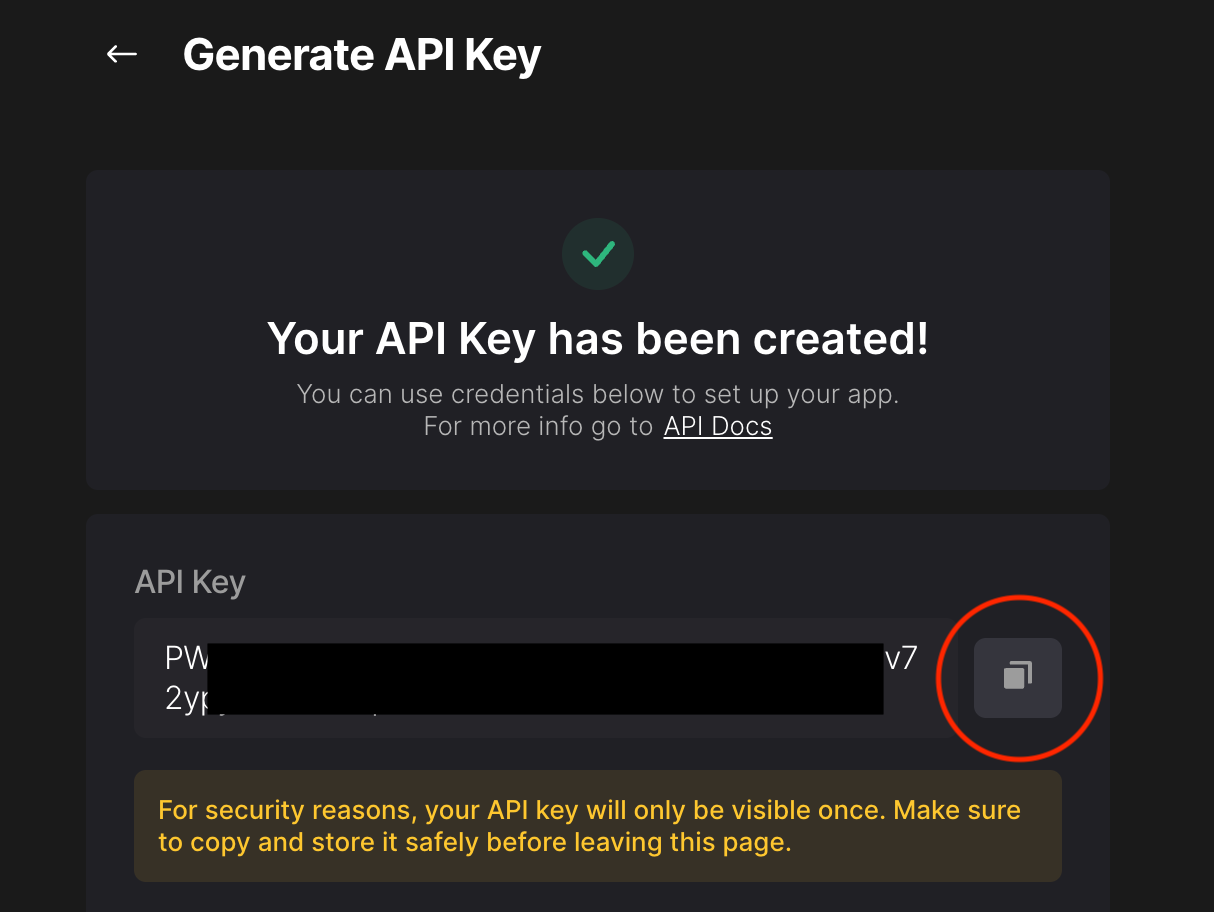
Copy your API key: it is only displayed once. If you lose it, you can regenerate it or start the process again from the beginning.
As an administrator (one time only)
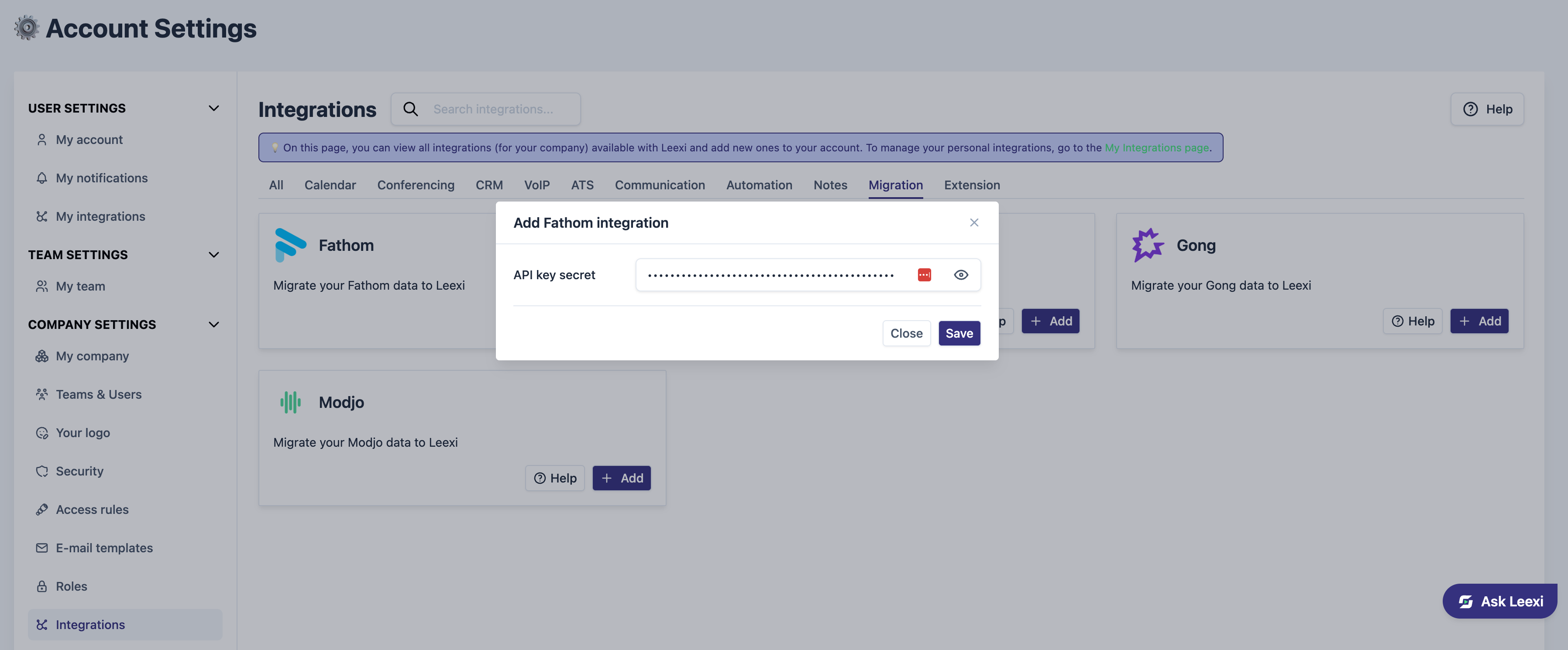
Go to Settings > Integrations, click Add on the Fathom migration card and enter your Fathom API key. Then also complete the "As a member" step.
There you can see who has already entered their API key.
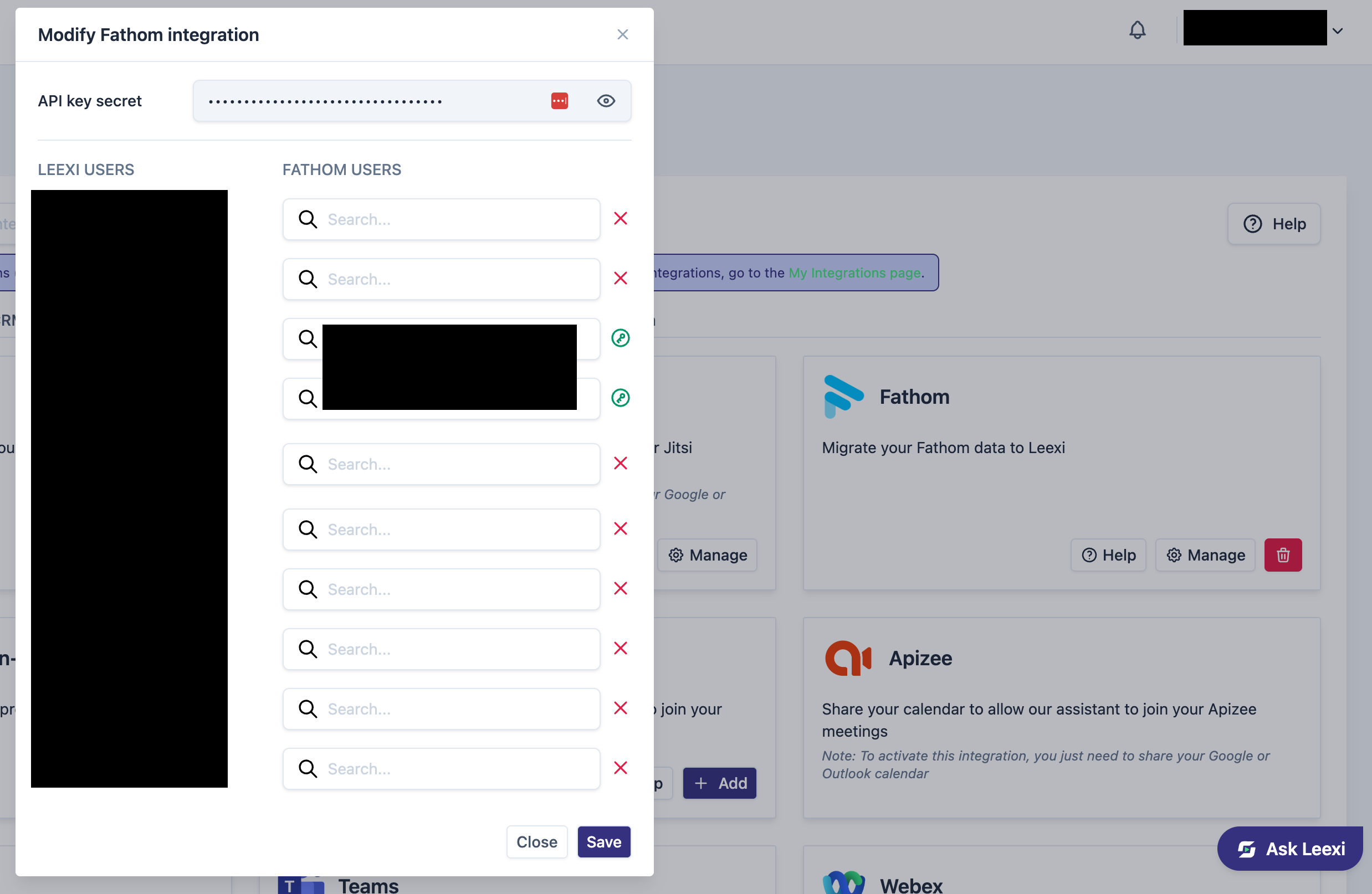
Once everyone has completed this step, you can ask us to migrate your Fathom recordings.
As a member
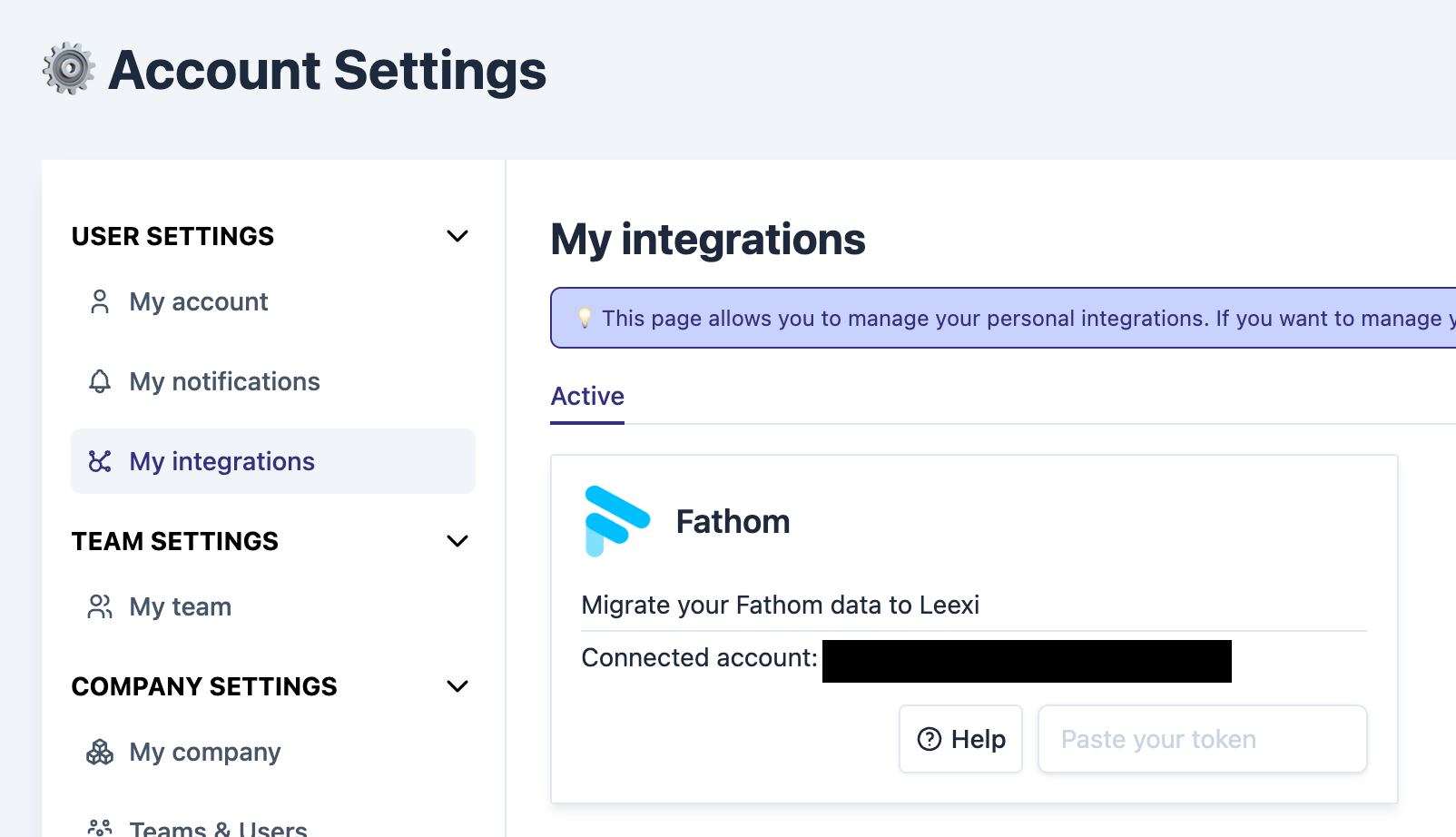
Go to My integrations and paste the API key you just copied.
Going further
What gets imported:
- Meeting recordings and their metadata
- Transcripts
- AI summaries and follow-up actions
Video recordings can only be retrieved if your default sharing access is set to Anyone with the link can view, or for any recording where this option is enabled.

Things to watch out for
- The migration does not start automatically: it begins once our teams have validated your request.
- The full data import can take up to 24 hours.
- Only data from the last 2 years is imported.
- If you have a large volume of data to migrate, additional fees may apply.
- Videos whose sharing link is not set to "anyone with the link" cannot be retrieved.