MCP
Dust
Connect the Leexi MCP server to your Dust workspace to query your calls from your Dust assistants.
| Who is this for? | Required permissions and licenses |
|---|---|
| • For Dust users who want to give their assistants access to Leexi calls and documentation. | • A Dust workspace with admin or builder access. • An active Leexi account with at least one processed call. |
How to use it
MCP server URL: https://api.leexi.ai/mcp
Open your Dust workspace's tools
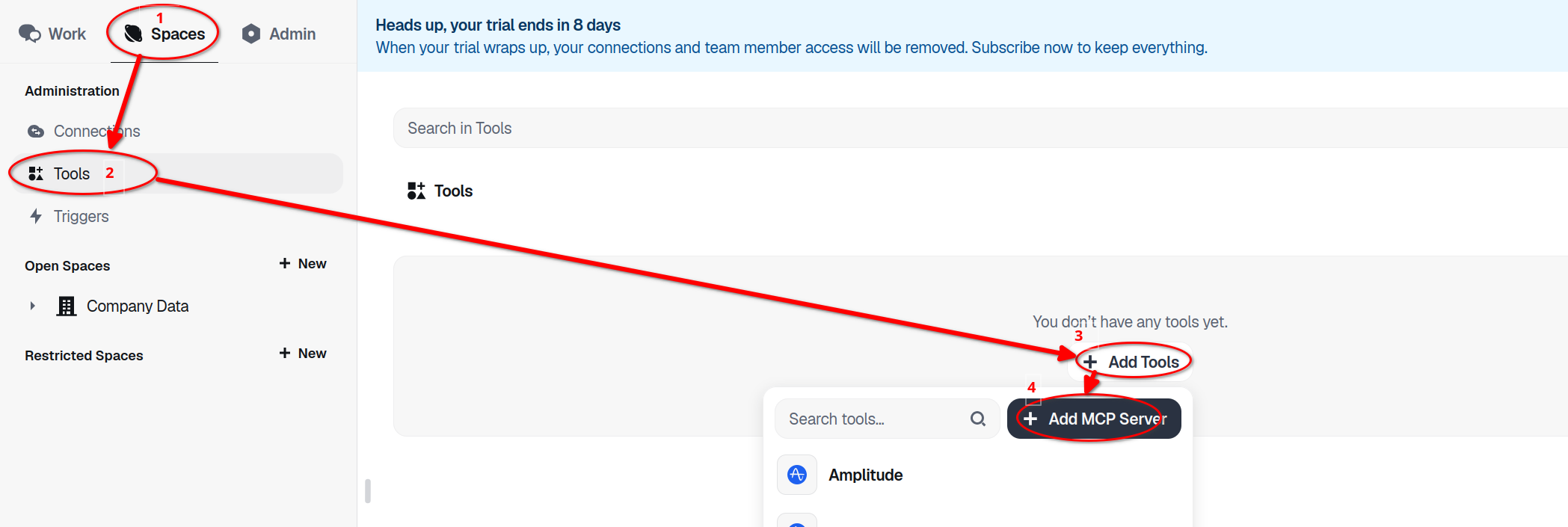
Open your Dust workspace, then go to Spaces → Tools.
Add the MCP server
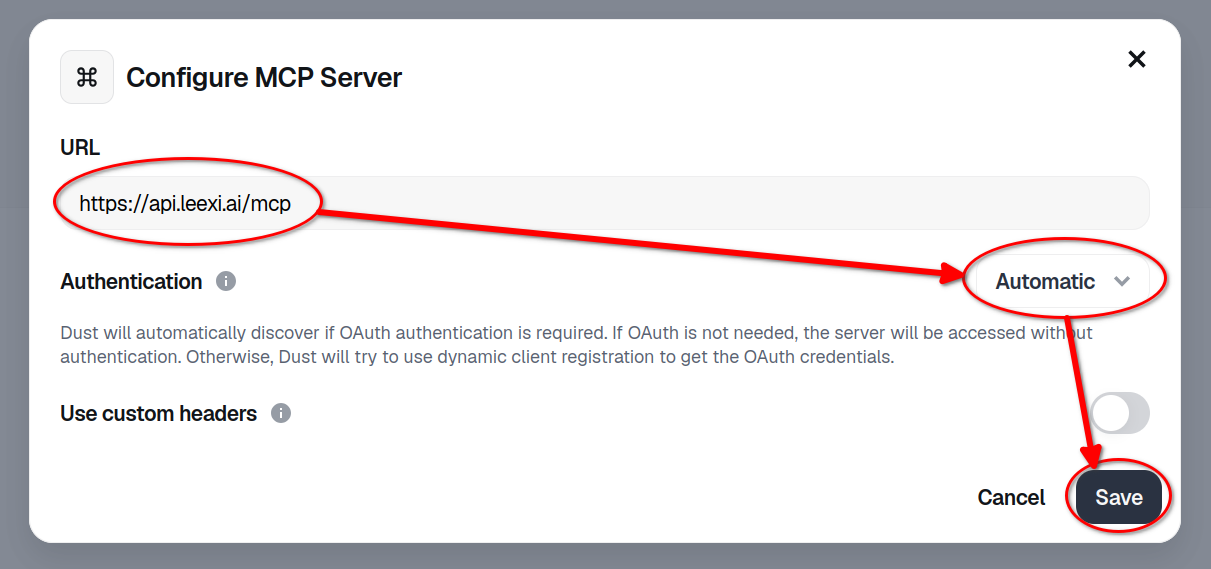
Click Add Tools → Add MCP Server, enter the URL and select Automatic authentication:
https://api.leexi.ai/mcp
Save
Click Save.
Authorize access
You are redirected to Leexi: sign in with your Leexi account and click Authorize. That's it — Leexi's tools are now available to your Dust assistants.
Going further
What you can do once connected
| Tool | What it does |
|---|---|
query_calls | Searches your calls by date, participant, team, client, and more |
fetch_call_details | Retrieves the full summaries, follow-up tasks, and metadata of specific calls |
query_resources | Searches Leexi's product documentation |
fetch_resource_details | Retrieves the full content of documentation articles |
You can reference these tools in your Dust assistants' instructions to build workflows that query your meeting data.
Frequently asked questions
Disconnect and reconnect Leexi in Dust's MCP server settings, and check that your Leexi account is active.
Make sure your account contains processed calls with completed transcriptions, and try broadening your search by removing filters.
Check that your browser allows pop-ups from api.leexi.ai and that you're signing in with the correct Leexi account.
If the issue persists, contact Leexi support at support@leexi.ai or via the chat widget on app.leexi.ai.