Zoom Native (legacy)
| Who is this for? | Required permissions and licenses |
|---|---|
| • For all account users who record their Zoom meetings natively. • Setup by an admin (about 5 minutes). | • A Zoom Pro, Business or Enterprise account (not Basic). • Admin rights on your Leexi and Zoom accounts. |
How to use it
On your Zoom account:
Check security settings
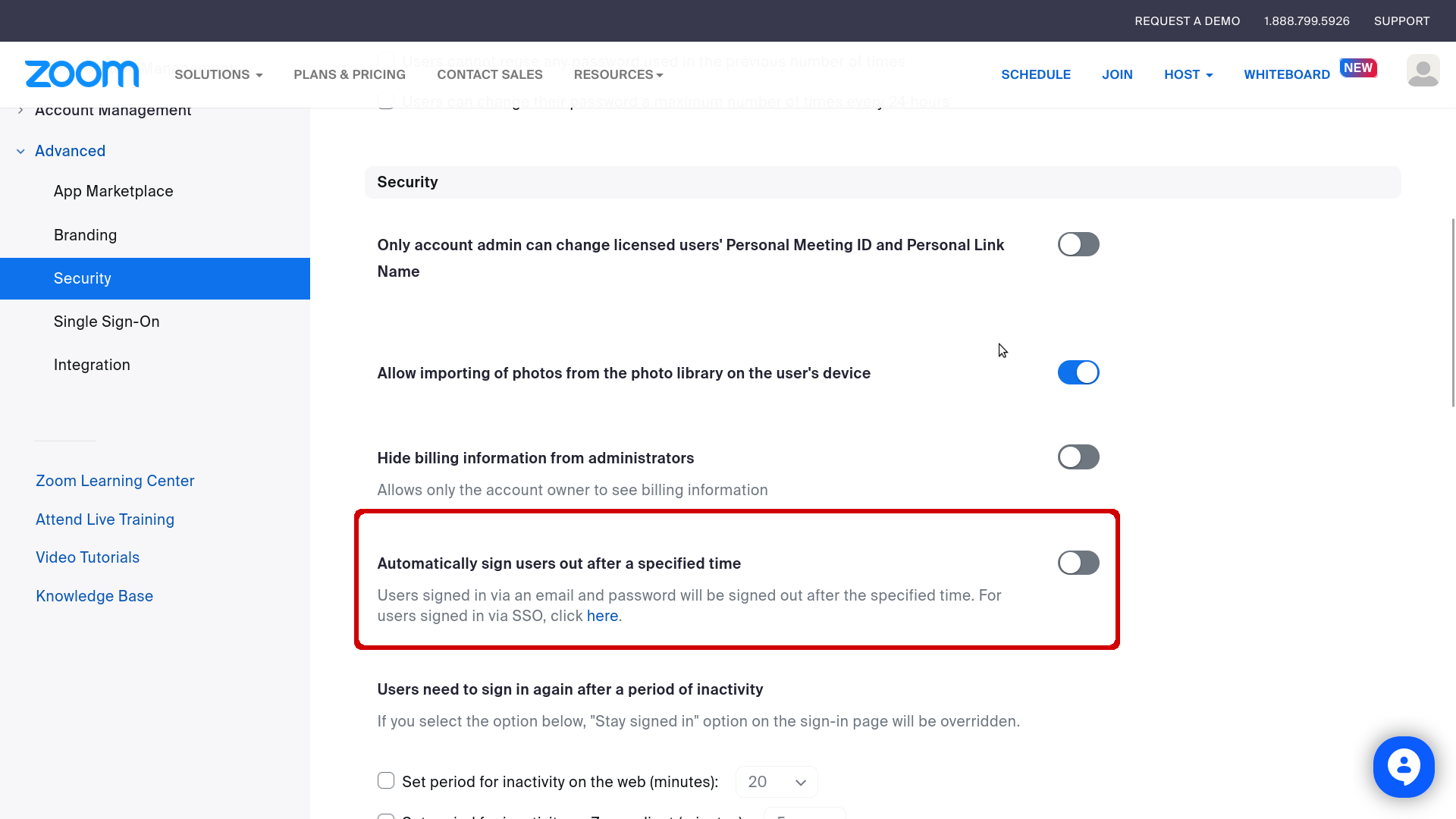
Under Admin → Advanced → Security, make sure Automatically sign users out after a specified time is disabled.
Disable the recording email notification
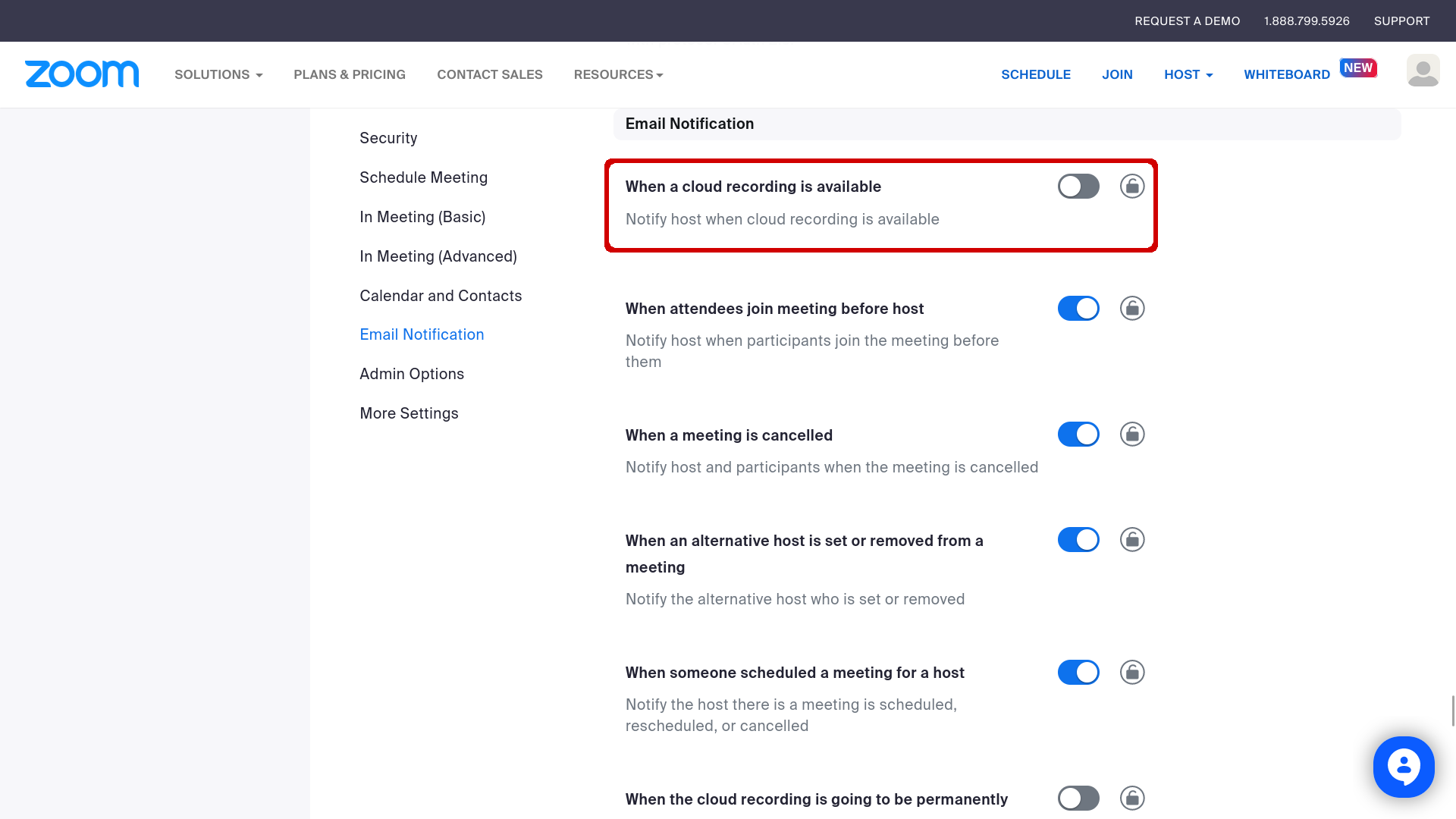
Under Account Management → Account Settings → Meeting tab, in Email Notification, disable the When a cloud recording is available option.
Enable cloud recording
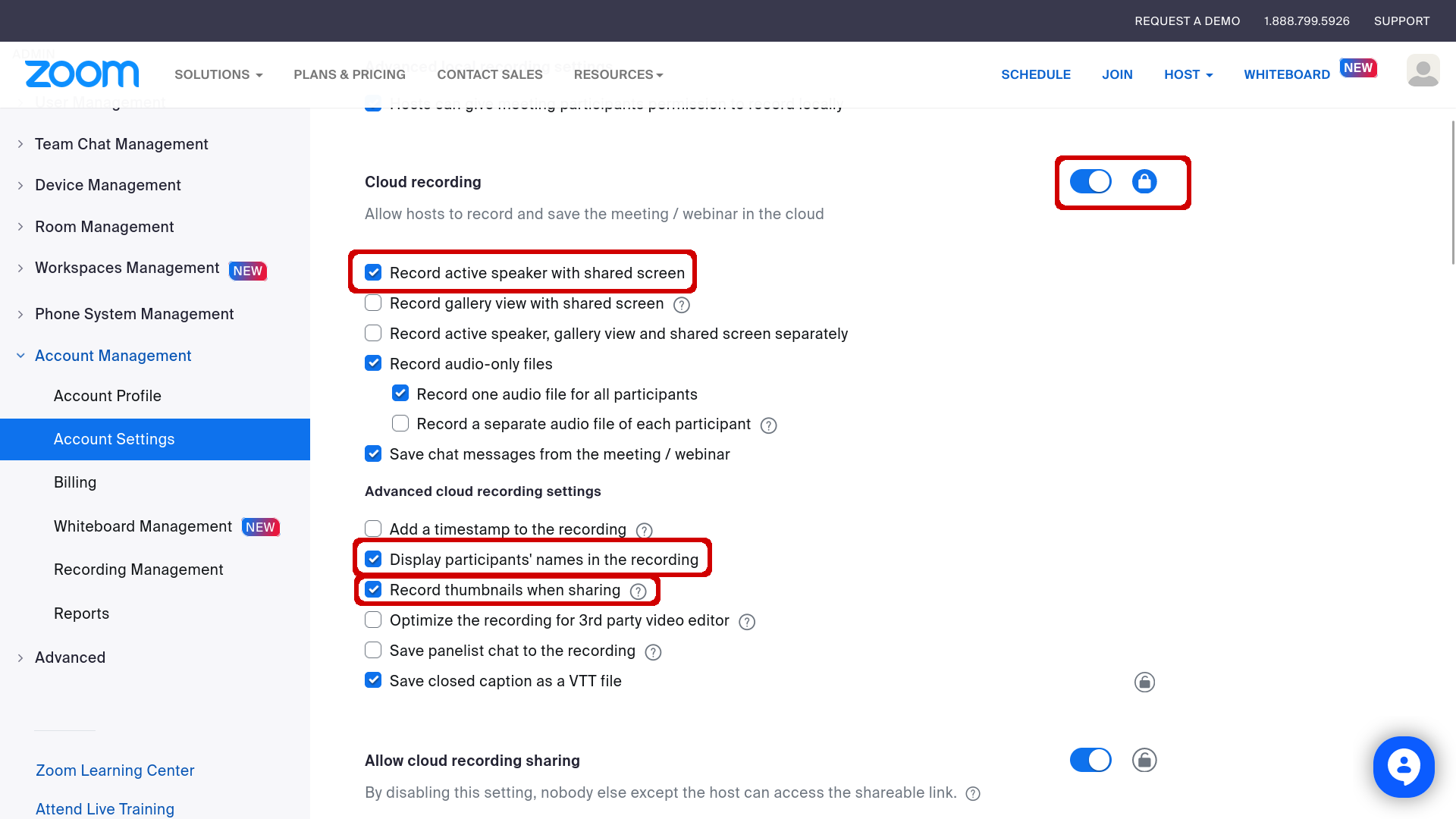
Under Account Management → Account Settings → Recording tab, enable cloud recording with the options:
- Record active speaker with shared screen
- Display participants' names in the recording
- Record thumbnails when sharing
Then lock the padlock.
Enable automatic recording
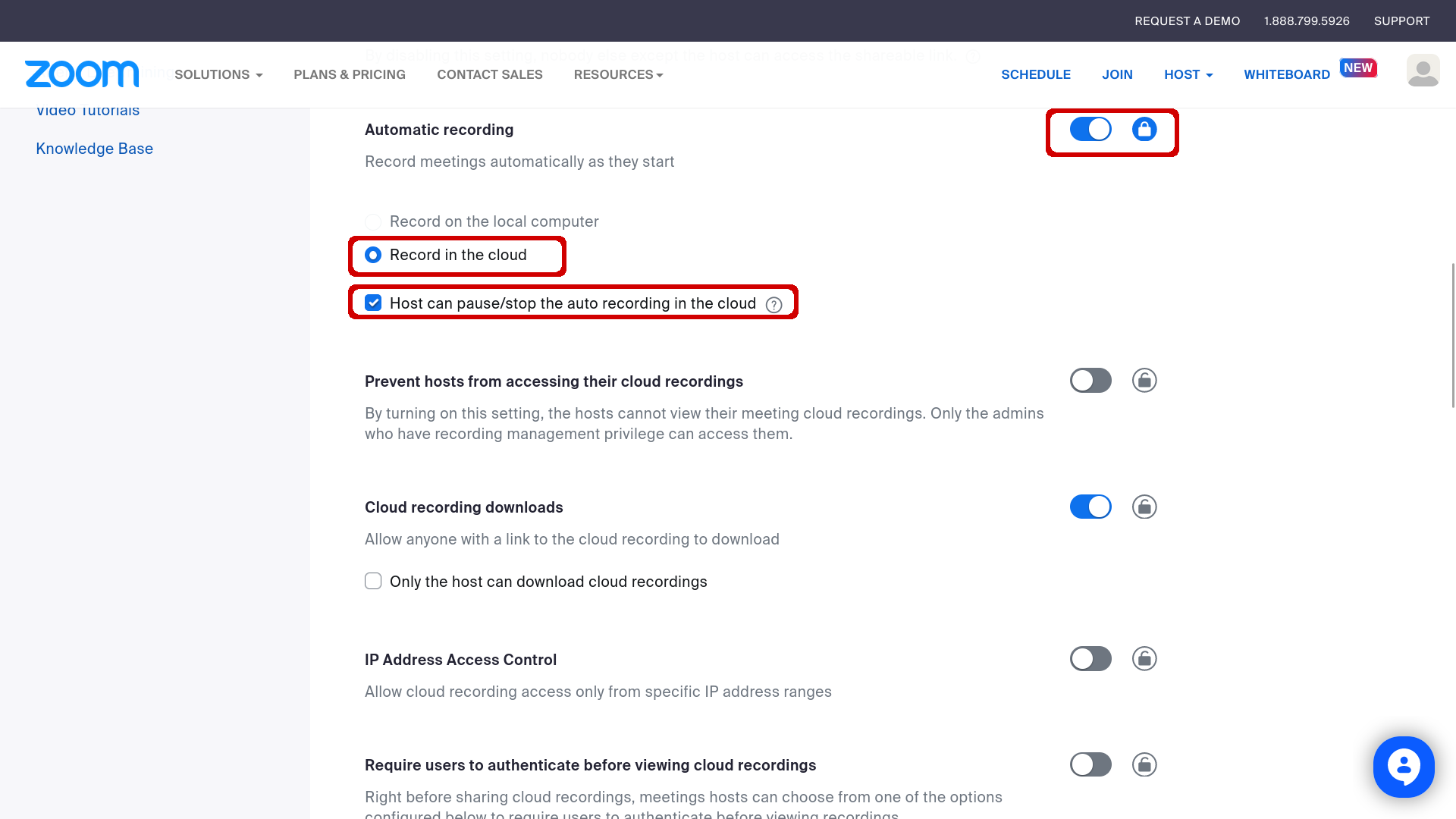
Enable Automatic recording with the following options:
- Record in the cloud
- Host can pause/stop the auto recording in the cloud
You can also enable automatic recording only for specific users or groups by following these instructions. Lock the padlock.
Configure recording deletion (optional)
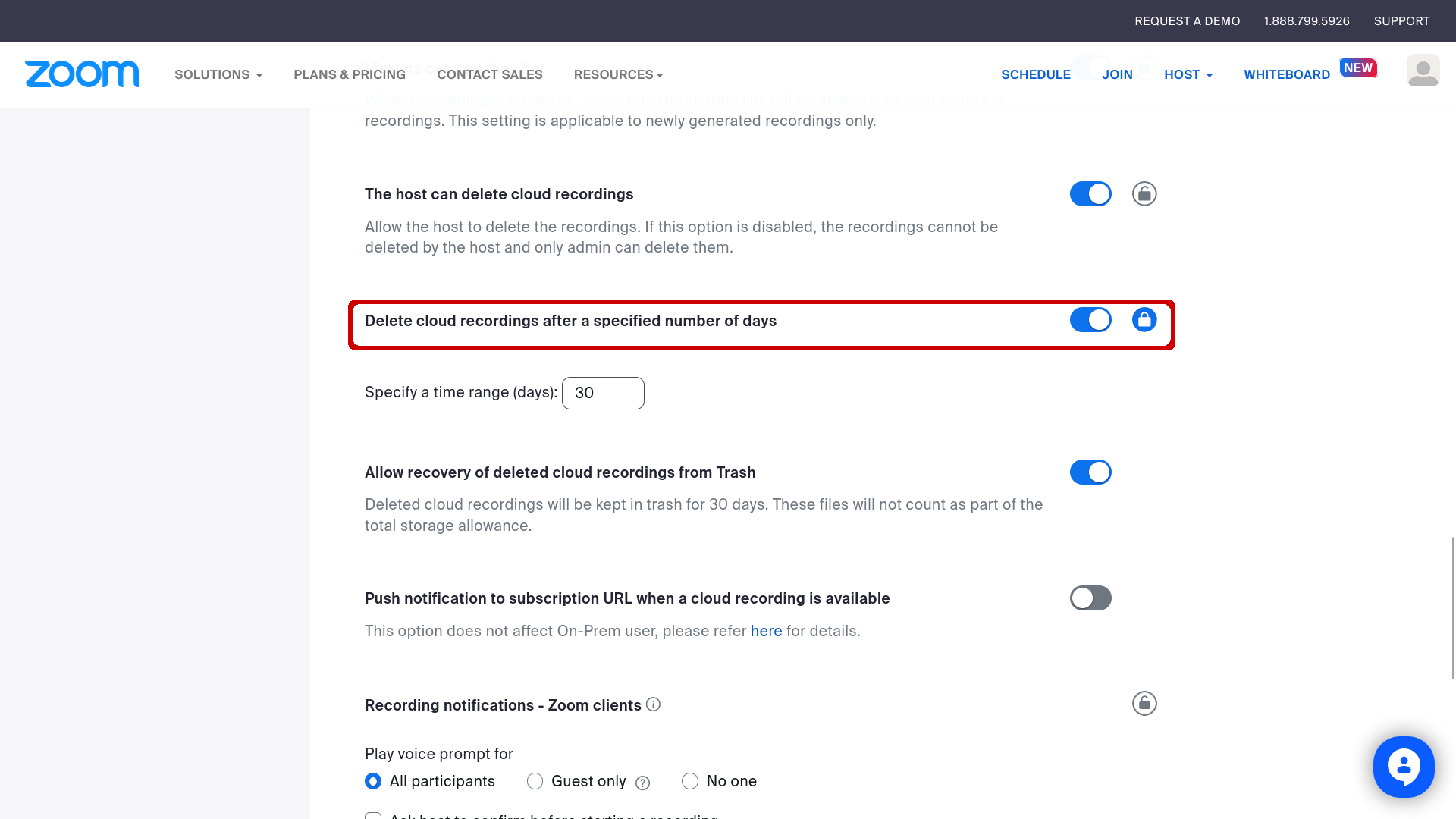
Enable Delete cloud recordings after a specified number of days and set the duration to 30 days, then lock the padlock.
Configure the recording disclaimer (optional)
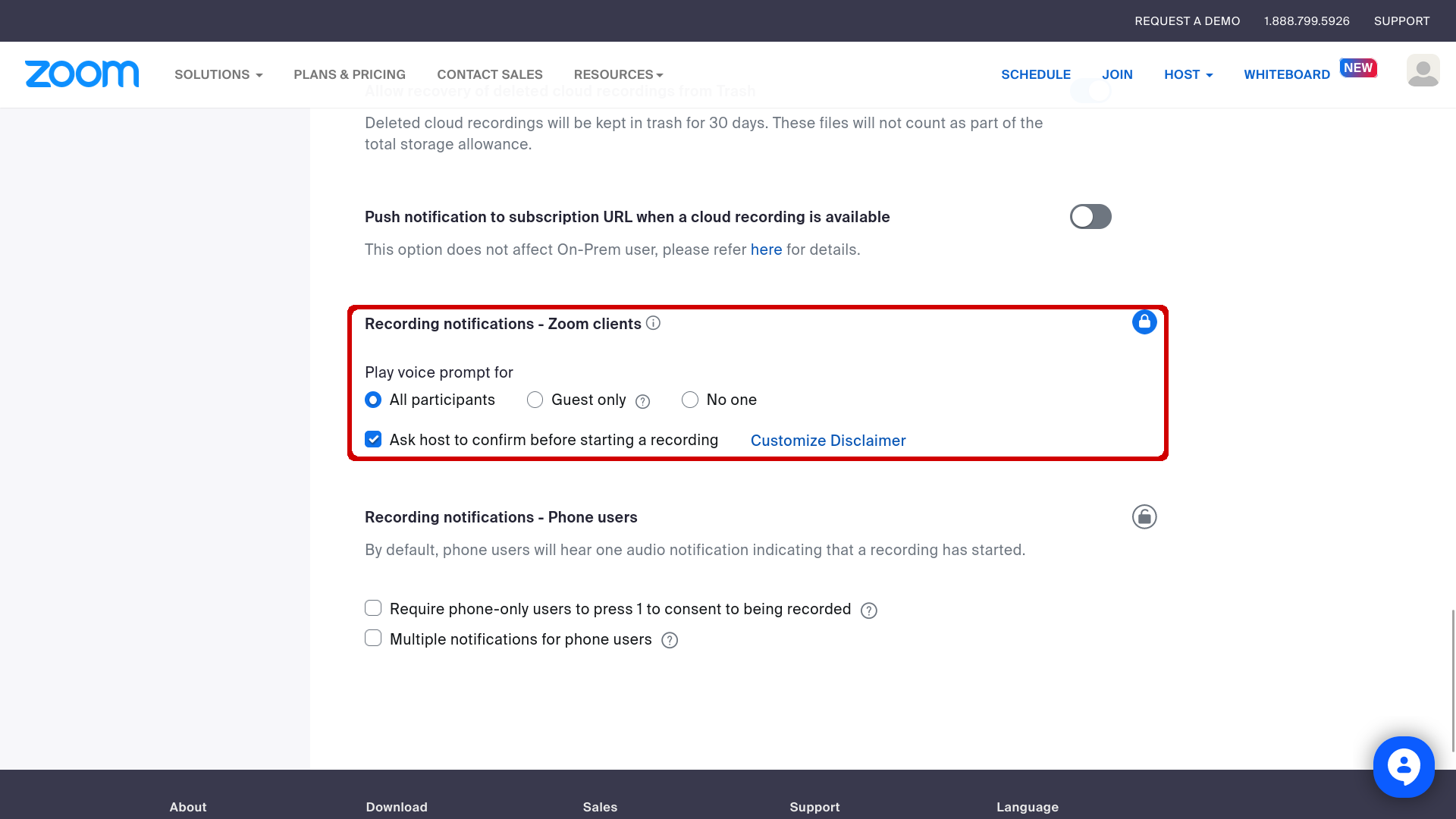
Under Recording notifications - Zoom clients:
- Enable Ask host to confirm before starting a recording
- Customize the disclaimer:
- Suggested title: This meeting is being recorded
- Suggested description: By staying in this meeting, you consent to being recorded. Save, snippet, annotate and analyze your own meetings with Leexi.ai
- Lock the padlock.
Enable the integration on Leexi's side
On your Leexi account:
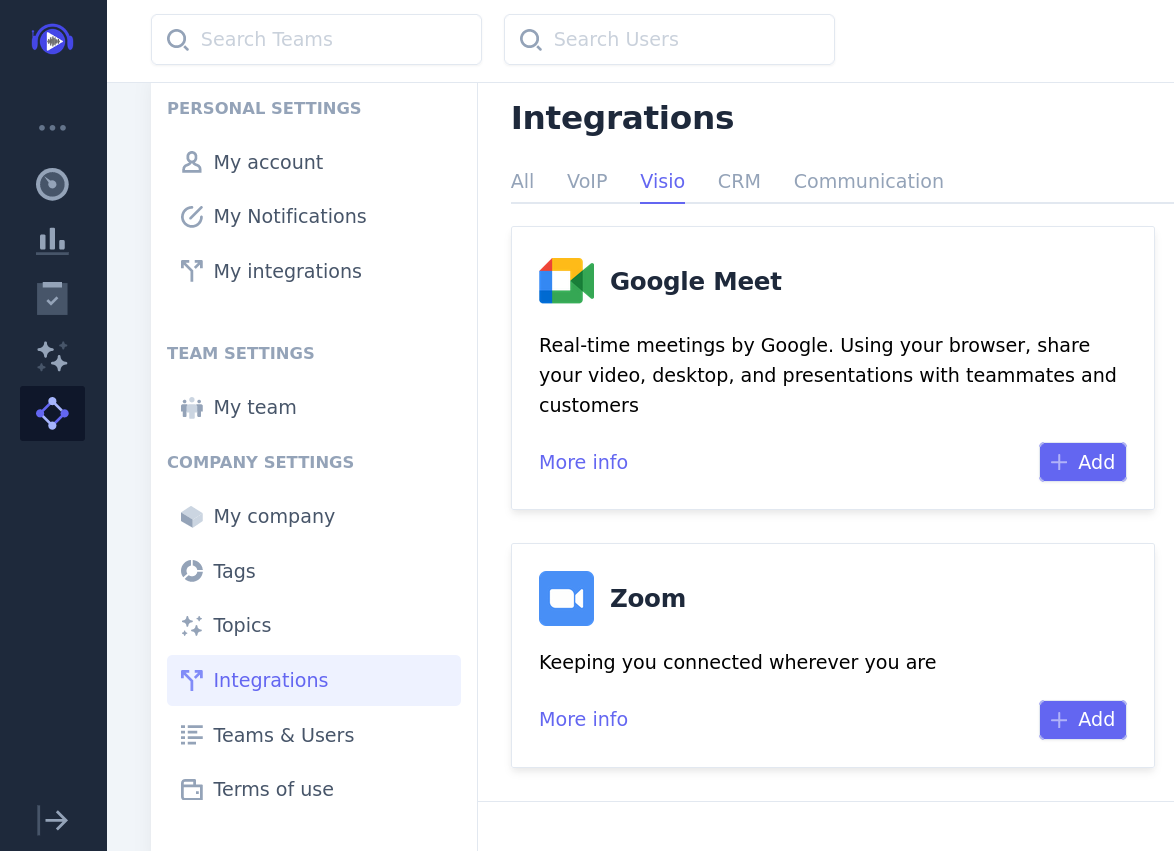
- Go to Settings → Company settings → Integrations
- Click Add on the Zoom integration
- If the message "You cannot add Leexi" appears, click Allow for all users
- Authorize the requested permissions
- Once redirected back to Leexi, on the Zoom integration, click Manage to check the mapping between Leexi users and Zoom users. It's based on email addresses, but can be changed.
Your upcoming Zoom meetings will appear in Leexi!
Going further
Enable Google Calendar to retrieve participants
Zoom only sends Leexi information about a meeting's participants if they were invited via Zoom's calendar integrations and were logged into Zoom when joining the meeting. If a meeting is created with Calendly or the Hubspot scheduler for example, Zoom does not send participant information.
We therefore recommend also enabling your Google Calendar integration: this lets us always retrieve participant information from the calendar event. To do this, go to My integrations and, under Google Calendar, select Authorize with Google.
Remove the integration
If you want to remove the integration between Leexi and Zoom:
- Log into your Zoom account
- Go to the Zoom App Marketplace
- Click Manage (top right) → Added Apps
- Click Remove on the Leexi application
Things to watch out for
- Only meetings you own are recorded with Zoom's native recording; the Zoom assistant has no such limit and identifies speakers better.
- Without a calendar integration, participants of meetings created outside Zoom's calendar integrations (Calendly, Hubspot…) are not sent to Leexi.