Microsoft Teams
| Who is this for? | Required permissions and licenses |
|---|---|
| • All users who organize or attend Microsoft Teams meetings. | • License required: depending on your plan, check availability in Settings > Integrations. • Each user connects their own calendar, no special role is required. |
How to use it
Open your personal integrations
From your Leexi account, go to My integrations.
Authorize the Outlook integration
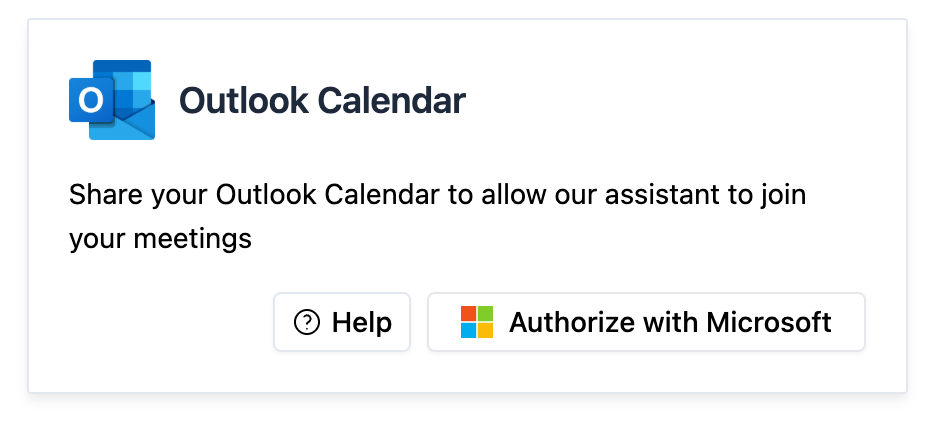
On the Outlook card, click Authorize. Access to your calendar allows Leexi to automatically send the assistant to record your meetings.
Going further
Pausing the recording
You can pause the recording from the assistant by typing /pause in the meeting chat, then /resume to resume it. The assistant confirms the pause and resume in the chat. This feature doesn't work for meetings started from a Teams channel, since the assistant doesn't have access to the chat in that case.
Frequently asked questions
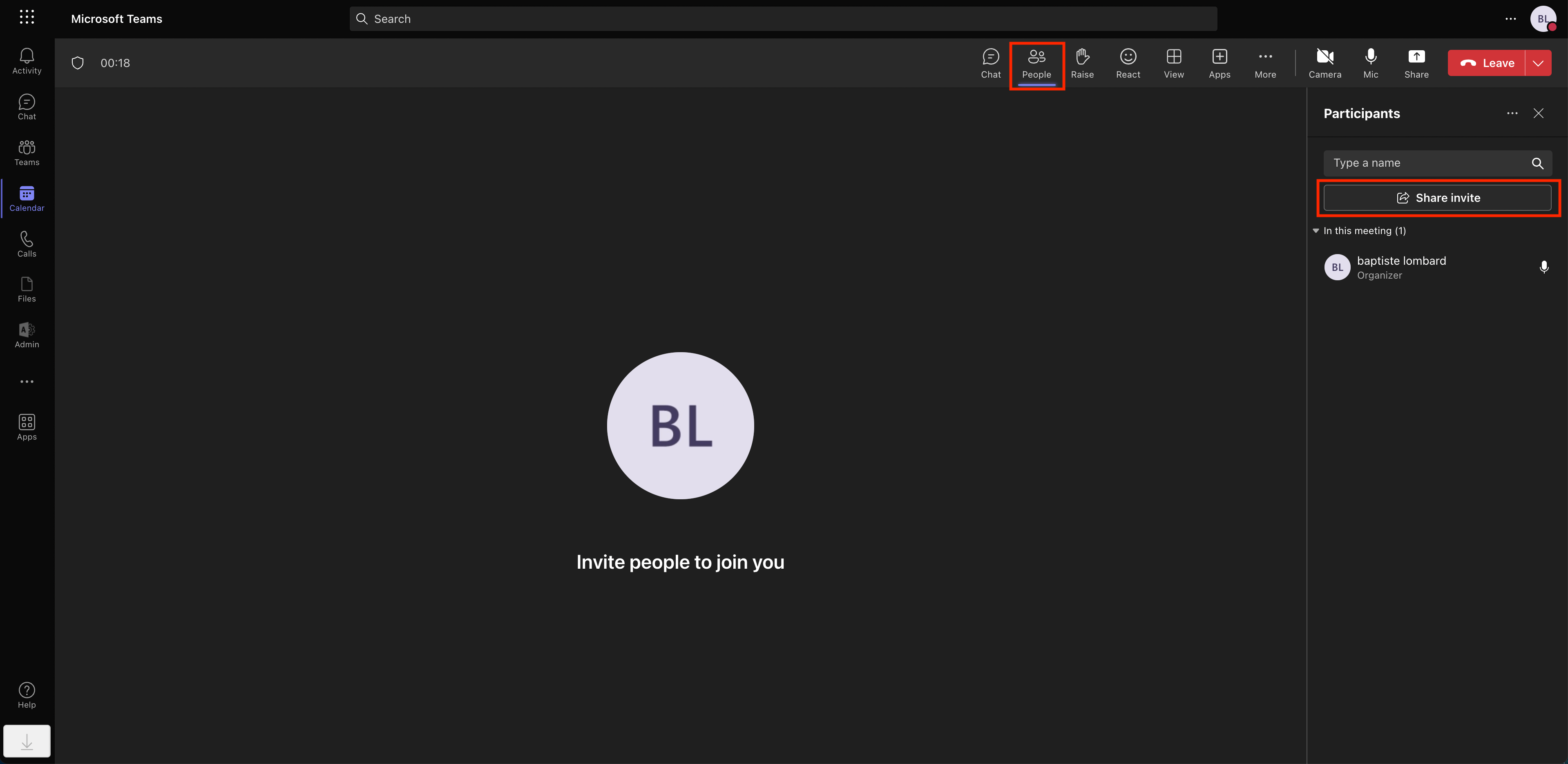
- Click Participants.
- Click Share invite.
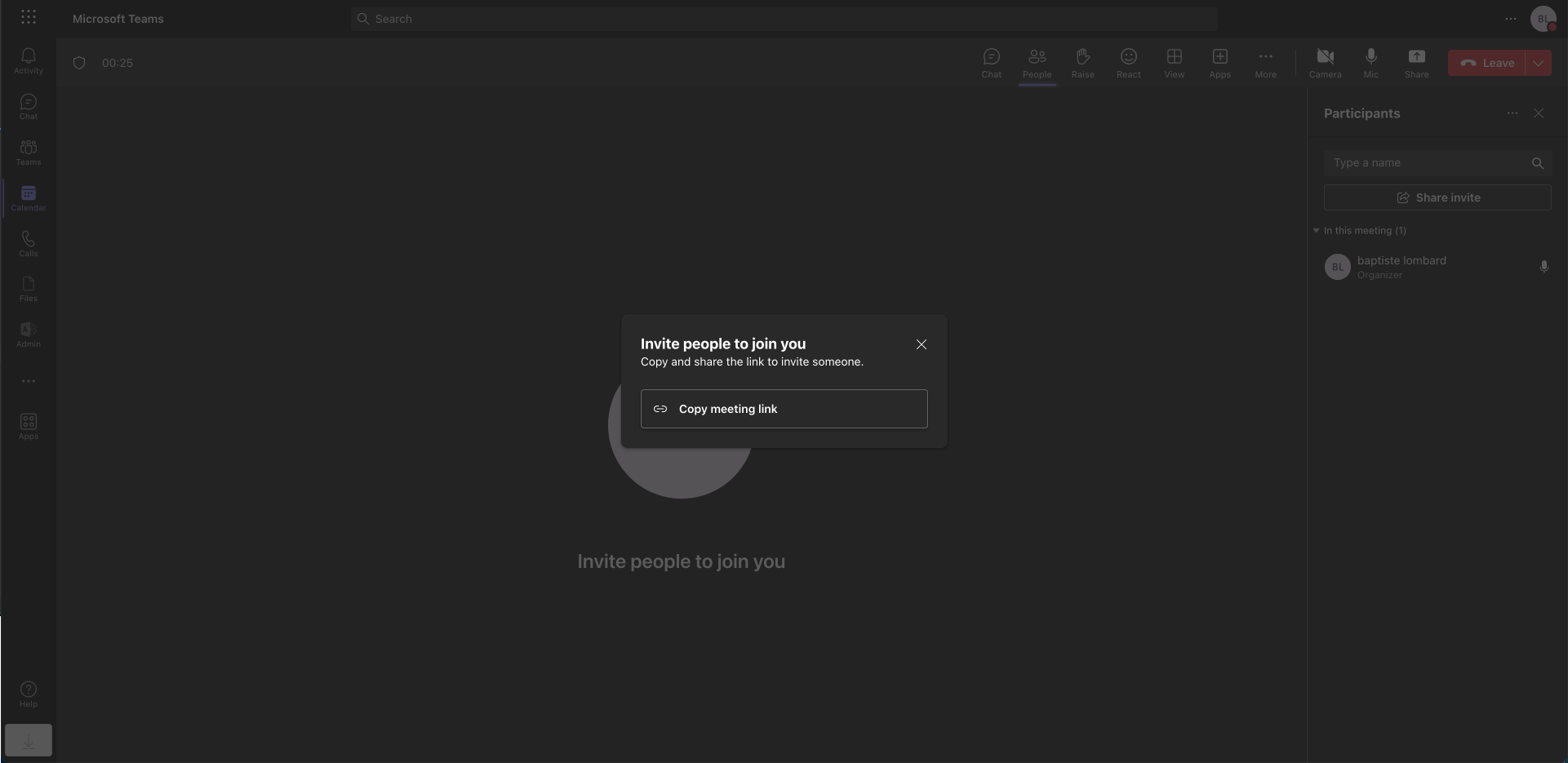
- Click Copy meeting link.
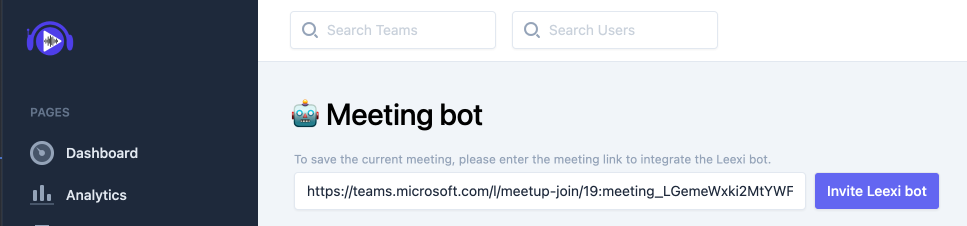
- Paste the link you just copied into Leexi.
- Finally, click Invite the Leexi bot.
Go to https://app.leexi.ai. Under Your upcoming meetings, click the meeting the assistant didn't join: the reason for the failure is displayed.

If you get this reason without having received a notification to admit the assistant, this may be due to your meeting settings: they determine who can admit the assistant into a Teams meeting. It's likely that only the organizer can admit the assistant, and that they're absent (they may not even be a real user).
To check this, edit the meeting event in question and open More options.
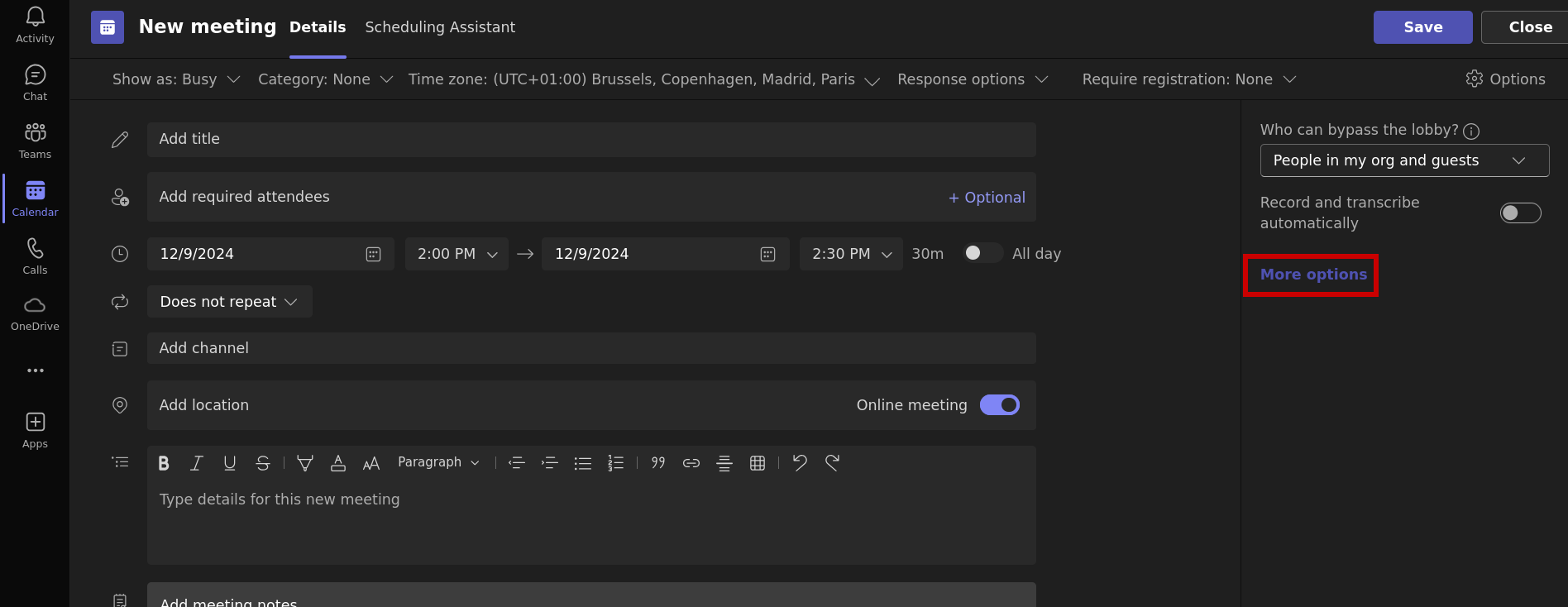
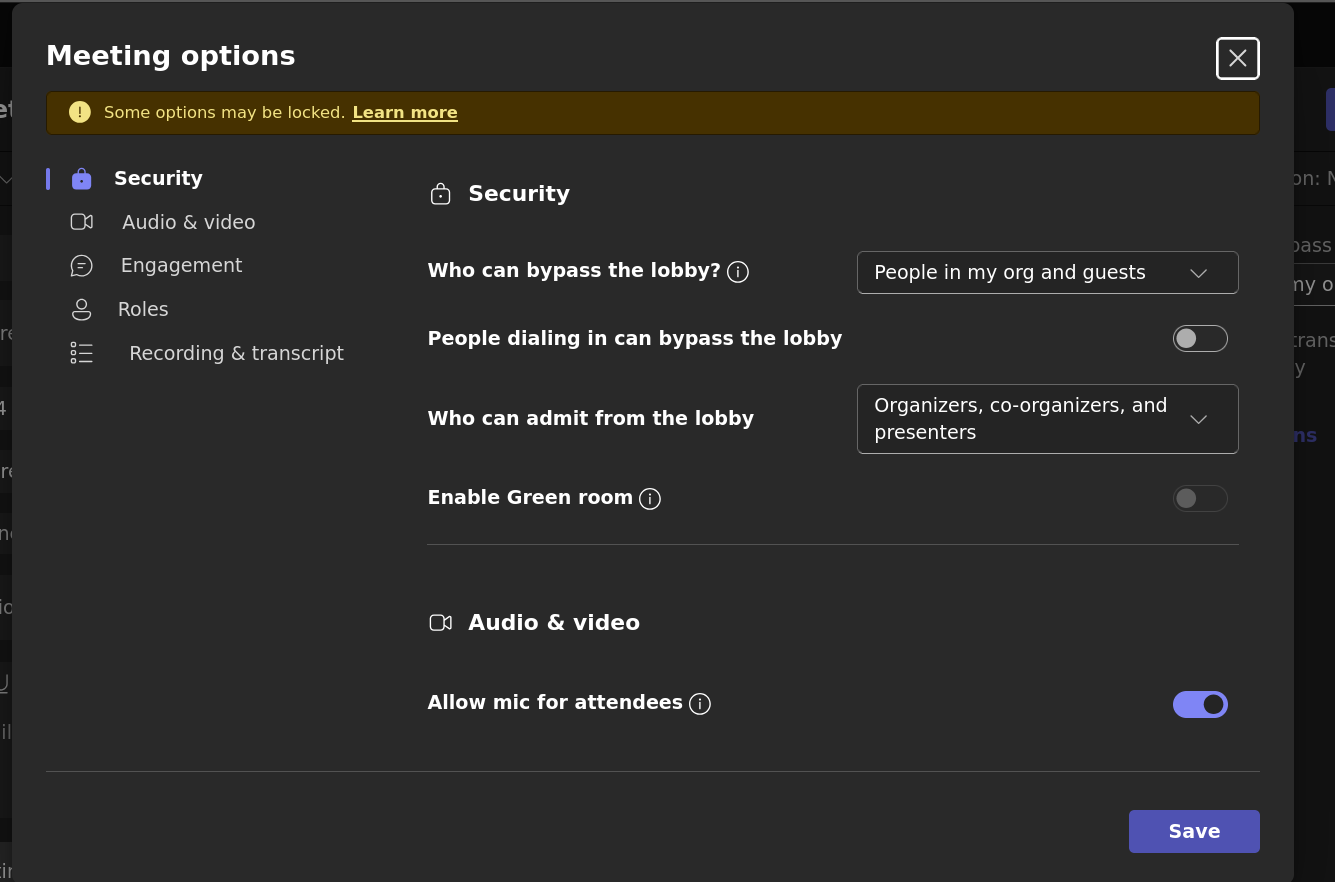
Check that Who can bypass the lobby is set to Organizers, co-organizers, and presenters.
And that Who can present is set to Everyone.
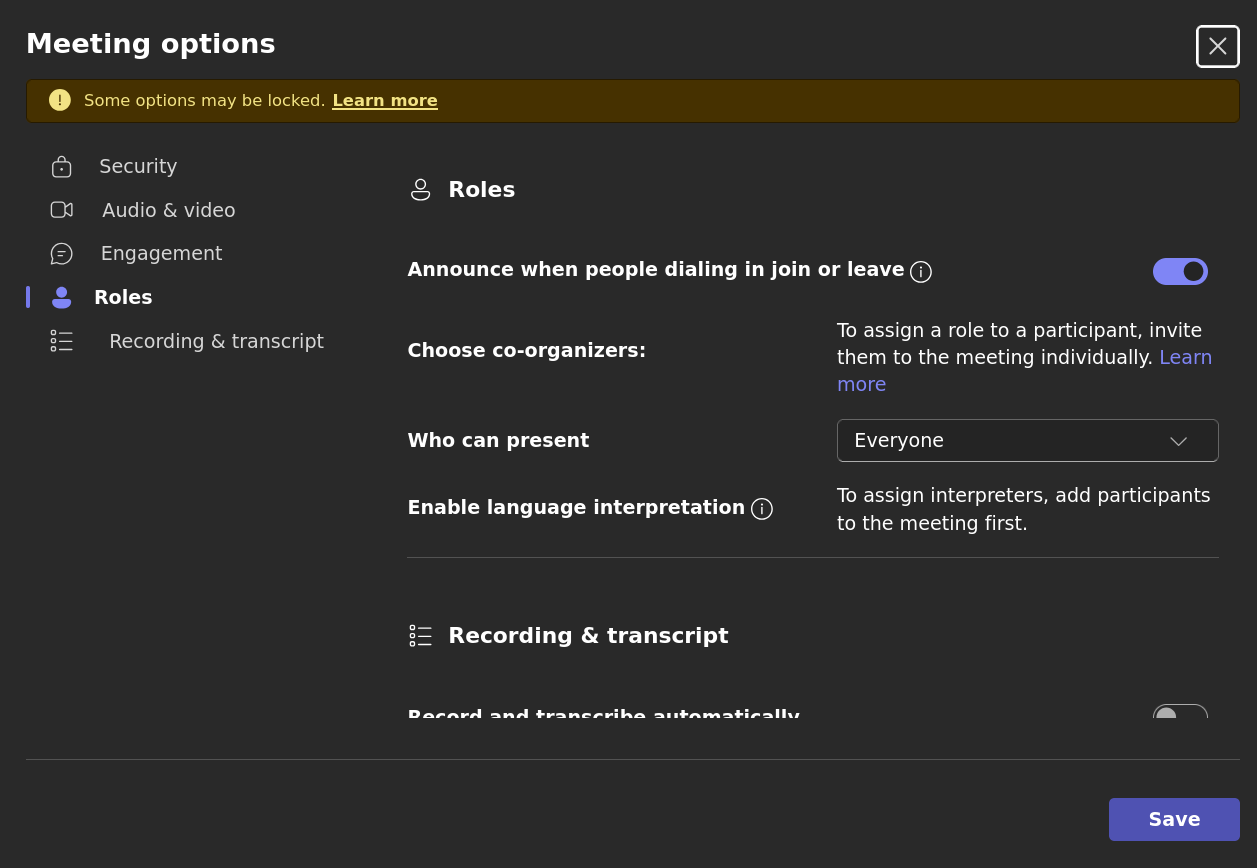
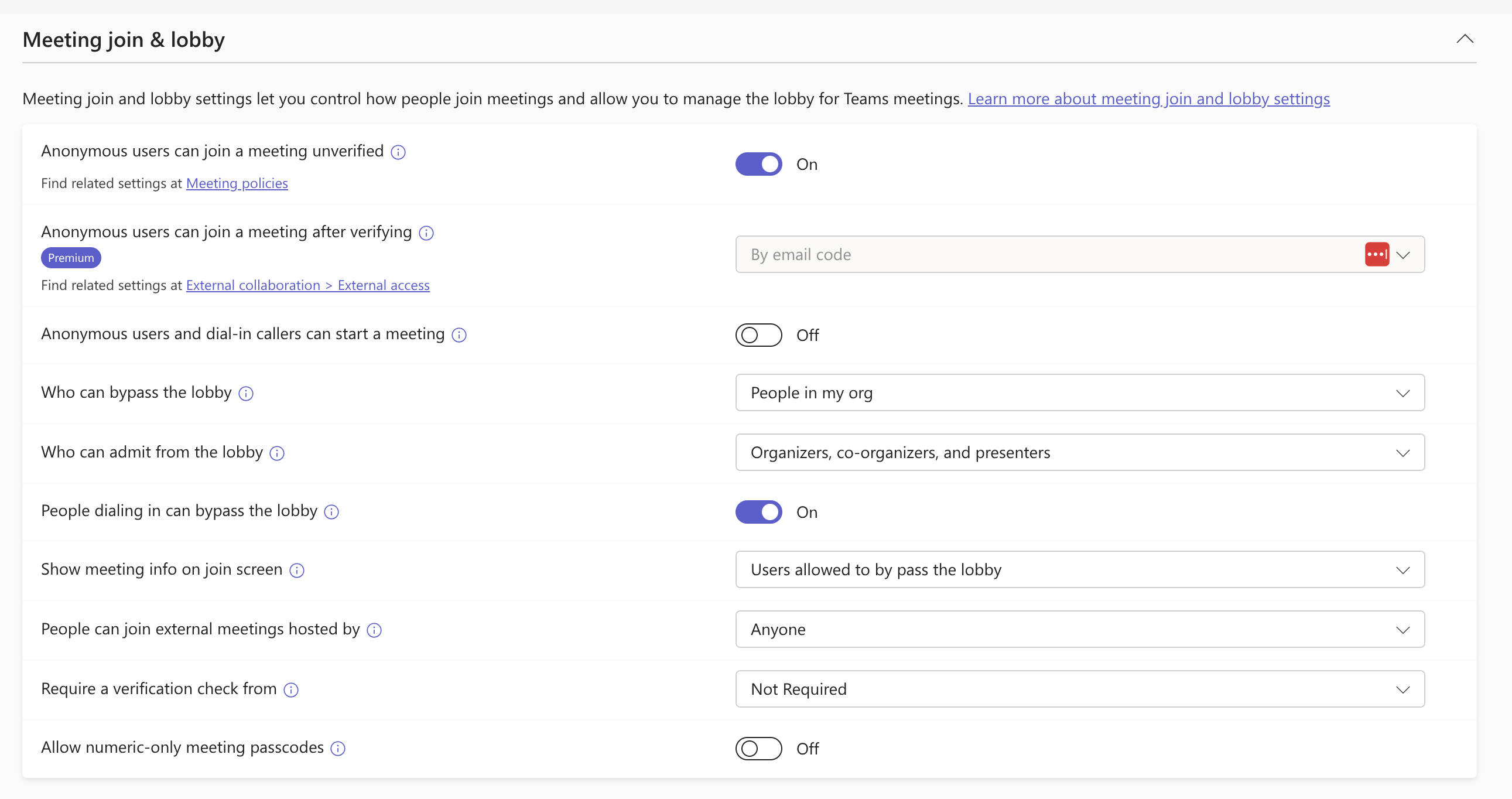
If this isn't the case, you can manually edit the meetings concerned. The default value of these settings can also be changed by a Teams administrator at https://admin.teams.microsoft.com/one-policy/settings/meeting.
Go to https://admin.teams.microsoft.com/one-policy/settings/meeting. Check that Anonymous users can join a meeting without being verified is enabled and that Require verification from is set to Not required.
Things to watch out for
- The assistant only works for Teams meetings created with a work or school Teams account (links of the form
https://teams.microsoft.com/l/meeting-join/...), not with a free Teams account (links of the formhttps://teams.live.com/meet...). - The
/pausecommand isn't available for meetings started from a Teams channel, since the assistant doesn't have access to the chat in that case.