Salesforce
| Who is this for? | Required permissions and licenses |
|---|---|
| • For administrators managing the company's integrations. | • Administrator rights on your Leexi and Salesforce accounts. • A Salesforce account on the Enterprise, Unlimited, Performance, or Developer edition. With a Professional edition, the API access add-on is required (contact your Salesforce Account Executive). The integration is not available with an Essentials account. |
How to use it
Prepare your Salesforce account
Before enabling the Leexi integration, we recommend enabling Shared Activities on your Salesforce account. When a meeting involves several customers, this lets us create a single note linked to each customer.
Add the integration in Leexi
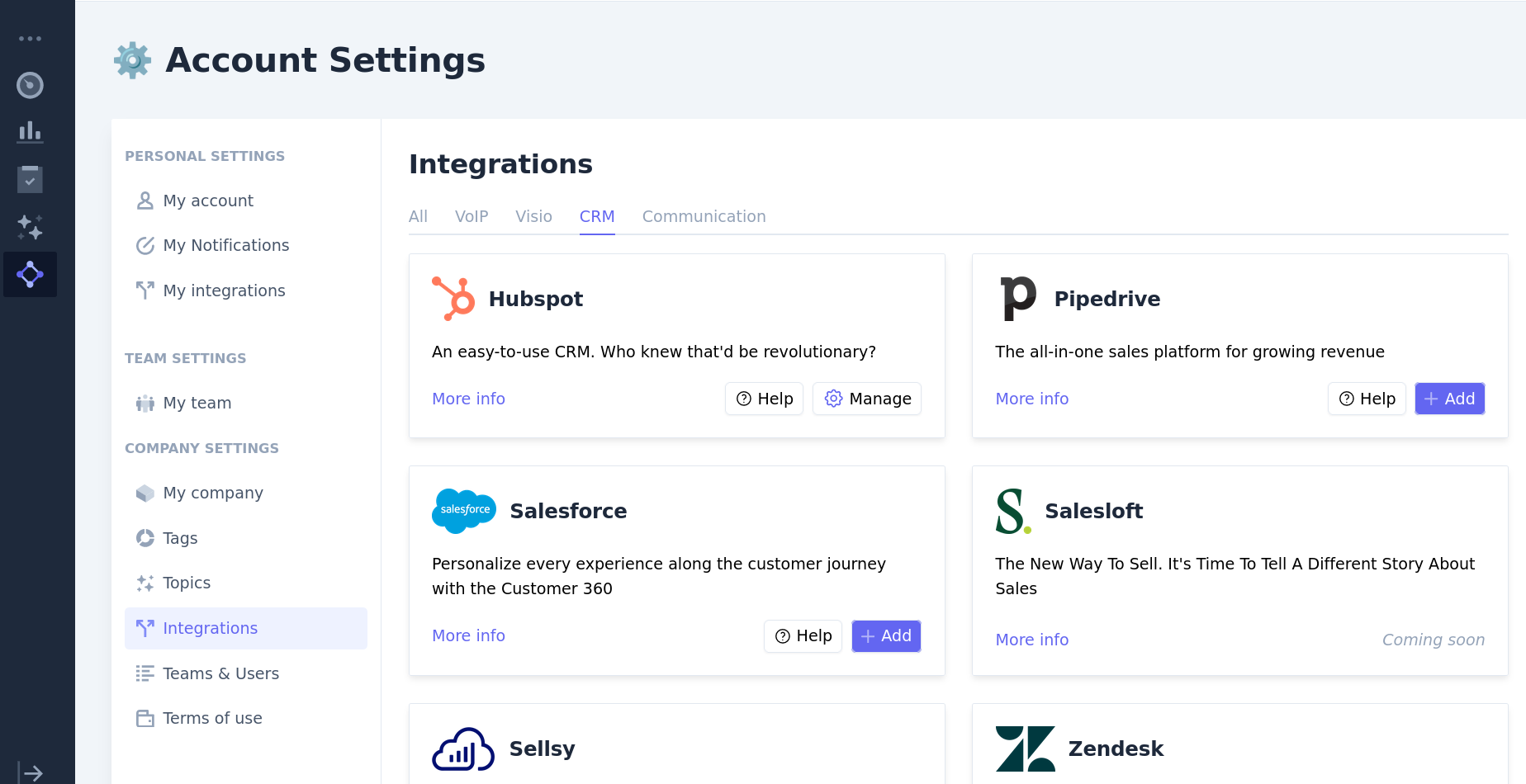
From your Leexi account, go to Settings → Company settings → Integrations, then click Add on the Salesforce card.
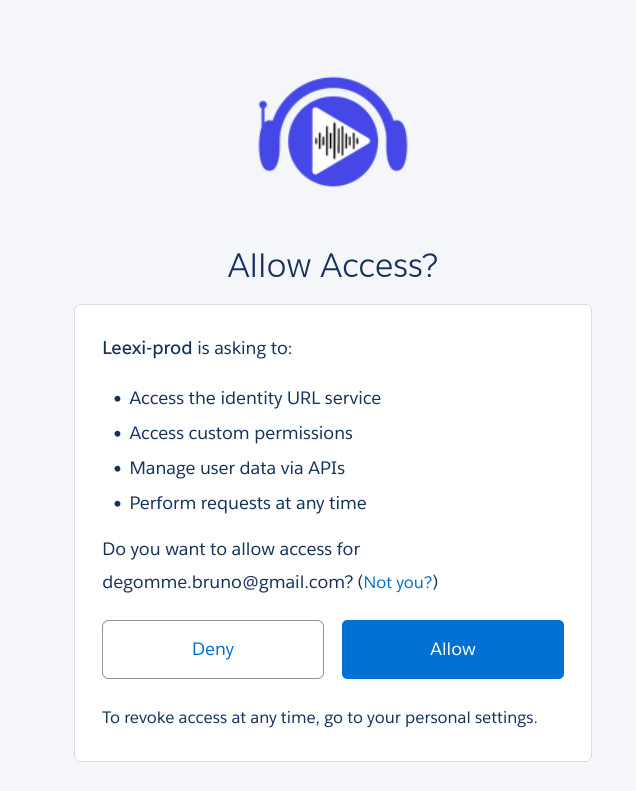
Accept the requested permissions
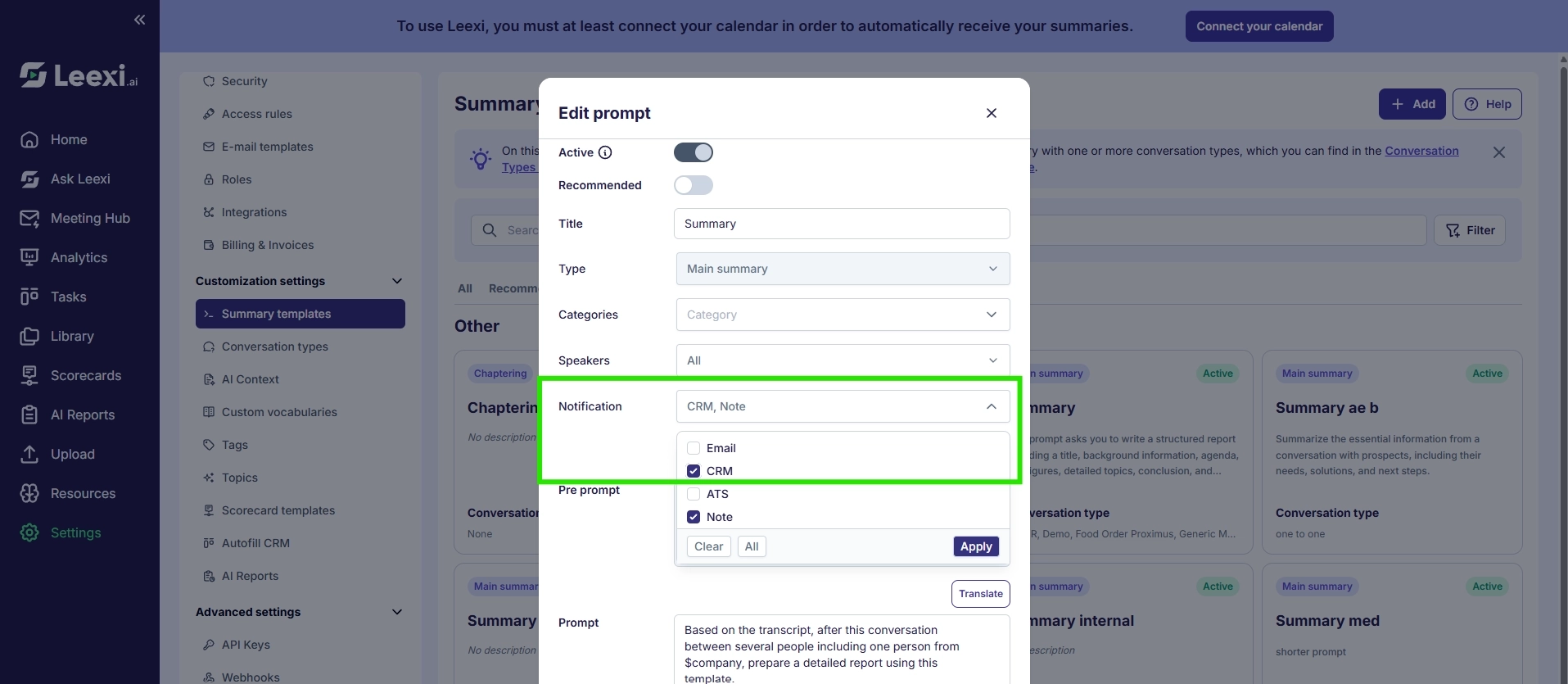
Enable sending summaries to the CRM
Go to Customization settings → Summary templates and check the "CRM" notification for each summary template you want to send to Salesforce. Without this step, you won't receive your summary as a note in the CRM.
Check the result in Salesforce
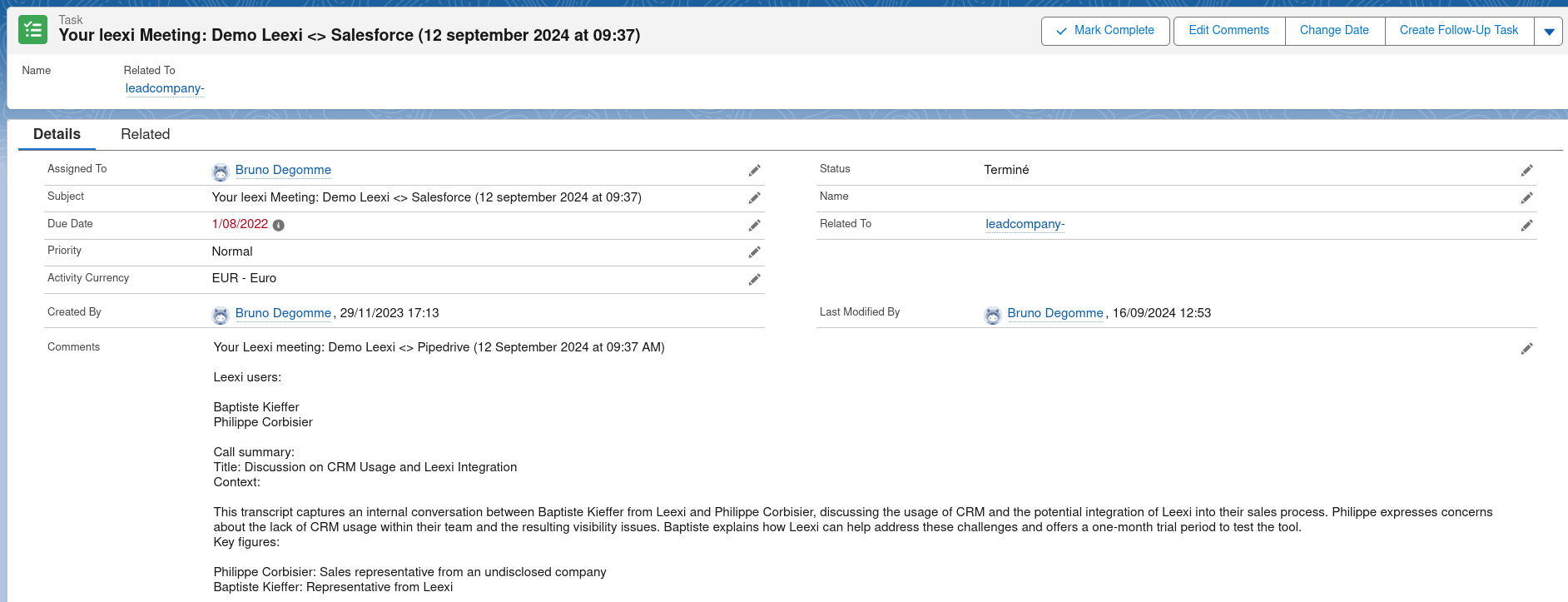
Done! Your CRM information is now synced with Leexi and you'll receive call notes on the relevant deals, customers, leads, and organizations. Here's the type of note visible in Salesforce.
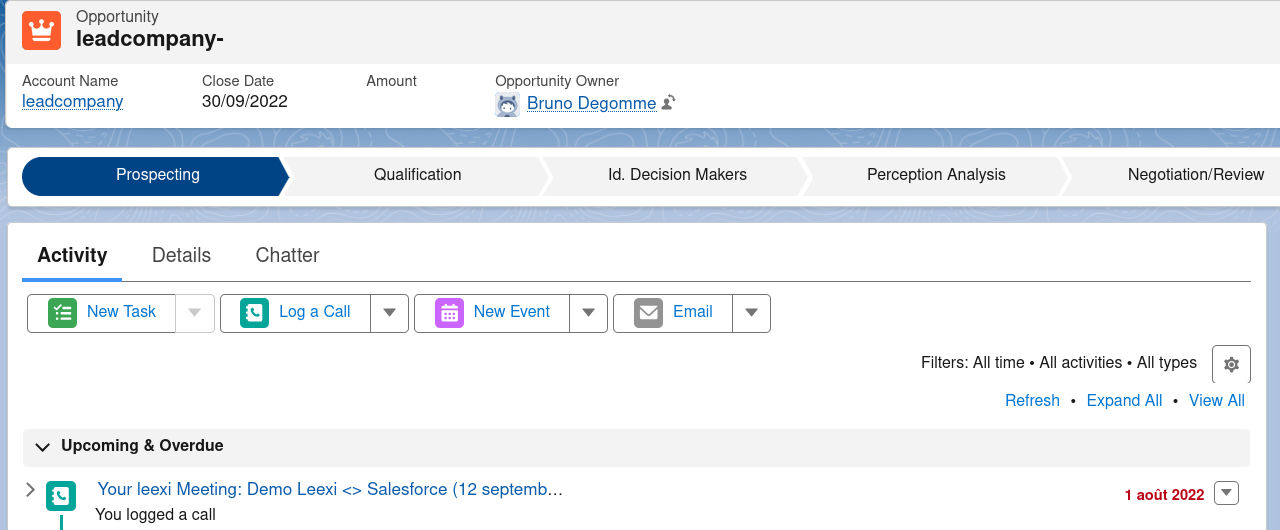
By clicking on the call title, you'll find the full summary.
Frequently asked questions
Leexi analyzes all deals linked to the call's contact and applies the following rules to determine the primary deal:
- Priority 1: the deal owner matches the call owner.
- Priority 2: if several deals exist, we select the most recent one (by creation date).
Leexi keeps only one contact per email address or phone number, even if duplicates exist in your CRM. We take into account the most recently created or modified contact.
If you merge records in your CRM, Leexi automatically syncs the data every 15 minutes to reflect the update.
- Case 1: if the CRM allows assigning an owner to the note, Leexi assigns it to the call owner (provided the Leexi account is properly linked to a CRM user).
- Case 2: if the CRM doesn't support this customization, the note is assigned to the user who enabled the integration.
Salesforce objects have a CreatedBy field and an Owner field. The CreatedById field is generated automatically by Salesforce and we cannot configure it: it always corresponds to the user who enabled the Salesforce integration. However, notes/tasks also have an Owner attribute, which we configure and which corresponds to the relevant user. Use the Owner field rather than CreatedById when needed.
To display the actual owner, your Salesforce administrator can update the page layout to show the Owner field instead of Created By:
- Setup → Object Manager → [Object] → Page Layouts
- Edit the layout → on the related list, click the wrench icon → remove "Created By" and add "Owner" → Save.
Things to watch out for
- The integration requires a Salesforce edition with API access: Enterprise, Unlimited, Performance, or Developer (API add-on required on Professional, not possible on Essentials).
- The CreatedBy field on notes/tasks always corresponds to the user who enabled the integration; refer to the Owner field to know the actual owner.