CRM
HubSpot
Connect HubSpot to Leexi to automatically send your call notes to the relevant contacts, deals, and companies.
| Who is this for? | Required permissions and licenses |
|---|---|
| • For administrators managing the company's integrations. | • Administrator rights on your Leexi and HubSpot accounts. • License required: depending on your plan, check availability in Settings > Integrations. |
How to use it
Add the integration in Leexi
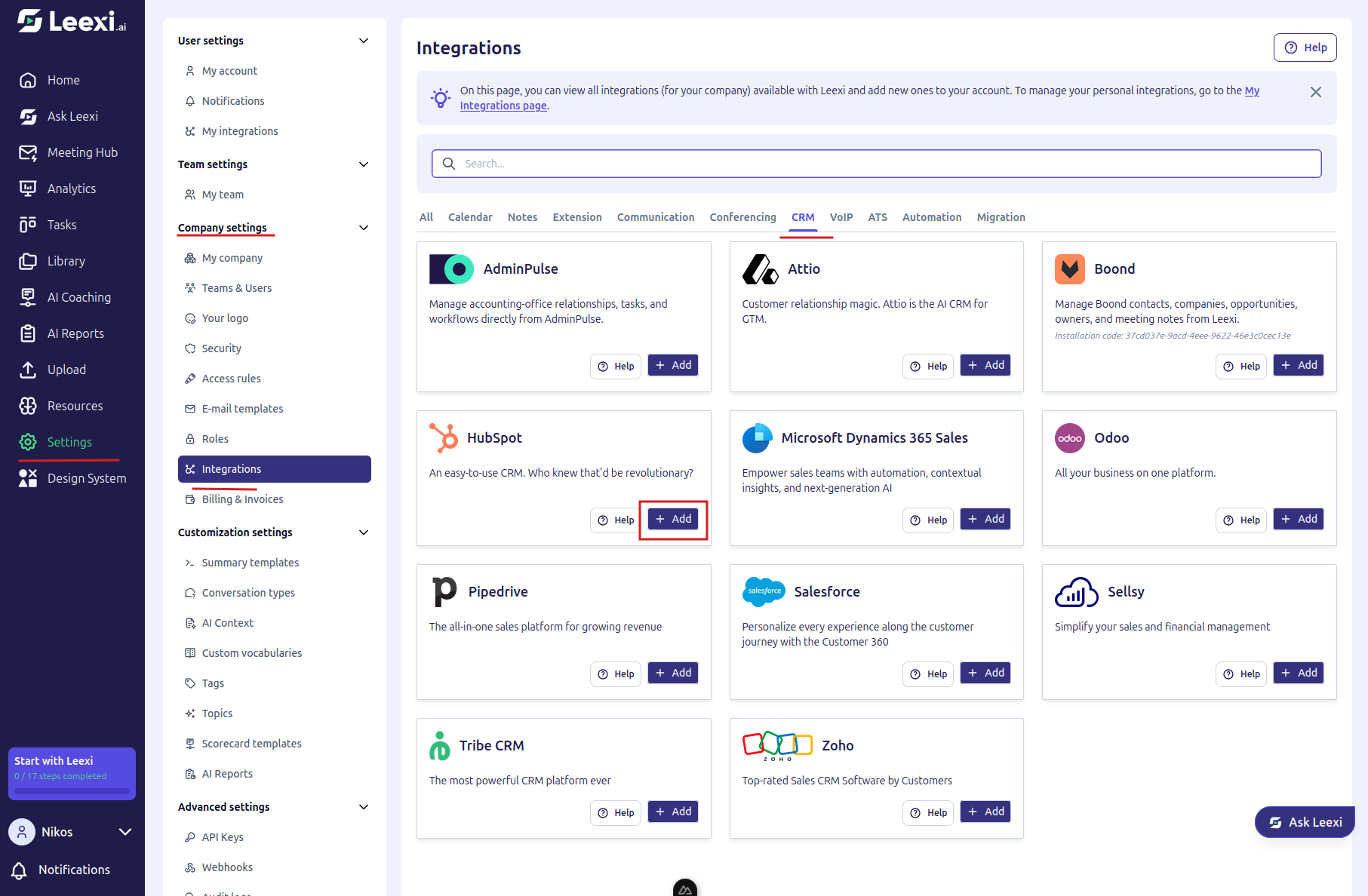
From your Leexi account, go to Settings → Company settings → Integrations, then click Add on the HubSpot card.
Connect the application
Click Connect App on the HubSpot authorization screen.
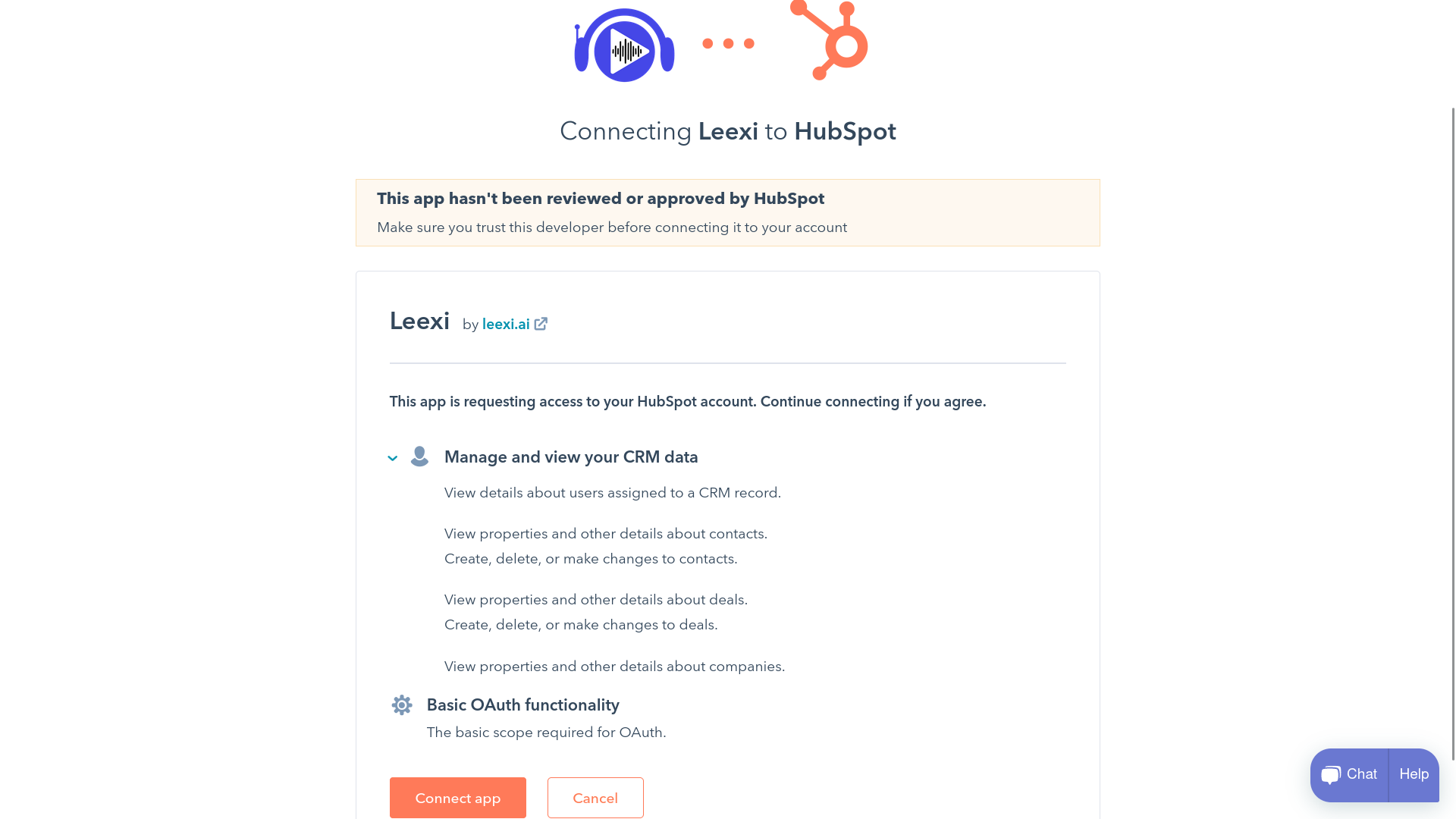
You're then redirected to the Leexi integrations page.
Verify the user linking
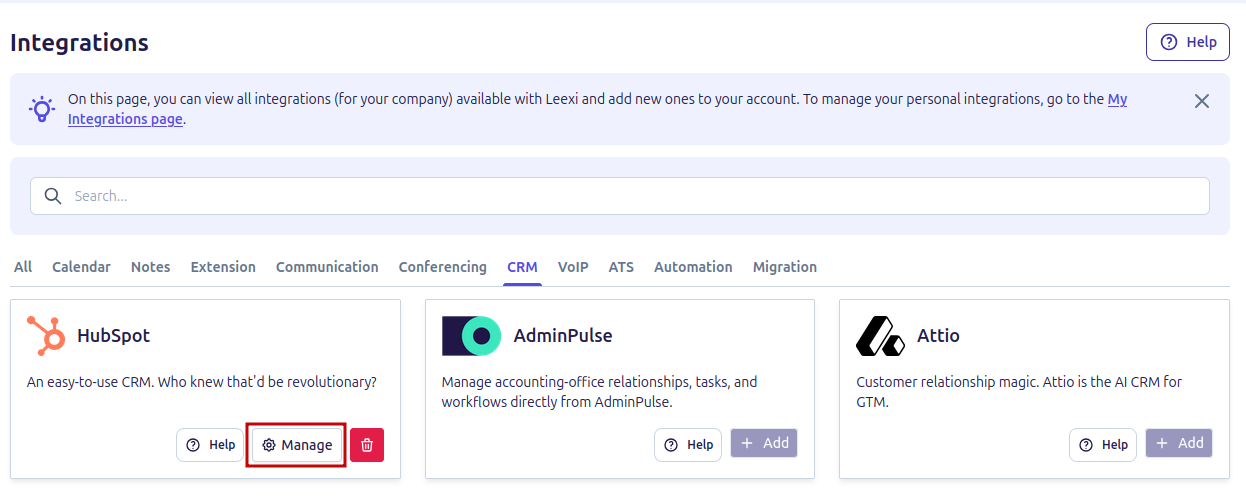
Click the Manage button on the integration and check that your Leexi users are properly linked to the corresponding HubSpot users.
Enable sending summaries to the CRM
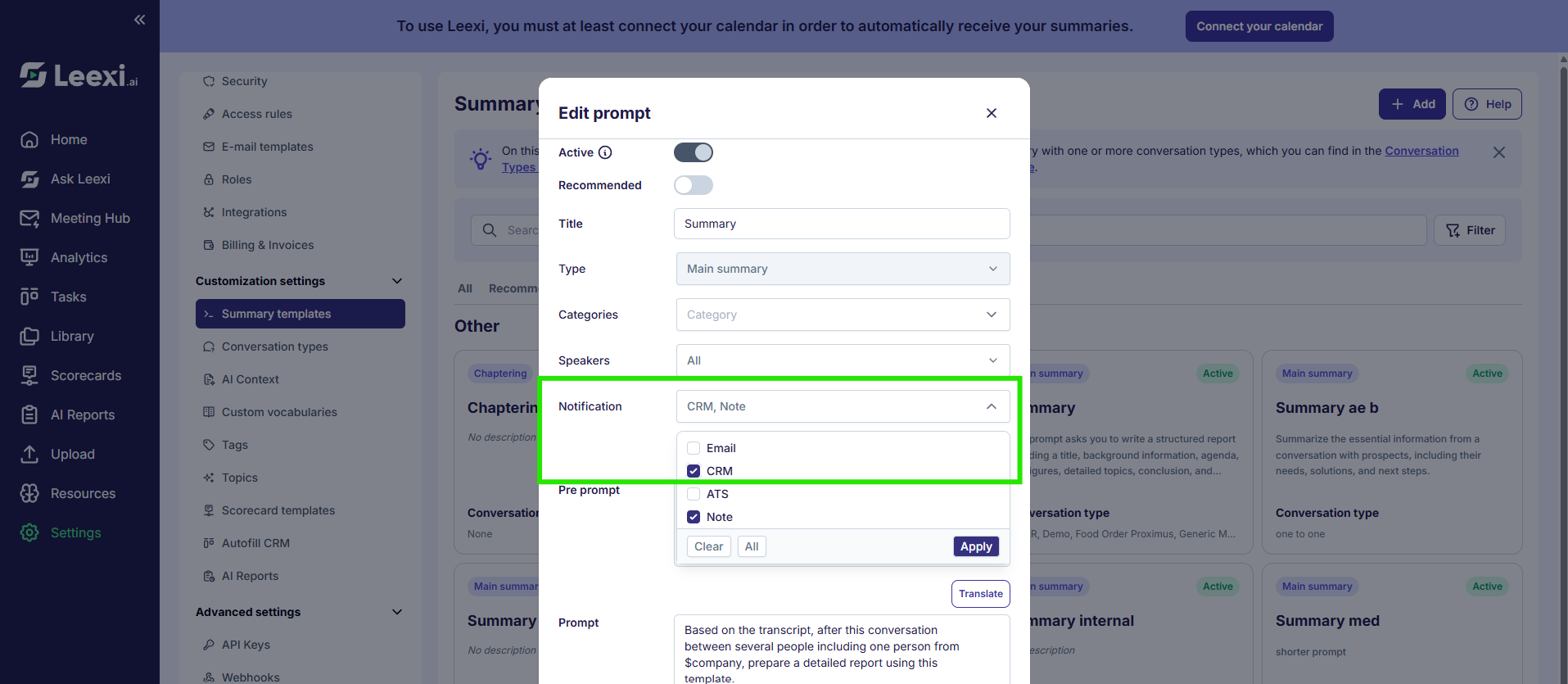
Go to Customization settings → Summary templates and check the "CRM" notification for each summary template you want to send to HubSpot. Without this step, you won't receive your summary as a note in the CRM.
Check the result in HubSpot
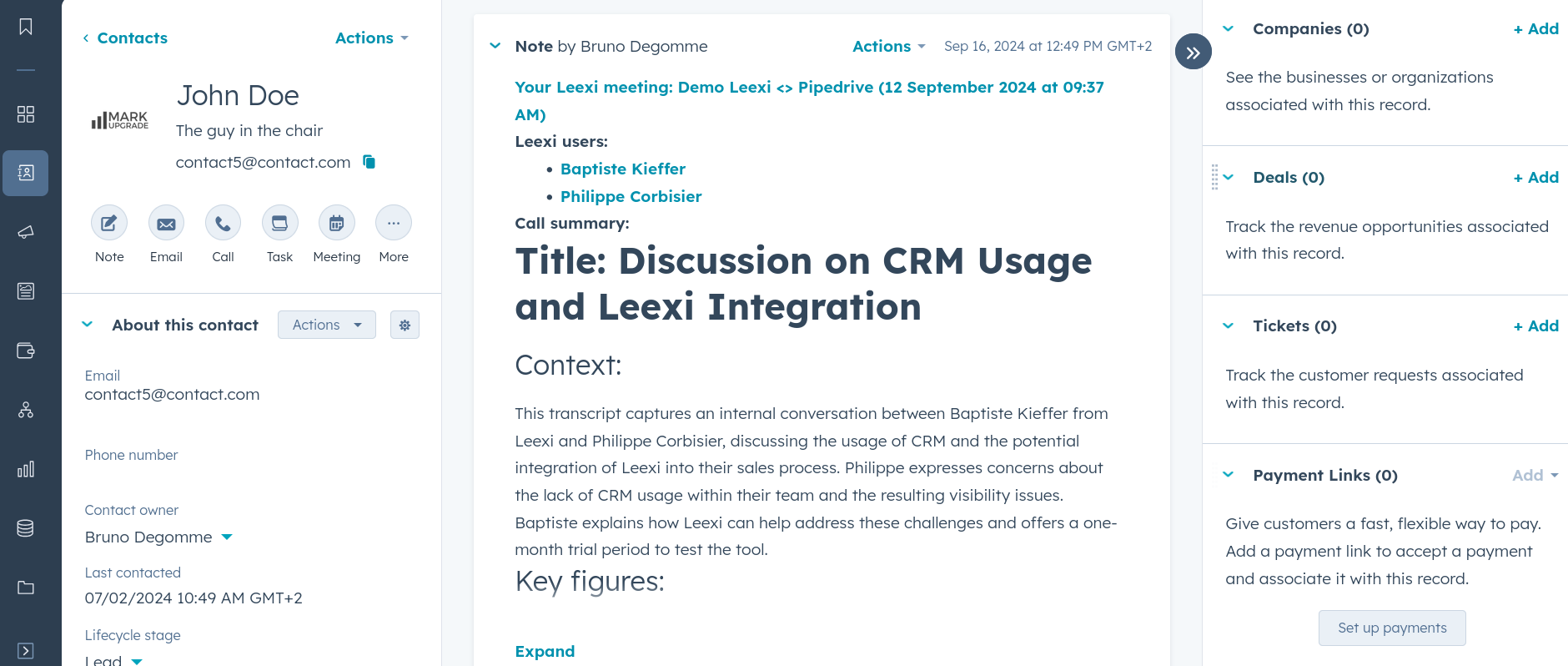
Done! Your CRM information is now synced with Leexi and you'll receive call notes on the relevant deals, customers, leads, and organizations. Here's the type of note visible in HubSpot.
Frequently asked questions
This is probably due to insufficient viewing permissions for those users in HubSpot. They may be limited to viewing objects that belong to them or to their team. Follow these instructions to update their viewing permissions. Note that the note owner is the owner of the call or meeting.