Leexi in Teams
| Who is this for? | Required permissions and licenses |
|---|---|
| • Teams administrators deploying Leexi AI for their entire organization. • End users who want to use Leexi directly in Teams (the app is then approved by an administrator). | • Required license: depending on your plan, check availability in Settings > Integrations. • A Microsoft Teams administrator must approve the app and grant admin consent for its permissions. |
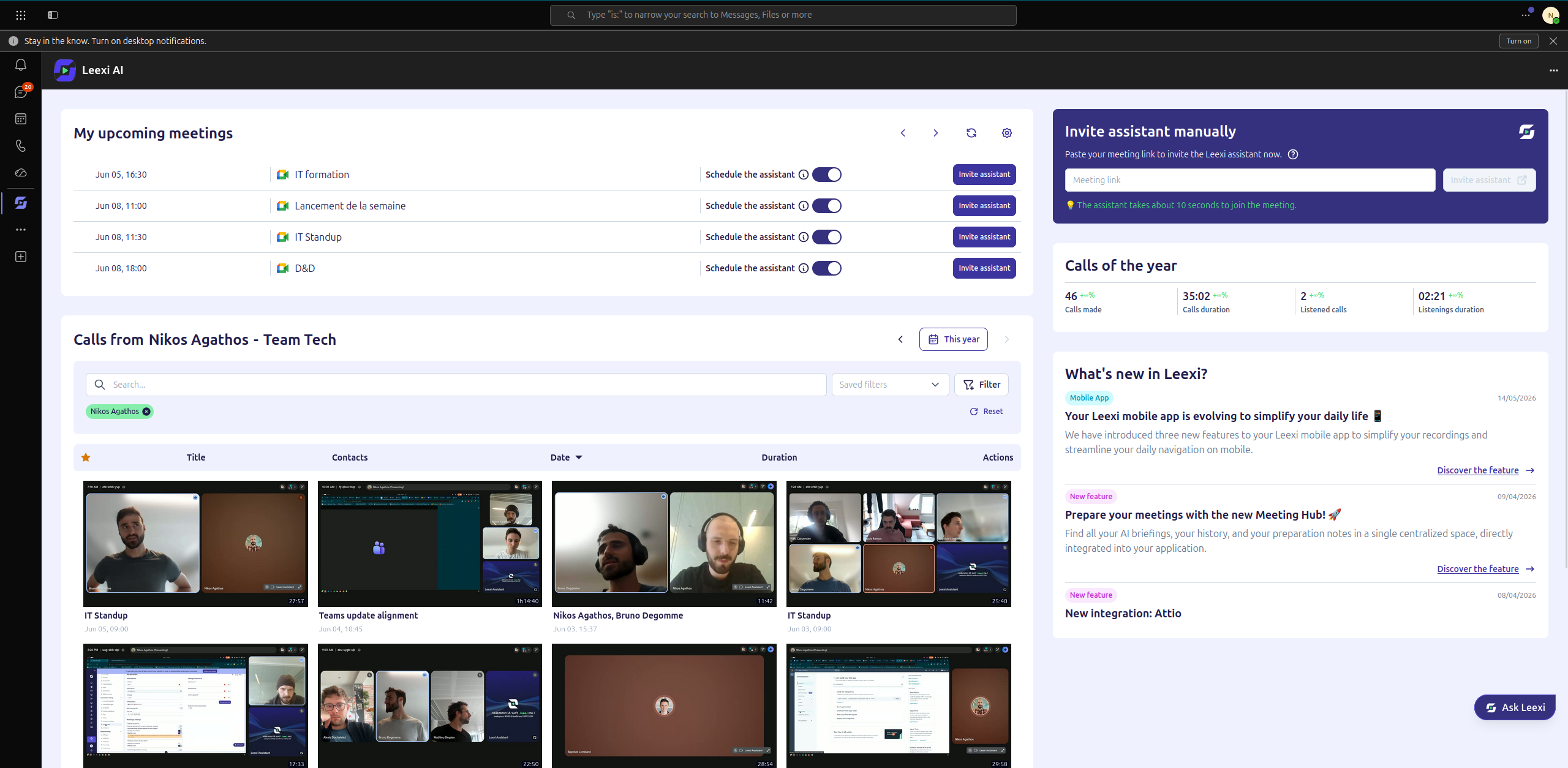
The steps depend on your role in your organization: the administrator sections cover deploying Leexi for the entire organization, while the end-user section (see "Going further") covers recommending Leexi to your organization and pinning it.
How to use it
Add Leexi AI to your organization (administrator)
Go to https://admin.teams.microsoft.com, then navigate to Teams apps > Manage apps. In the top right of the page, open the Actions dropdown and click Upload new app.
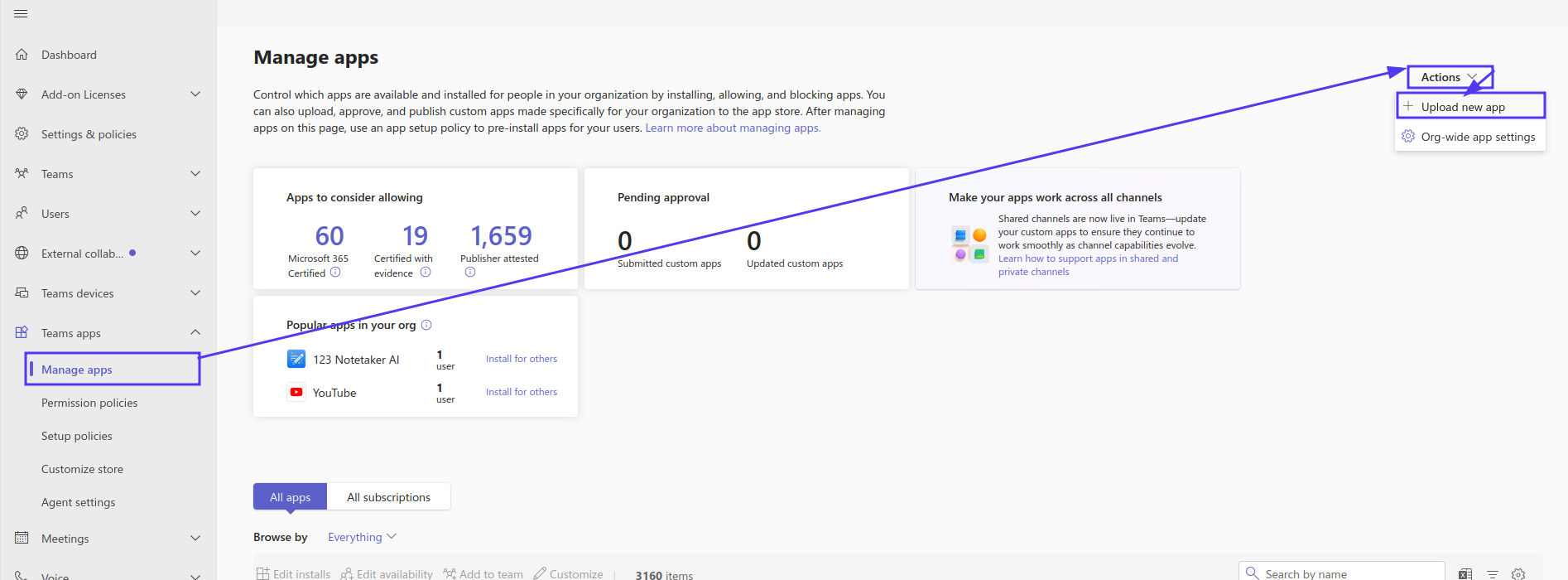
You need to import the Leexi AI.zip file (version 1.2.1) provided by Leexi, then follow the same steps as for an update (next step, starting from selecting the file).
Update Leexi AI to the latest version (administrator)
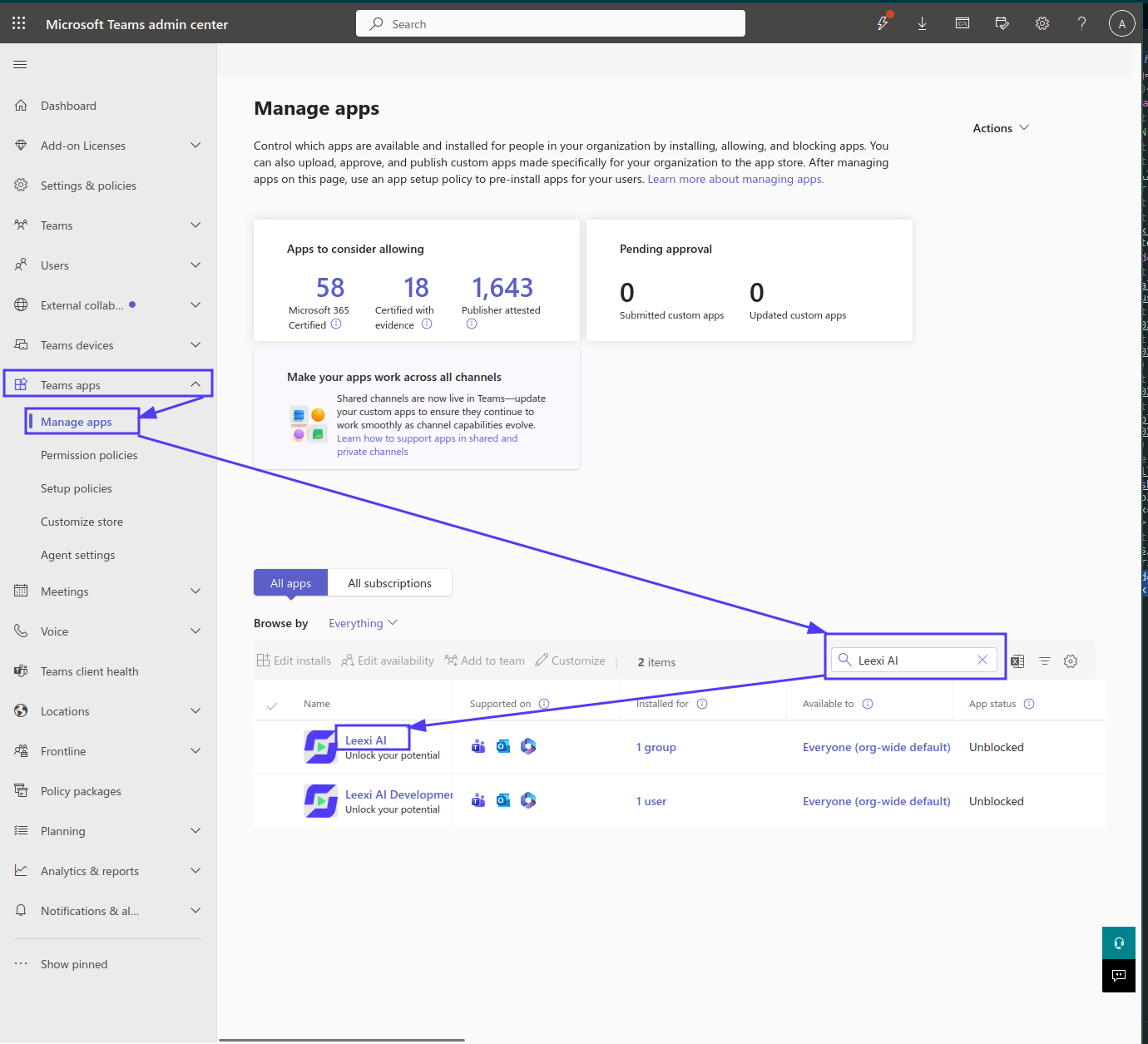
Go to https://admin.teams.microsoft.com, navigate to Teams apps > Manage apps, search for "Leexi AI" in the search bar and click its name.
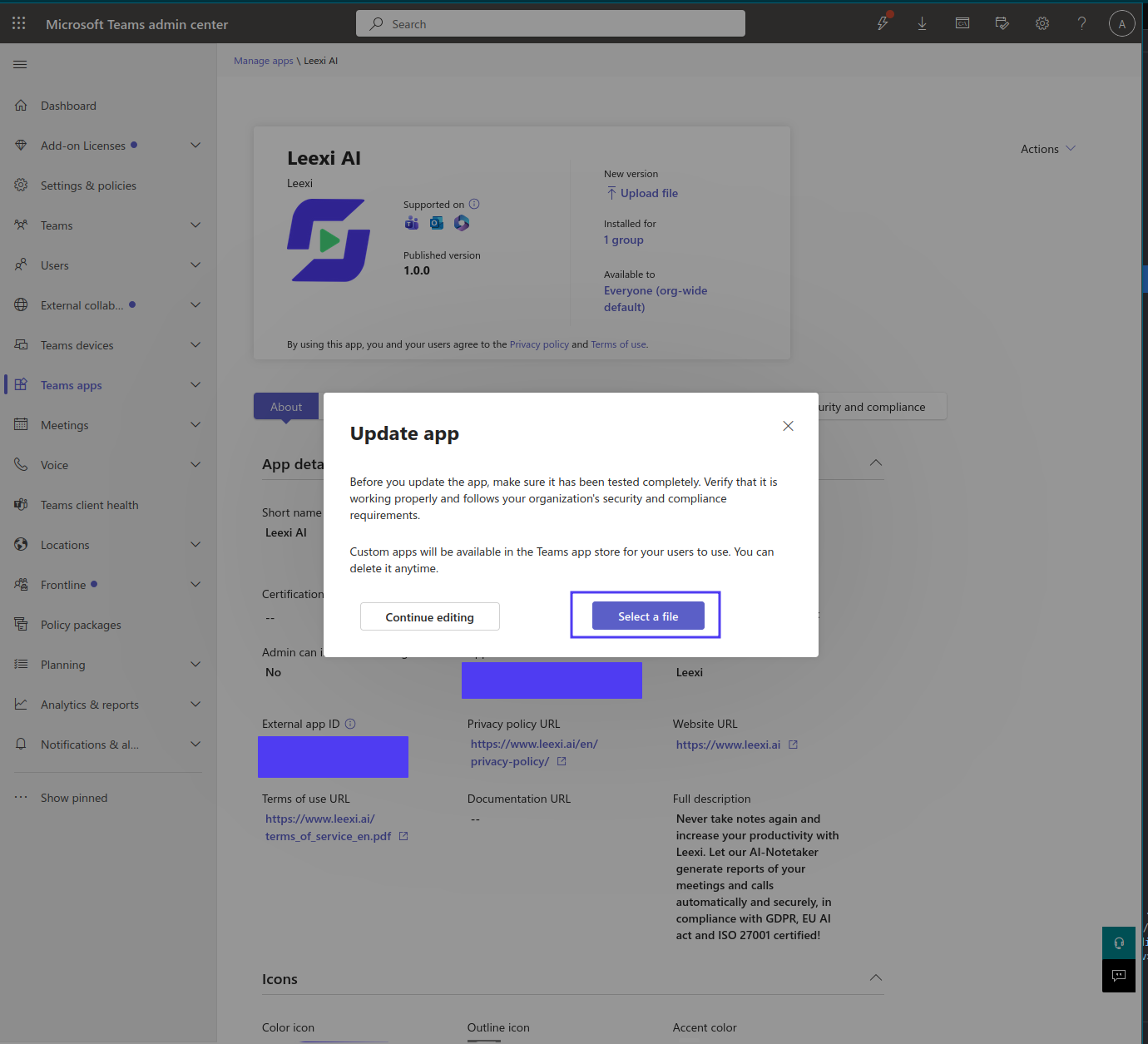
Then click the Upload file button (at the top, under "New version").
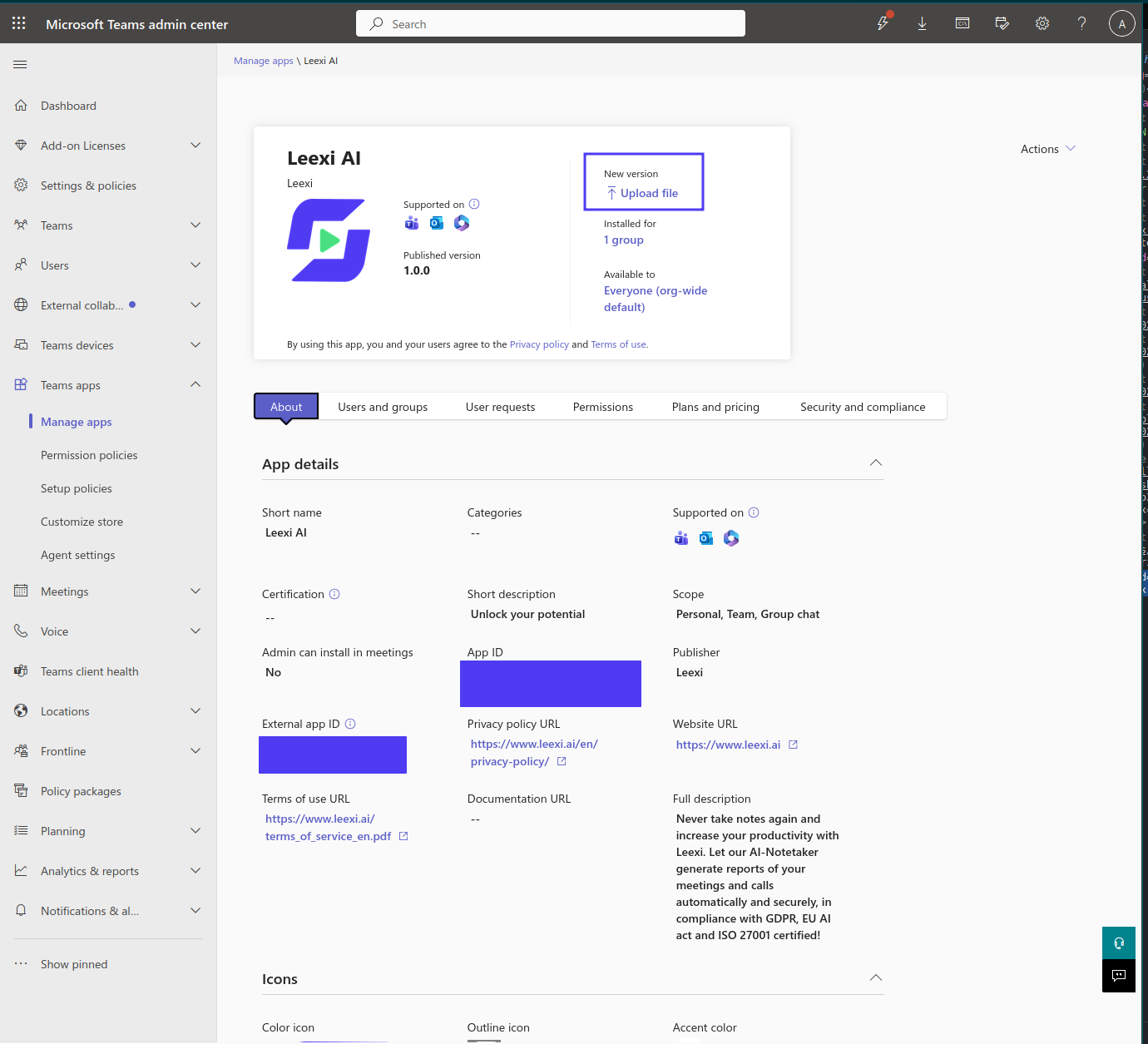
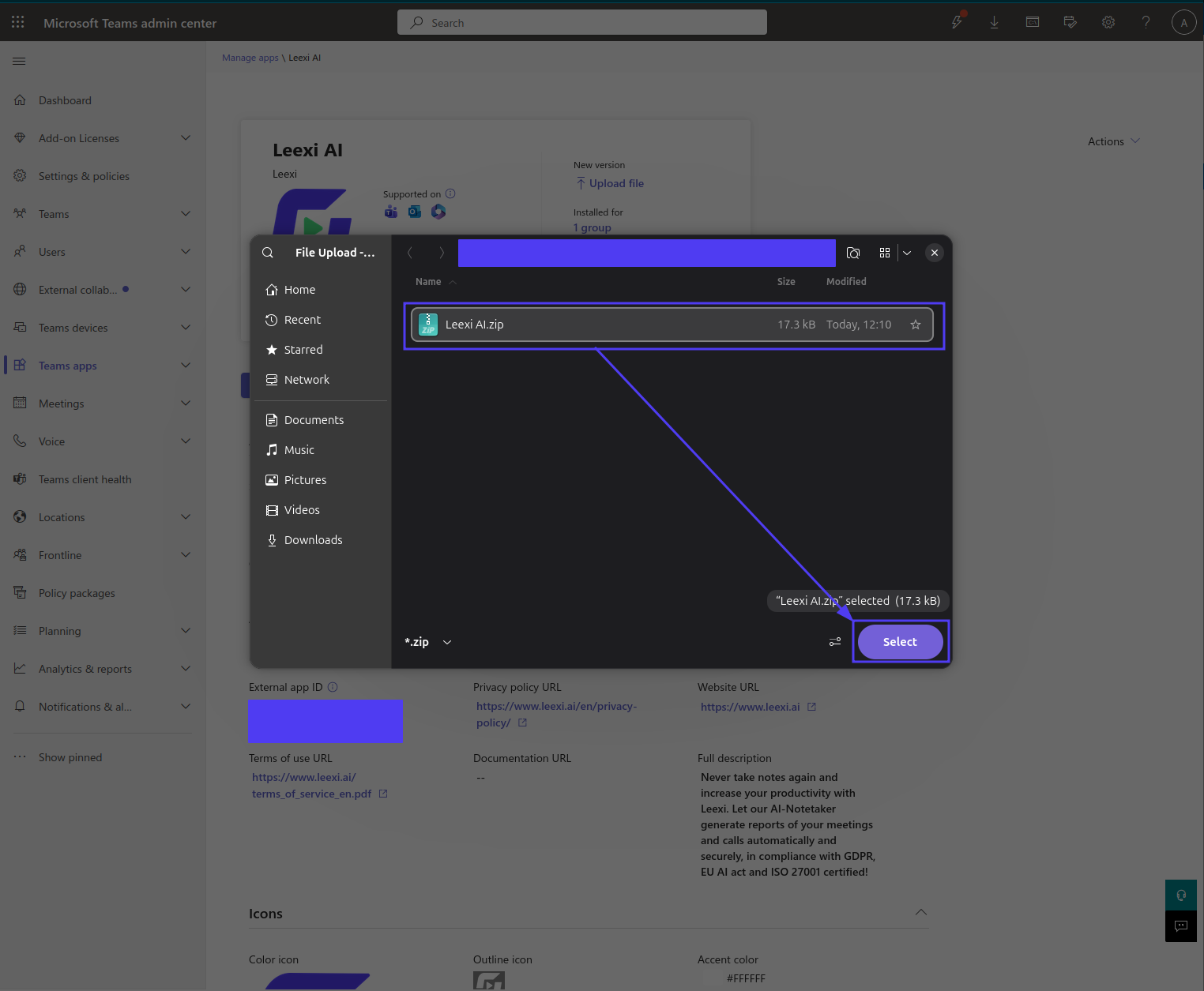
A window opens asking you to import a file: select the Leexi AI.zip file (version 1.2.1) provided by Leexi.
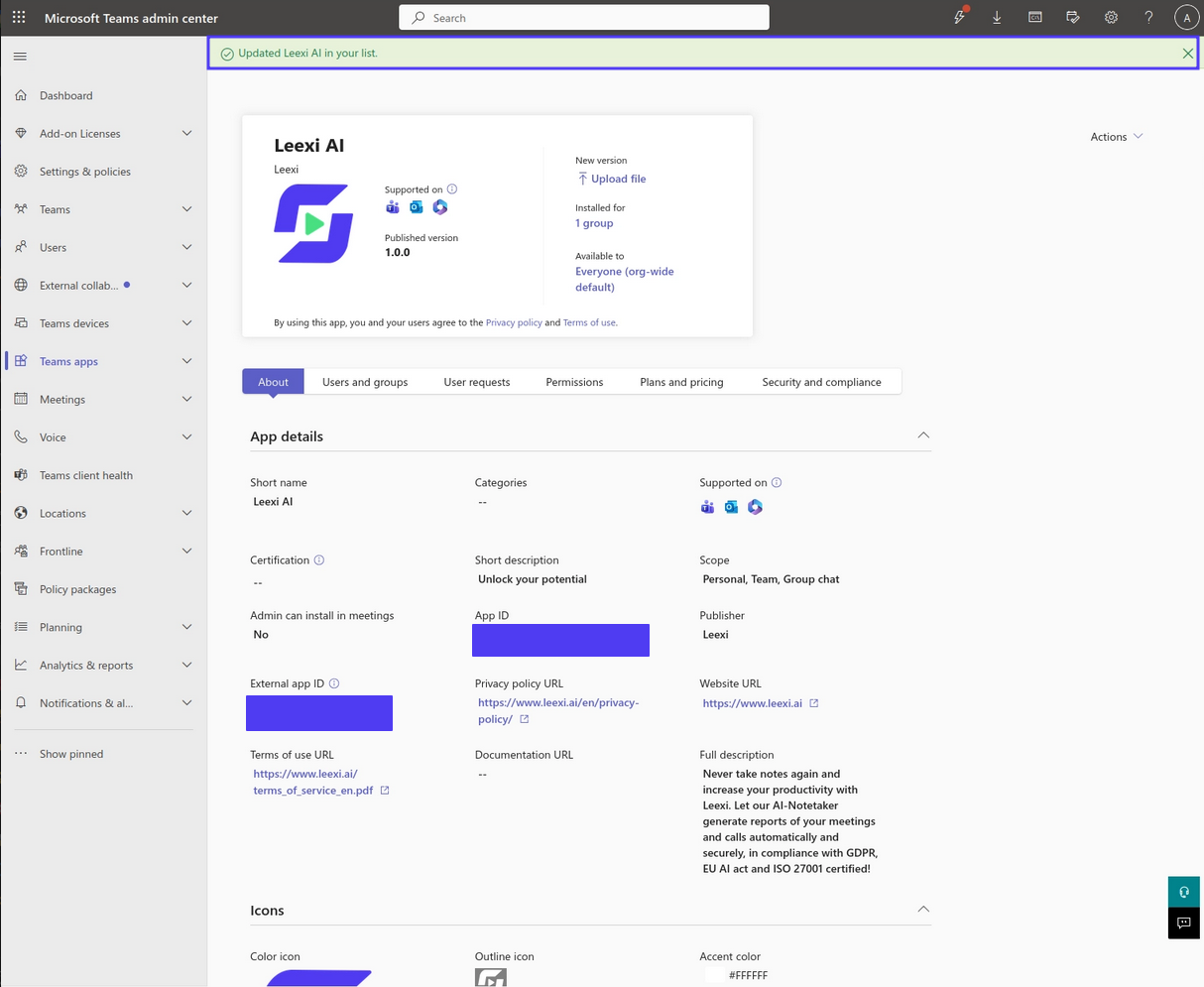
An indicator at the top of the page confirms "Updated Leexi AI in your list".
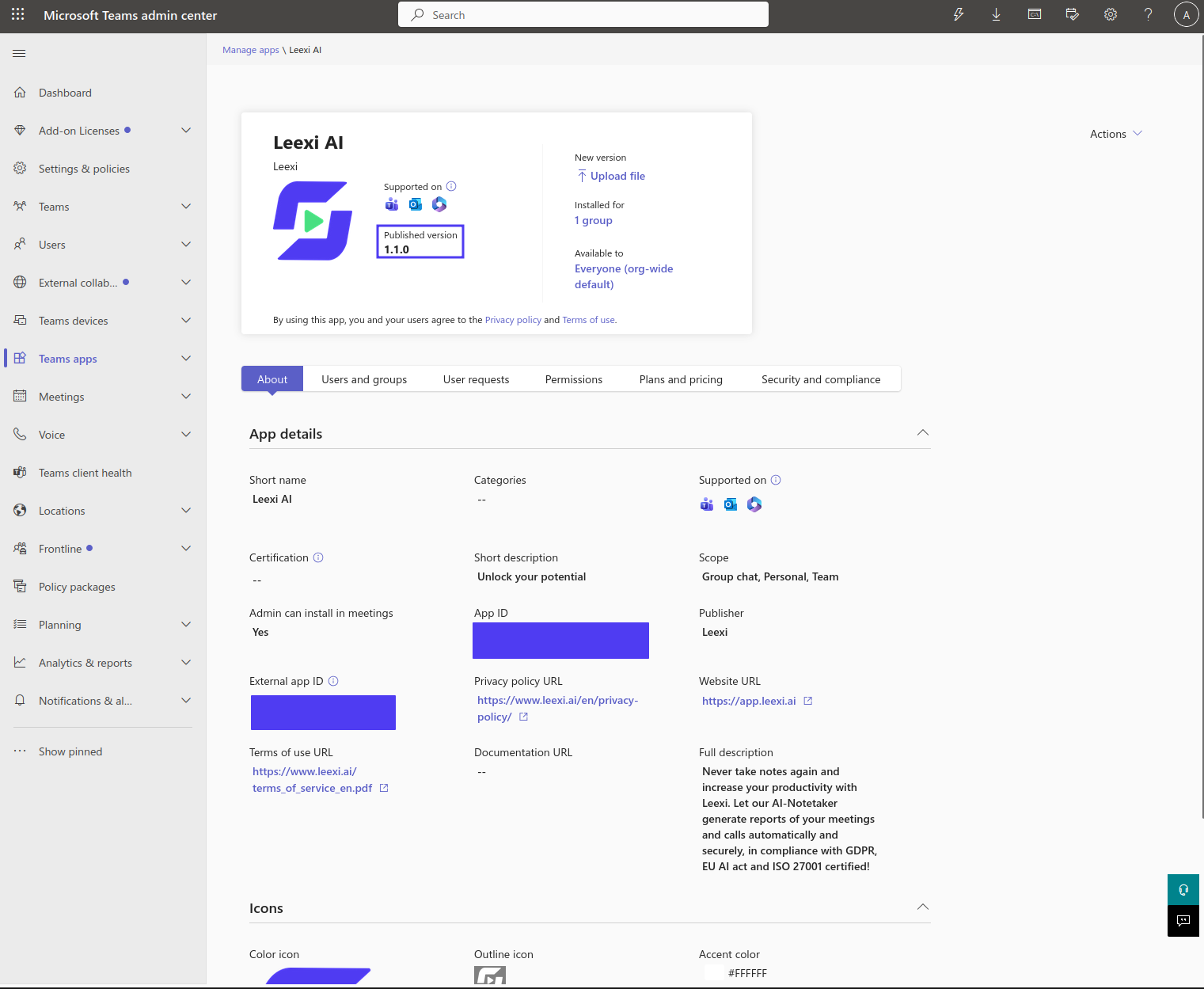
Note that the published version doesn't change immediately: reload the page to see it.
Grant admin consent
In the same view, click Grant admin consent to approve the app's permissions for your organization. This step is essential for the meeting side panel to work.
The Leexi side panel silently signs in each user via Teams single sign-on (SSO), then reads — on that user's behalf — basic meeting information (such as its join link) via Microsoft Graph, so the assistant can join the right call. Because this sign-in is silent, Teams cannot show a consent prompt to each user: an administrator must approve the permissions once for the entire organization. Without this, the meeting side panel shows a permissions error and the assistant cannot be invited.
You approve these permissions in your own Microsoft 365 tenant — you are not granting any access to Leexi's systems. Leexi is a multi-tenant app: when you click Grant admin consent, Microsoft automatically creates a local copy of the app — called an enterprise application — in your directory and records the approval there. Your administrator approves this local copy; they do not modify (and cannot modify) Leexi's original app registration, which resides in Leexi's tenant.
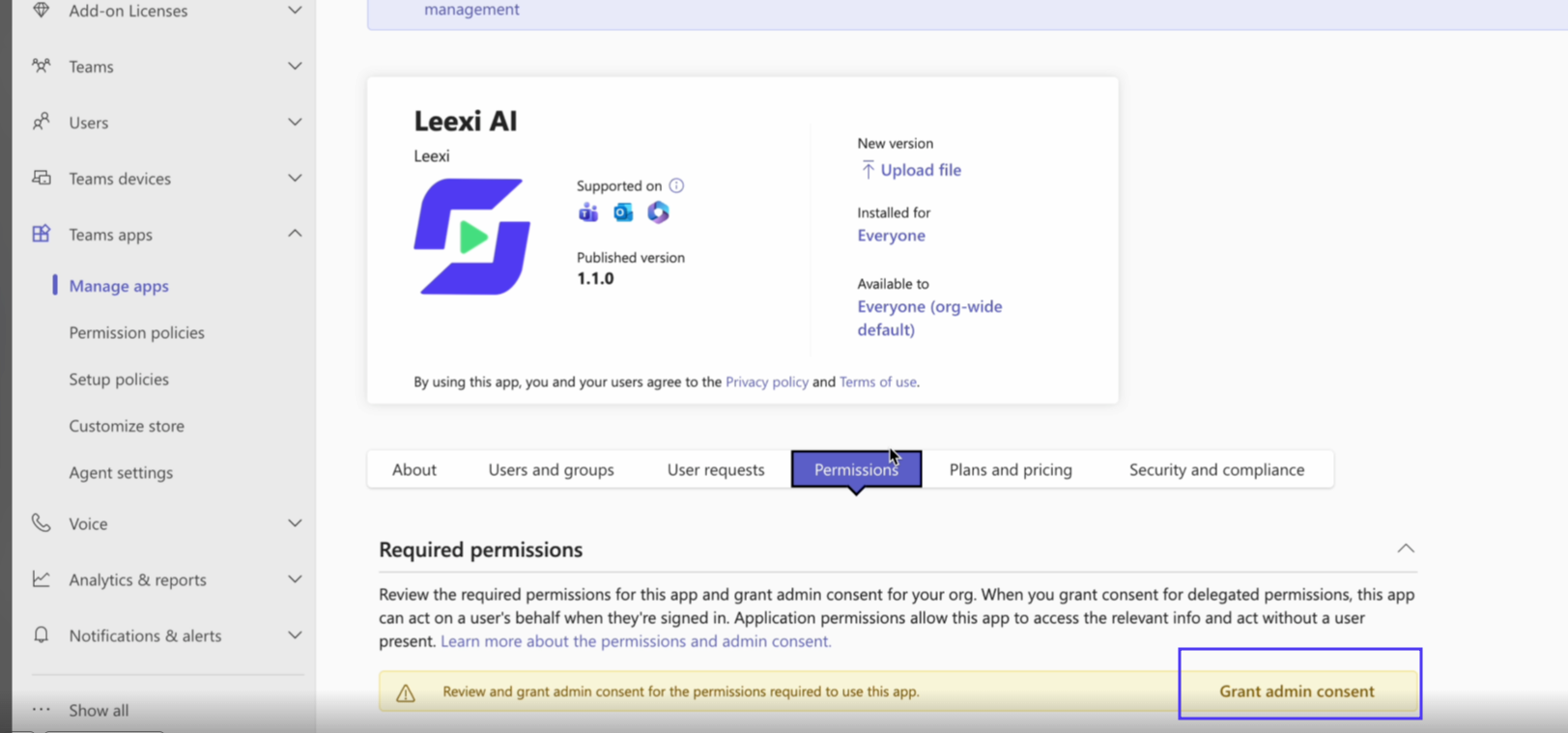
You now have access to a personal Leexi AI tab in the Teams home view, as well as a meeting tab (accessible from the top bar of a Teams meeting).
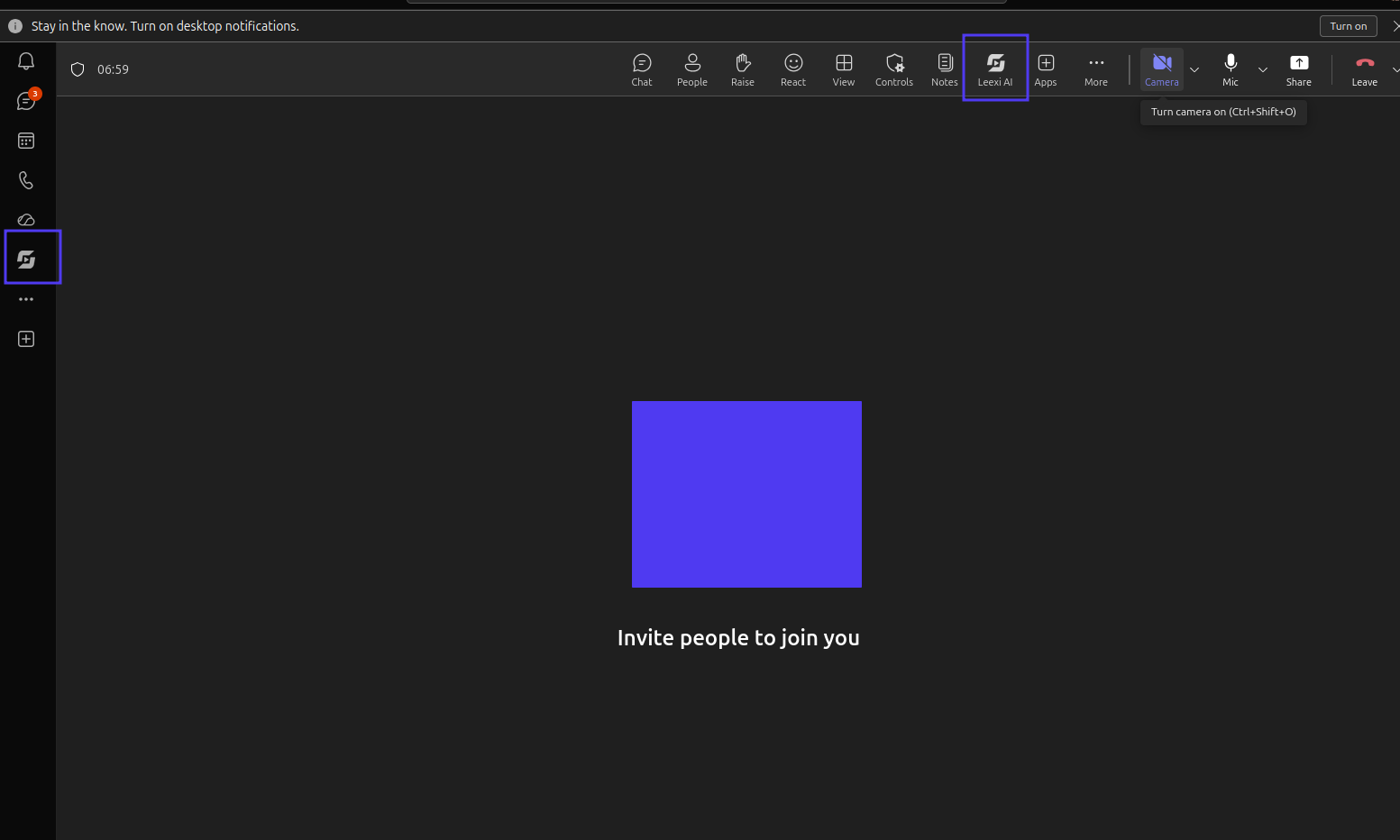
The update takes some time to propagate to the Teams users in your organization. Users who installed the previous version see a banner indicating that an updated version is available.
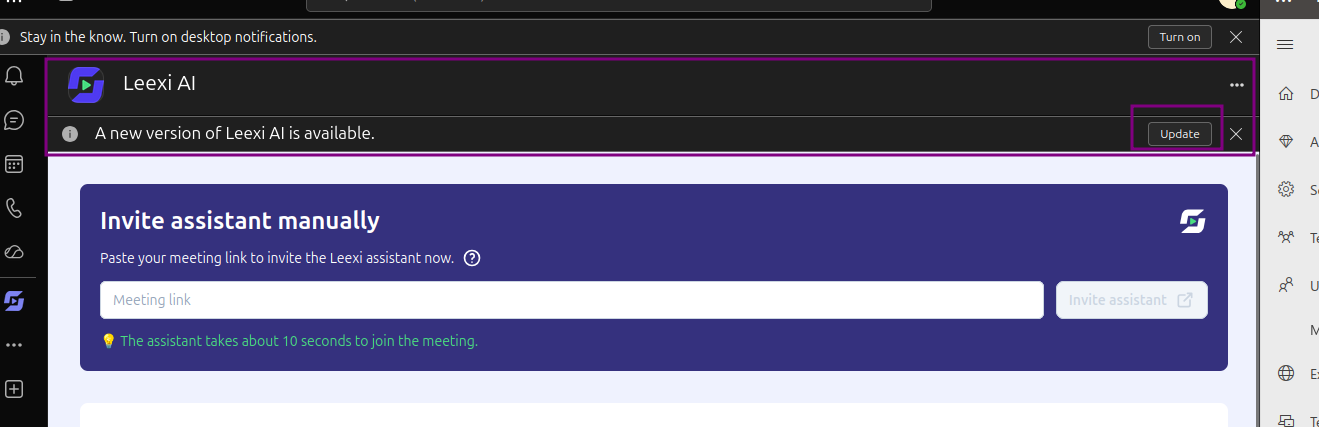
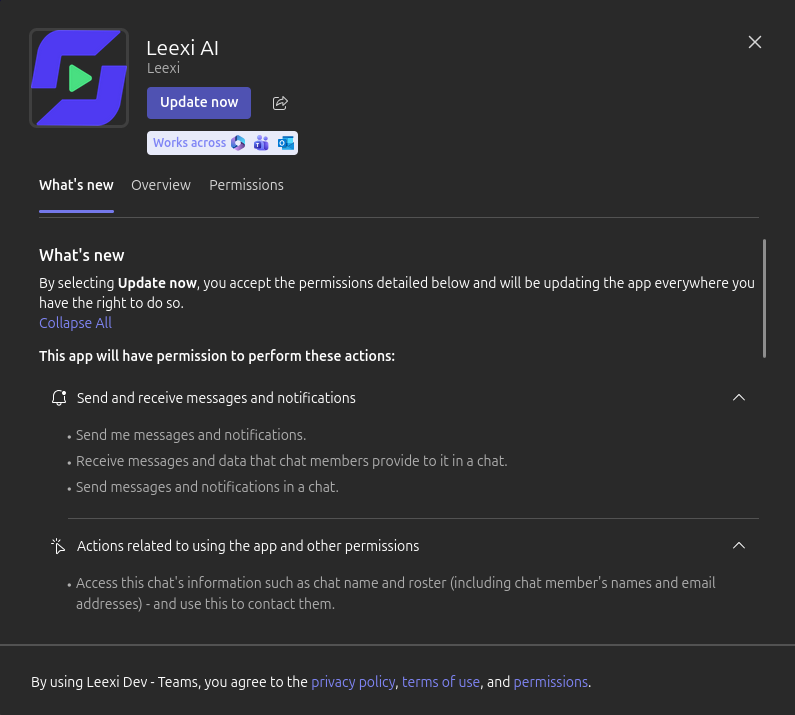
After clicking "Update", they can review the added permissions and then click "Update now".
Install Leexi AI for all your users (administrator)
The Teams admin portal lets you install the app for one or more users or groups. Navigate to admin.teams.microsoft.com, then Teams apps > Manage apps, select the Leexi AI app and click Manage installations. You can also choose to install the app for one or more teams.
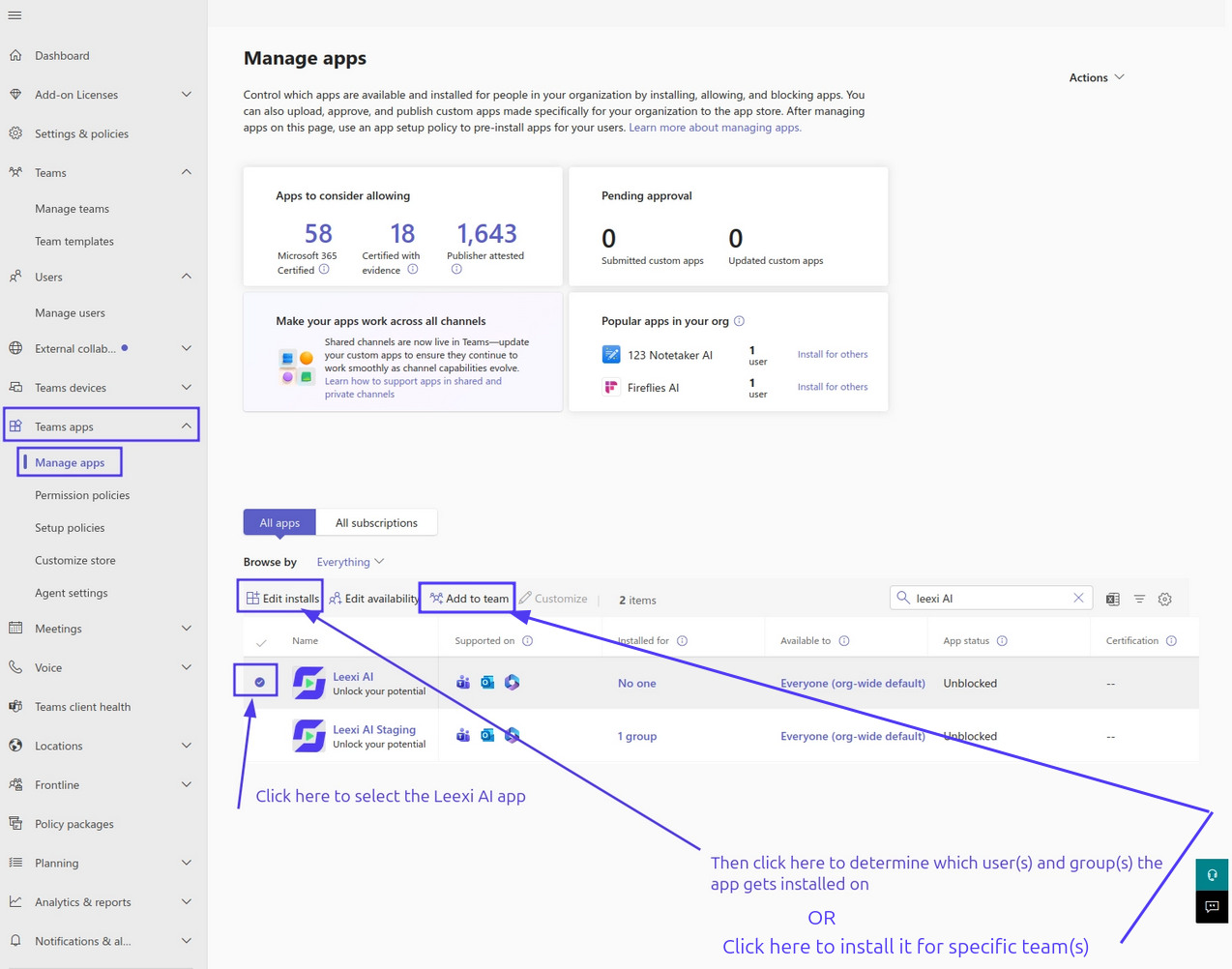
You reach a view where you select the users and/or groups, or the teams, for which Leexi AI will be installed.
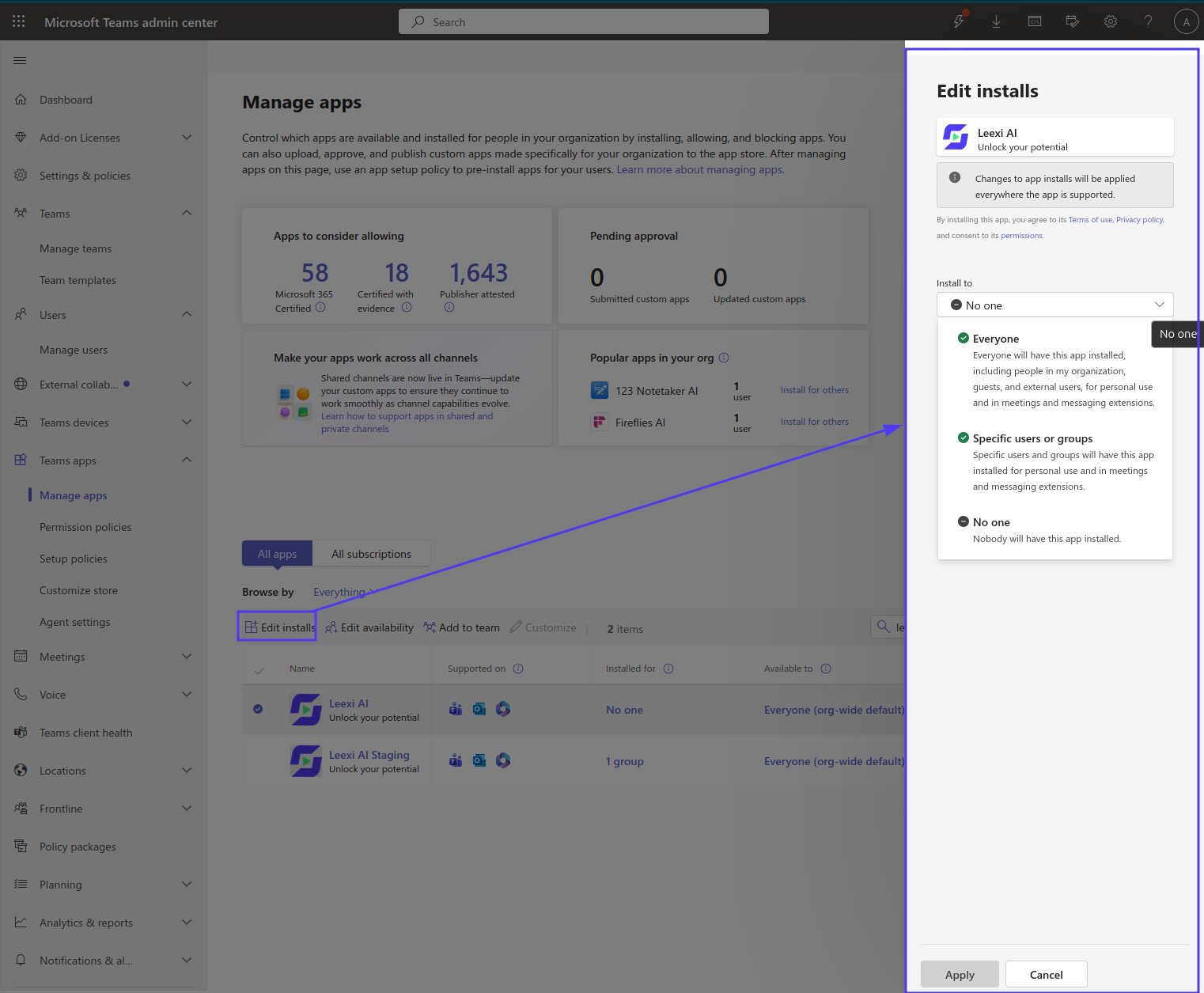
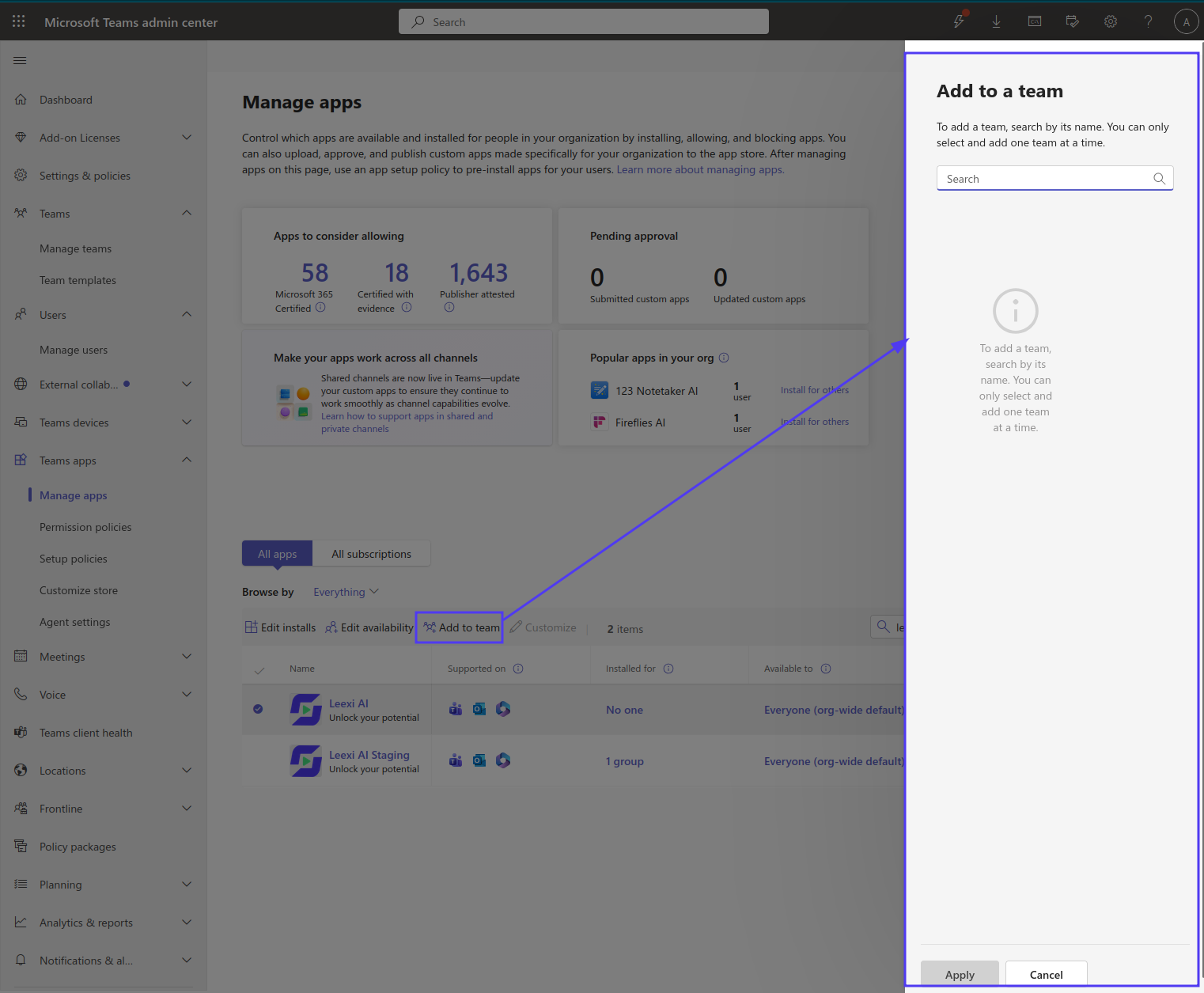
Click Apply to launch the installation of the Leexi AI app for the Teams users in your organization.
Pin Leexi AI for your users (administrator)
Your users can pin Leexi AI in the sidebar of their home view as a personal app:
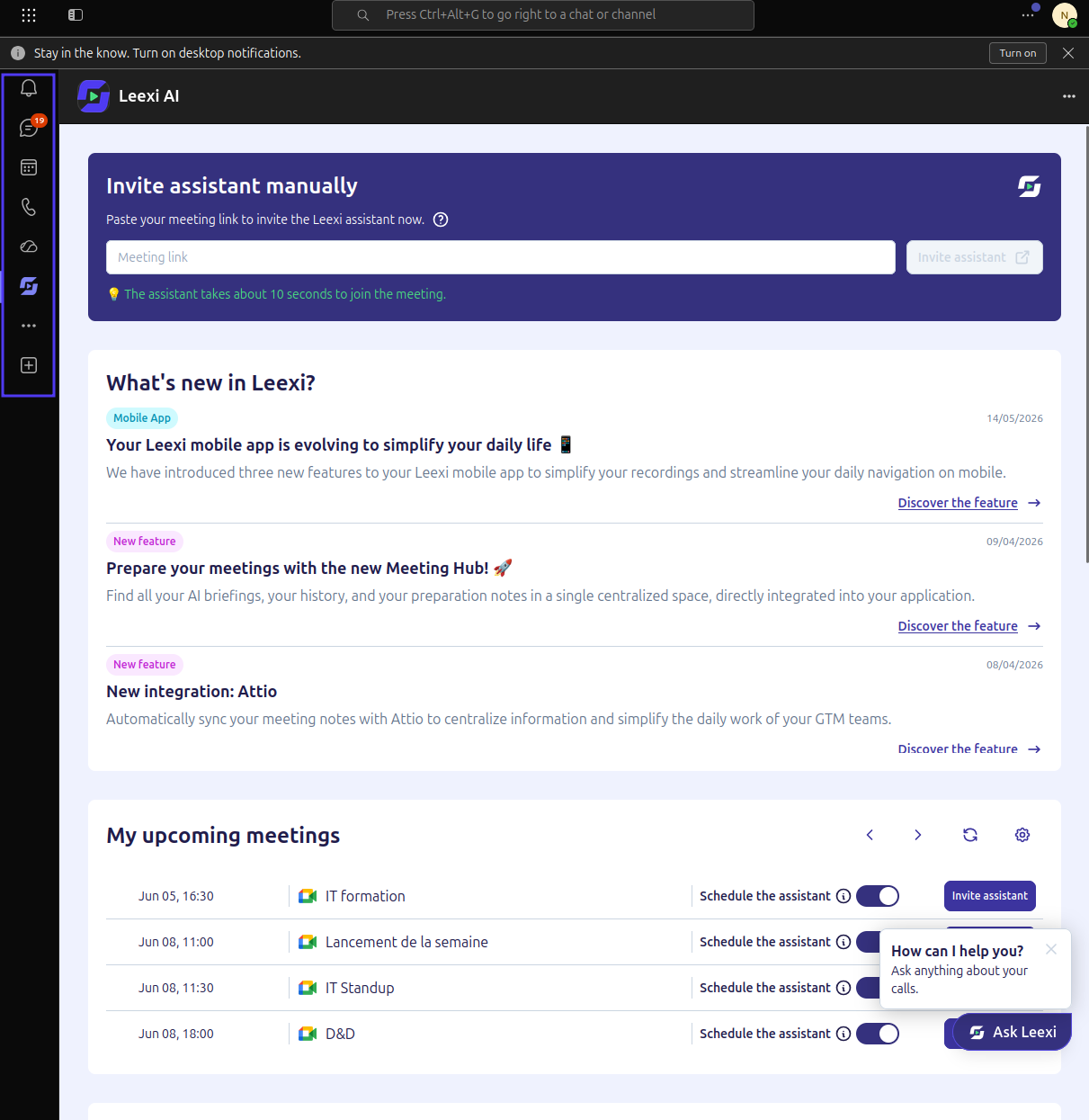
and in the top bar in a meeting as a side panel:
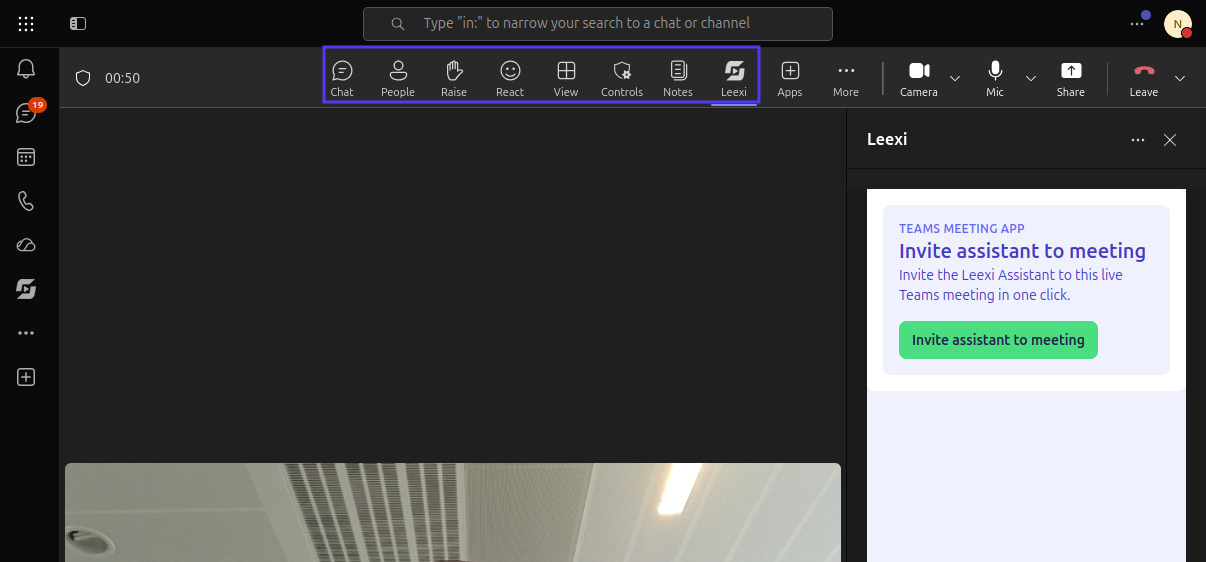
A pinning policy saves your users from repeatedly clicking to "add" the tab: the Leexi AI app stays permanently visible in the relevant bars. To set it up, go to admin.teams.microsoft.com, then Teams apps > Setup policies > Add.
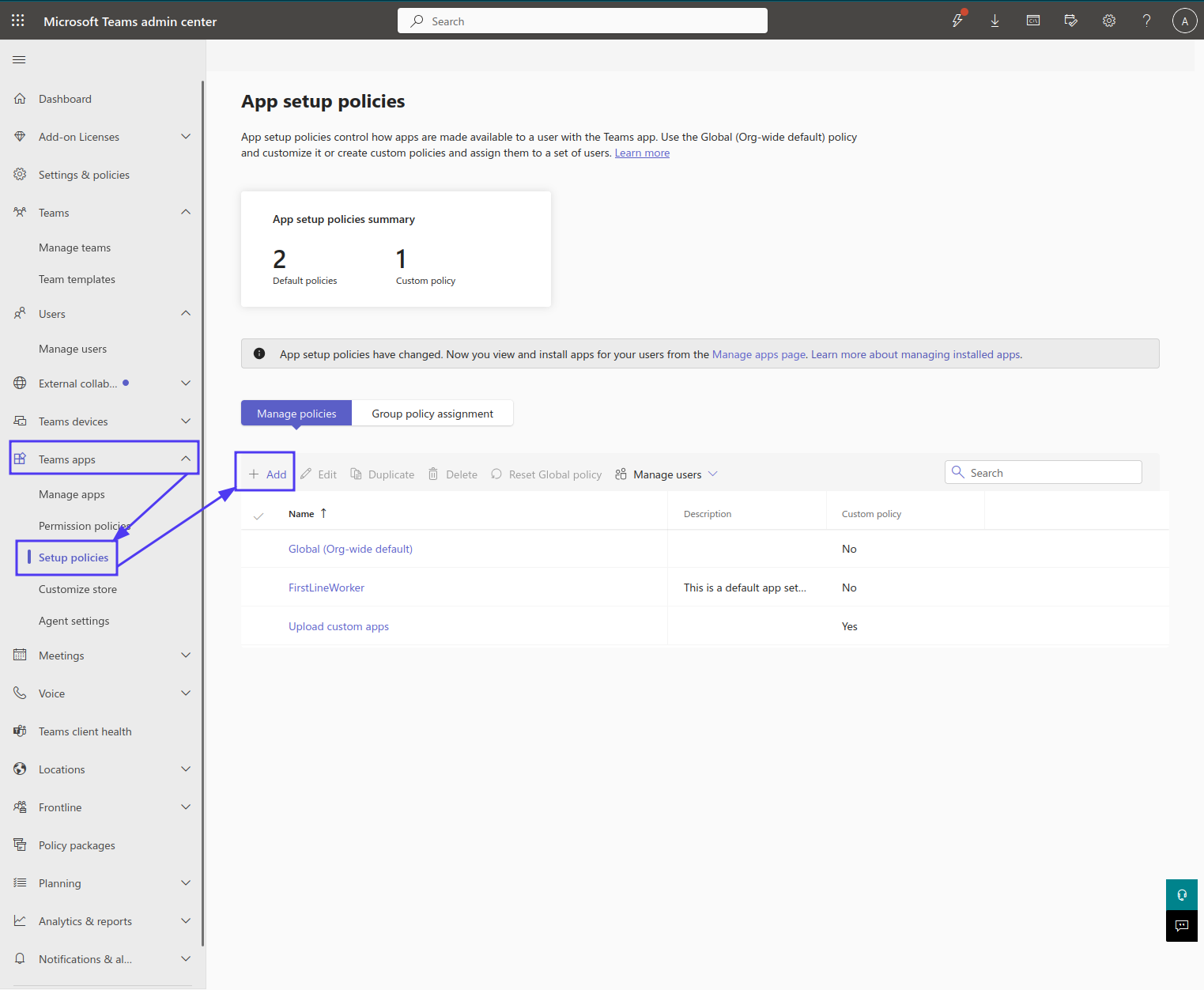
On this page, create the setup policy to assign to one or more users or groups in your organization. These policies determine which Teams apps your users can pin.
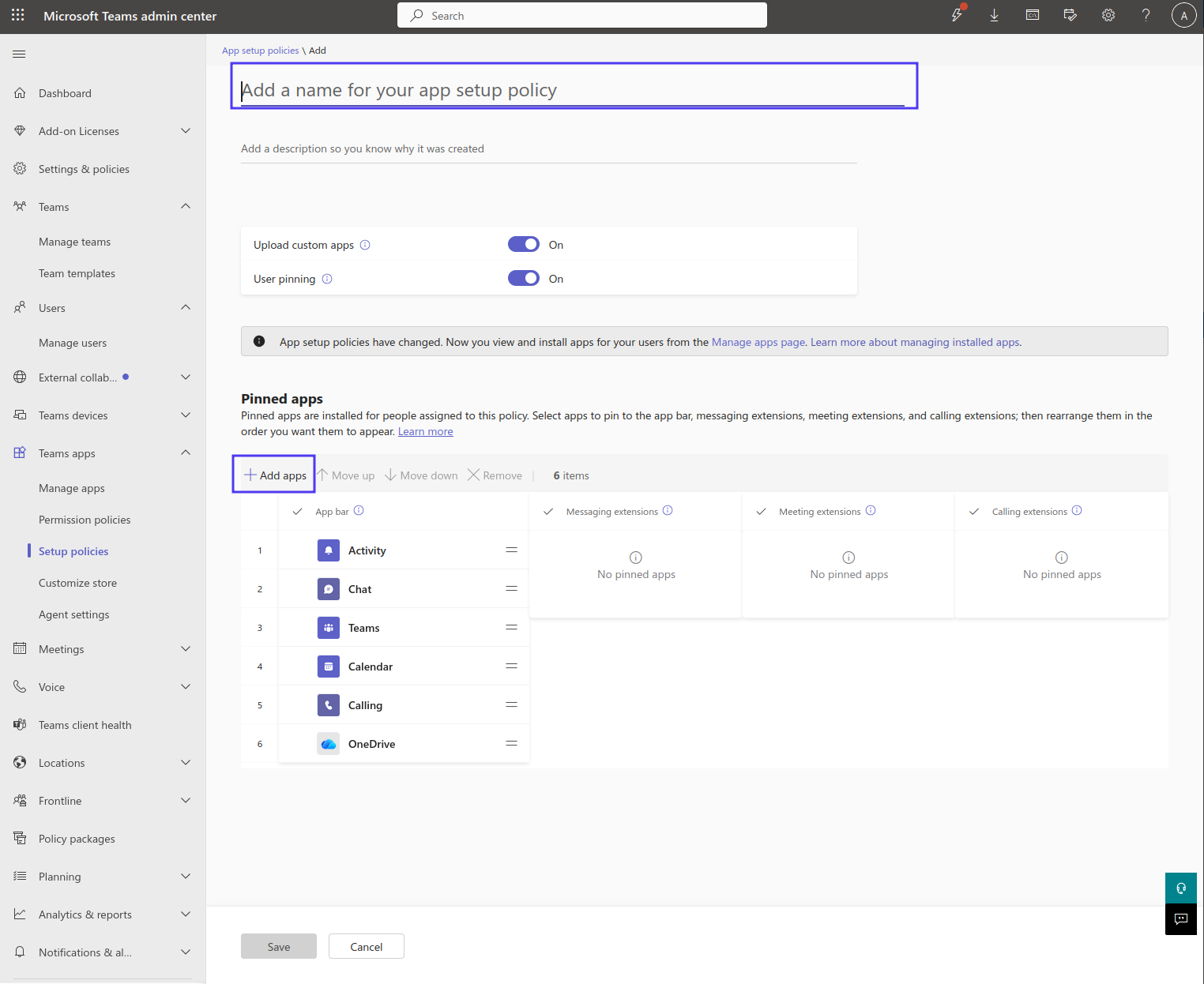
We recommend narrowly scoped policies: create a policy dedicated to the Leexi AI app's behavior. The least intrusive option is to leave "User pinning" enabled and only put "Leexi AI" in the list of pinned apps and meeting extensions: Leexi AI is then pinned for your users while their existing pins are preserved.
The pinning policy we recommend has the following name and shape:
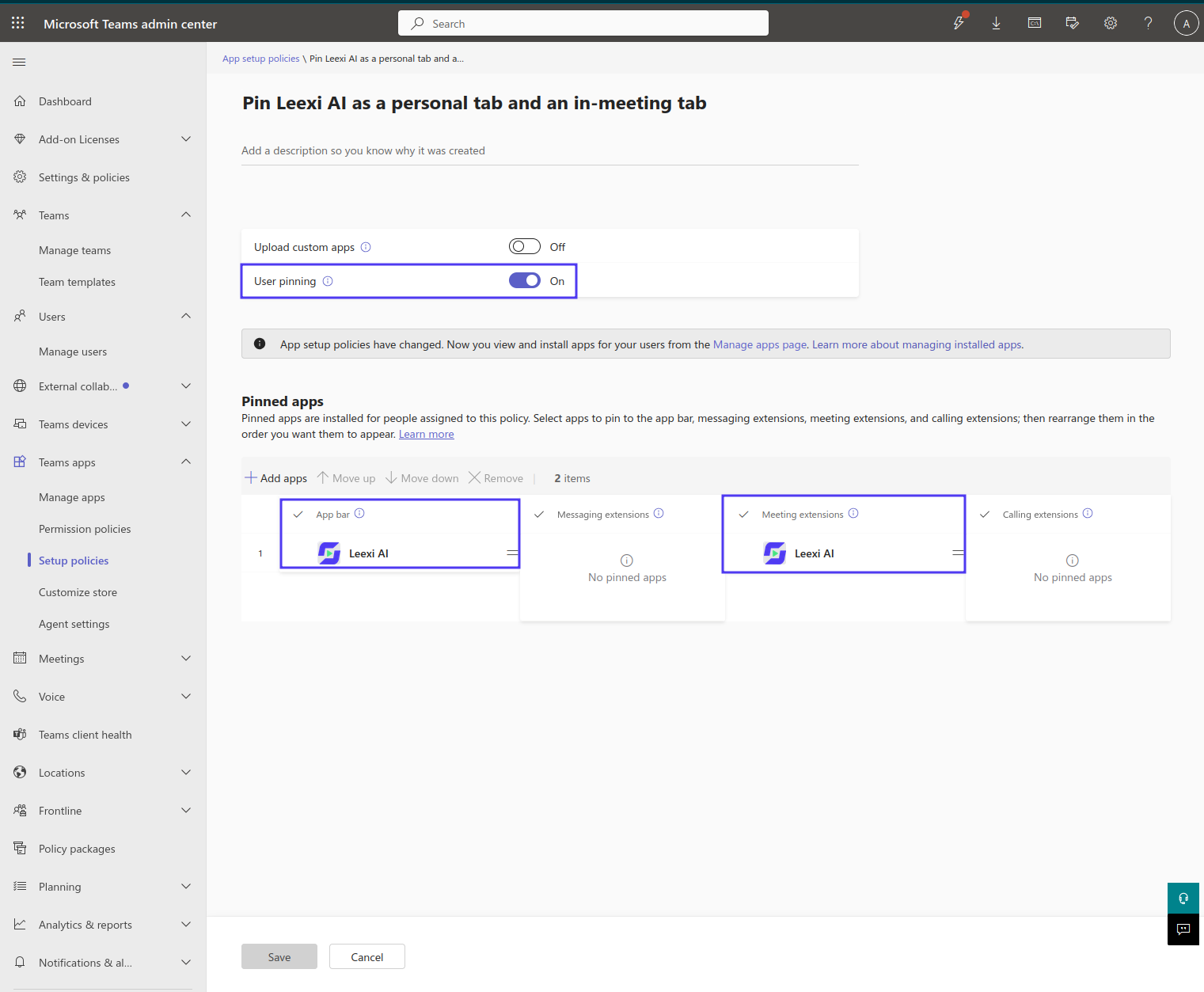
Assigned to a group or user, it pins Leexi AI in their app bar and meeting bar.
Once the policy is created, assign it to one or more users, groups or teams.
Assigning to a group:
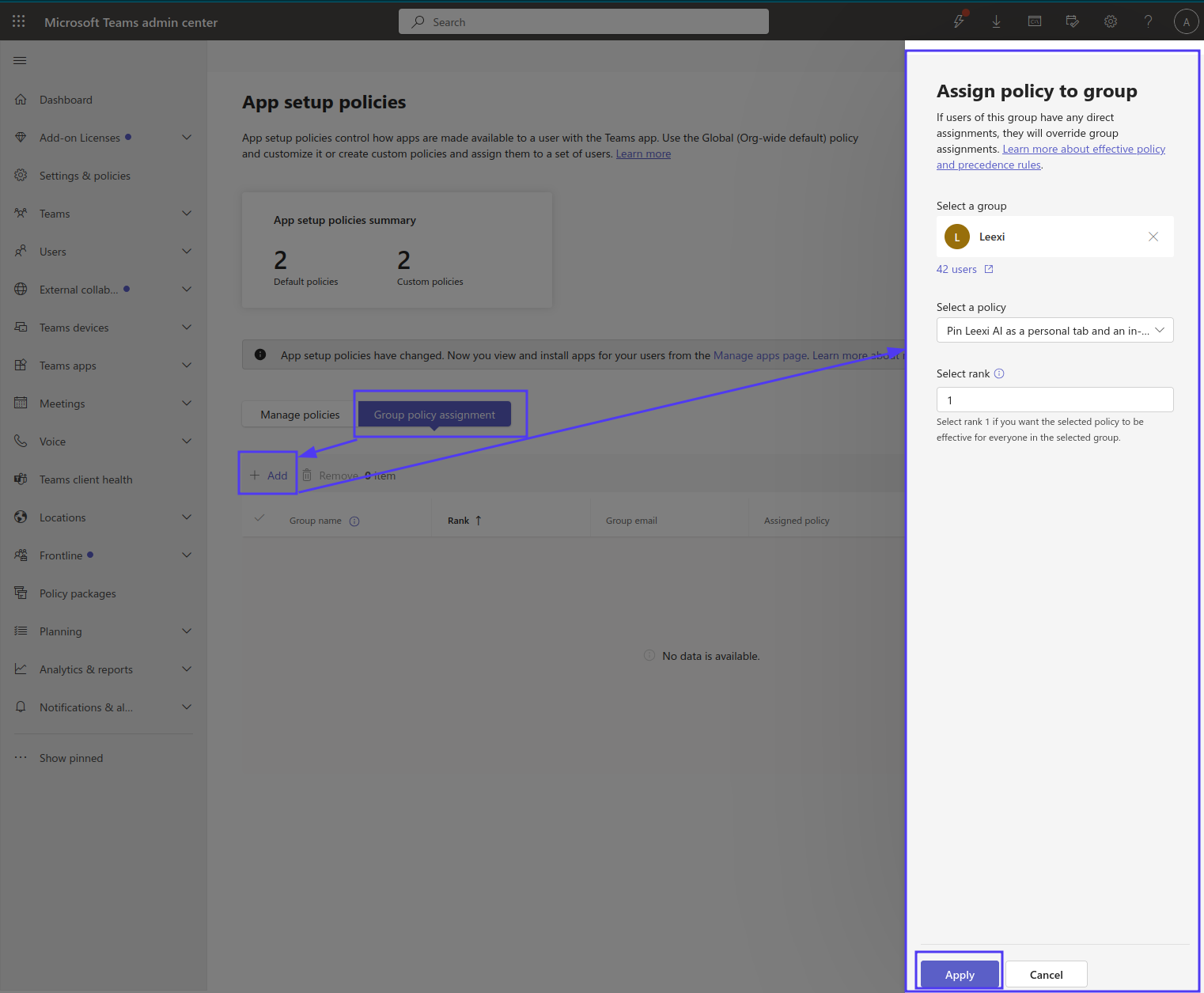
About "ranking": if users in a group also belong to other groups with an assigned policy, they inherit the policy from the group with the highest rank. This number therefore determines which policy wins in case of conflict.
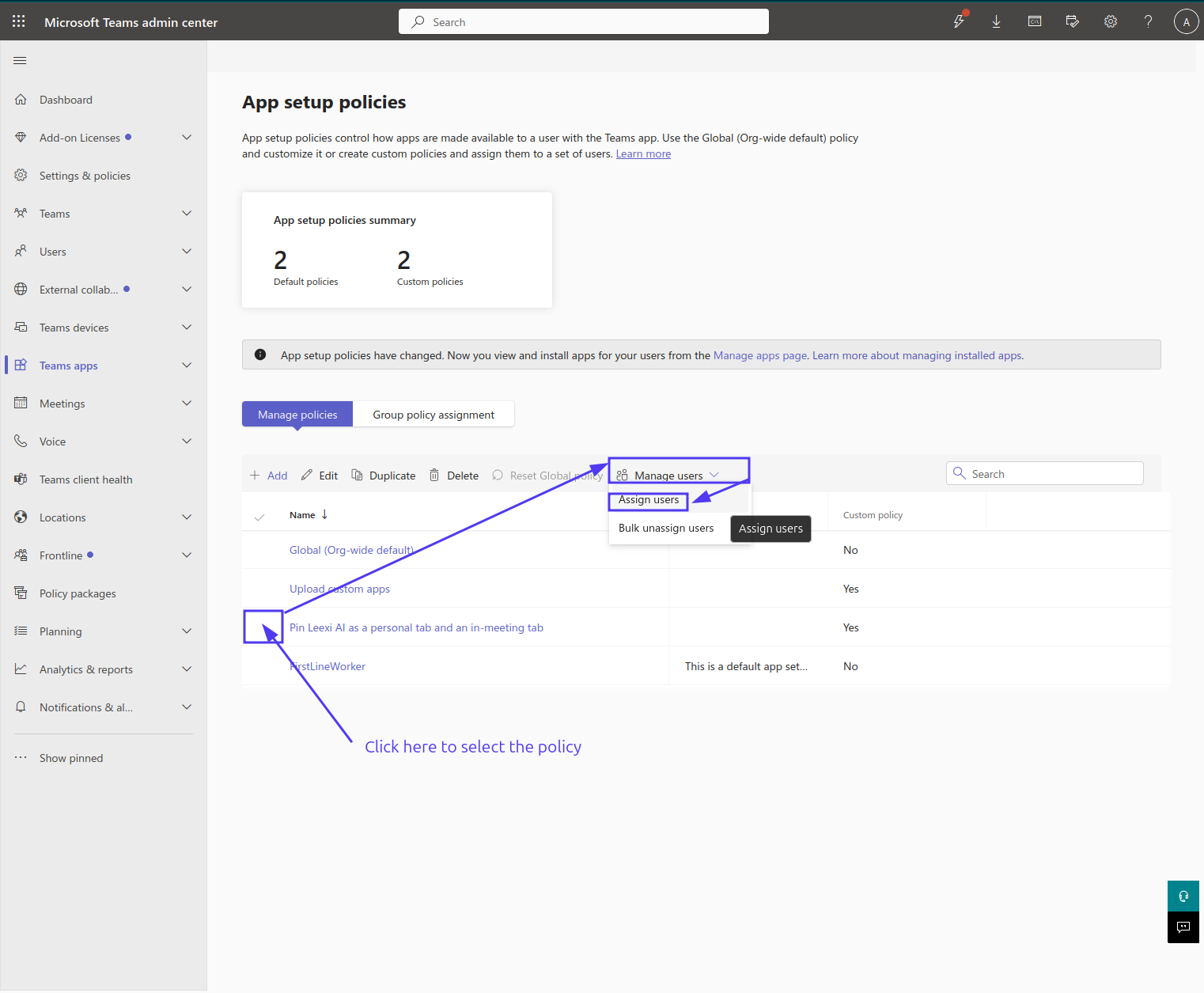
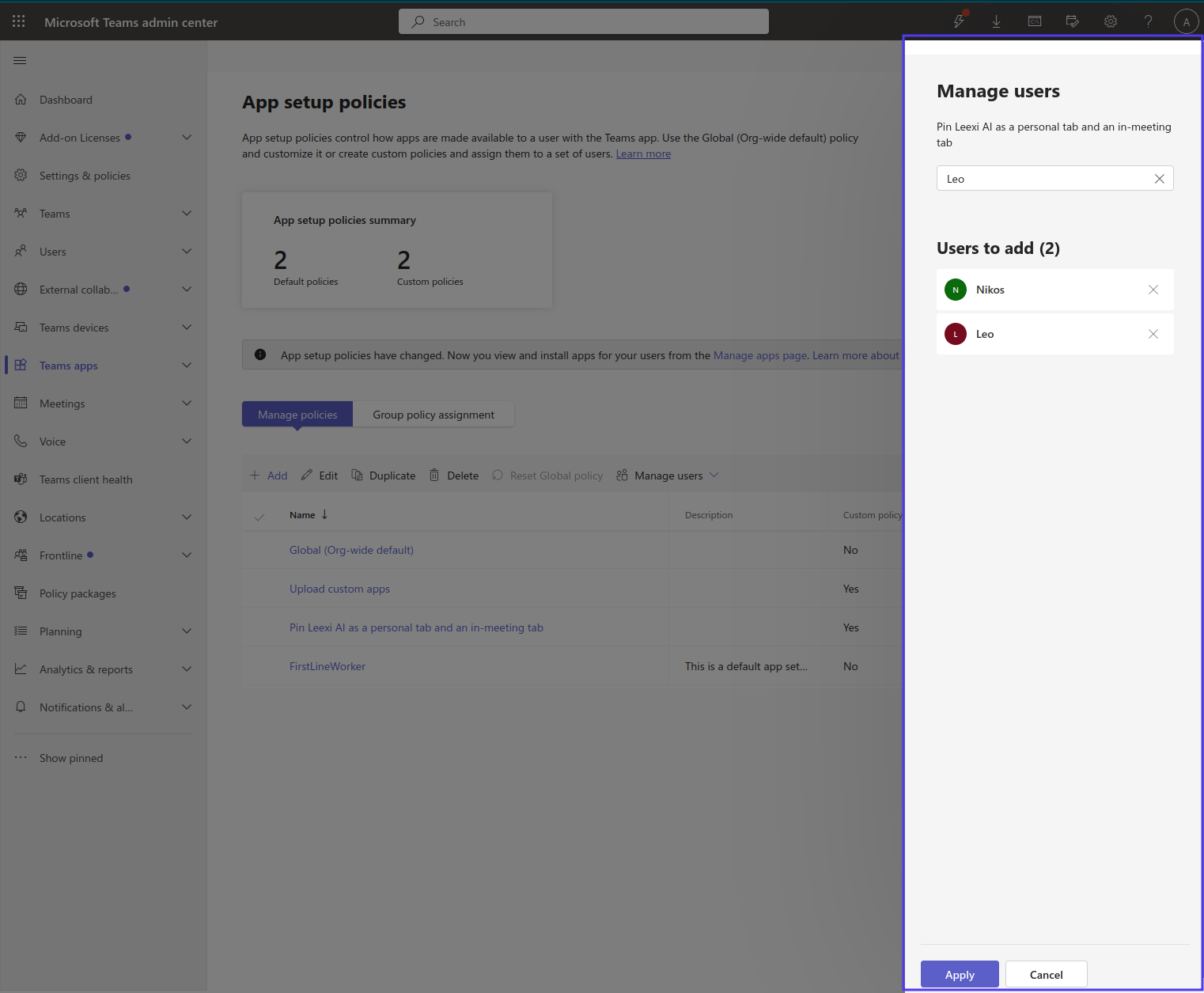
You can also assign it to individual users:
Enter the names of the users to assign the policy to.
Once applied, the policy takes some time to propagate to your users or groups.
Going further
Best practices for setup policies
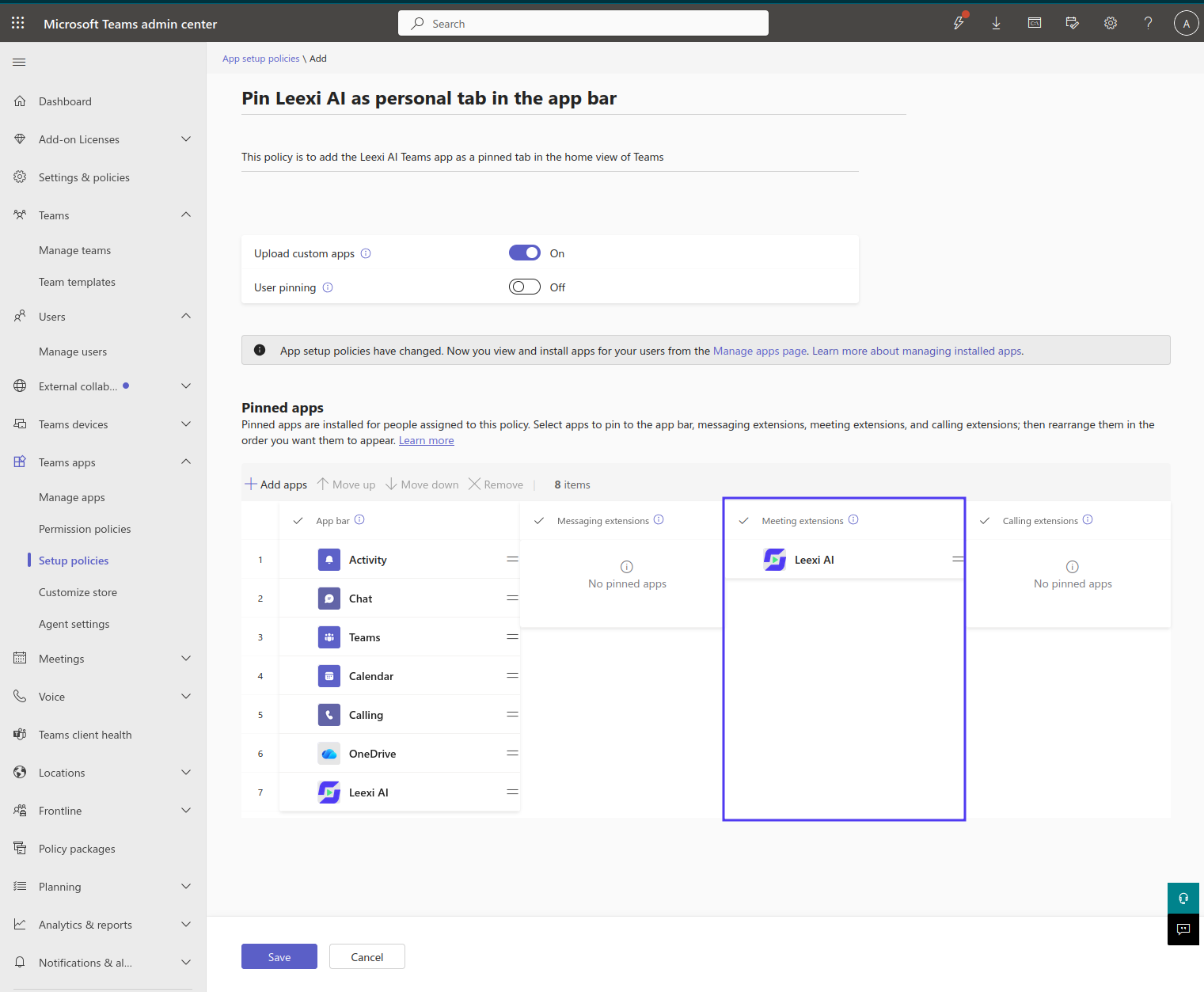
It's generally safer to create several narrowly scoped policies than a small number of broadly scoped ones. For example, a policy named "Pin Leexi AI as a personal tab" could be configured as follows:
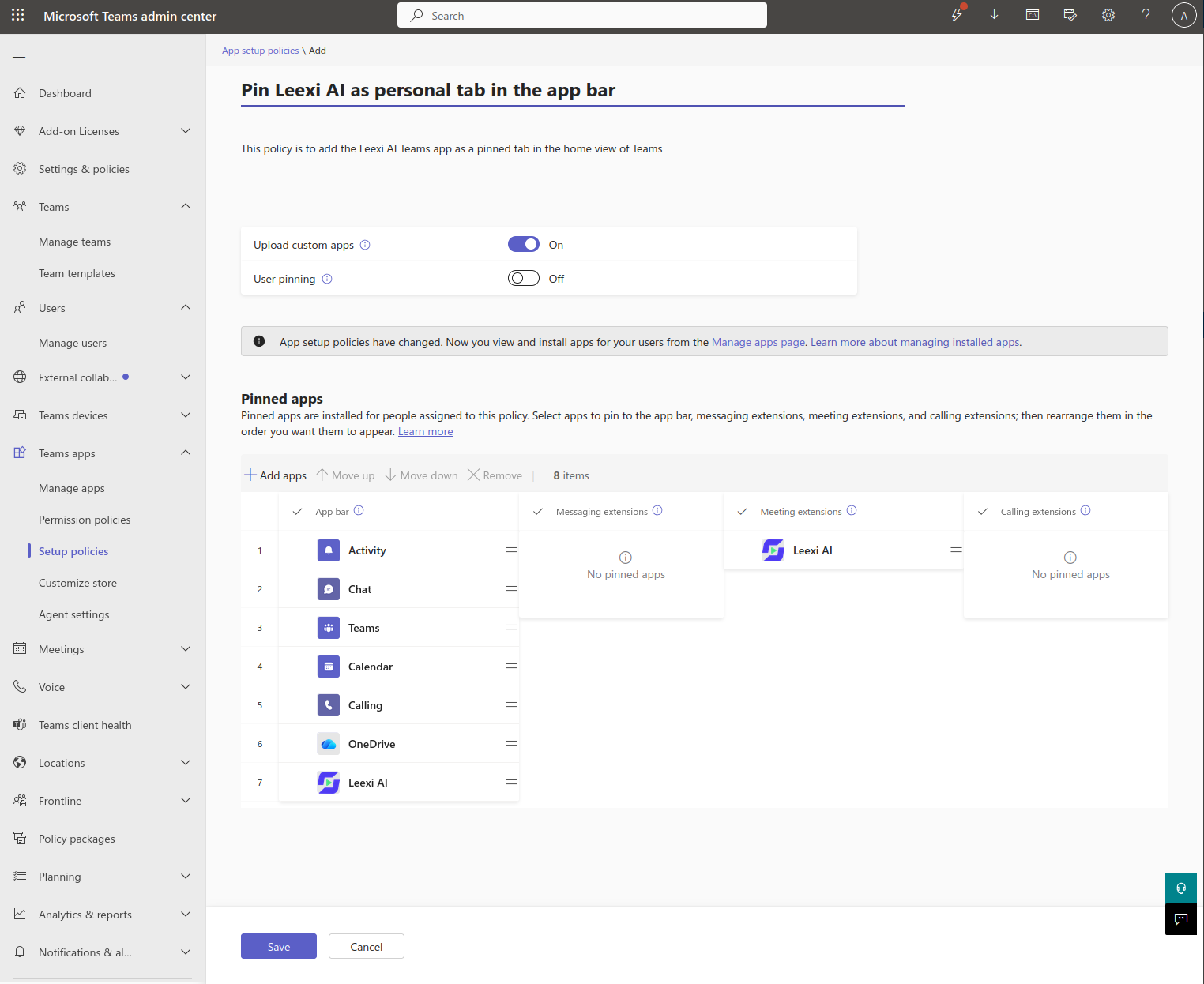
As configured in this screenshot, this policy goes beyond its name:
- It allows the affected users to upload a custom app (the "Upload custom apps" toggle is enabled), which has nothing to do with the policy's pinning intent.
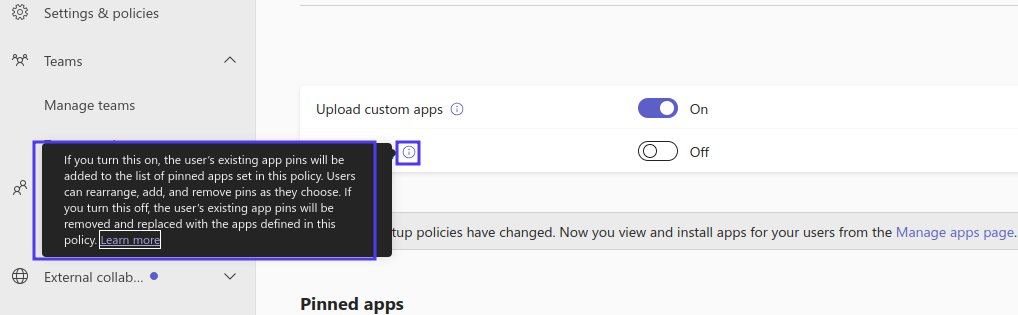
- It forces the apps in the "Pinned apps" list to replace users' existing pins. Read the tooltip carefully before saving to understand the consequences:
- It also pins Leexi AI in the top meeting bar — in this case, a more accurate name would be "Pin Leexi AI as a personal tab and meeting tab":
We also recommend disabling "Upload custom apps" in your pinning policy, to avoid conflicts with other policies in your organization. As for the "User pinning" toggle: enabled, users' existing pins are kept and supplemented by the policy's; disabled, they are replaced by the policy's. Both cases can be useful depending on the situation.
Install Leexi AI (end user)
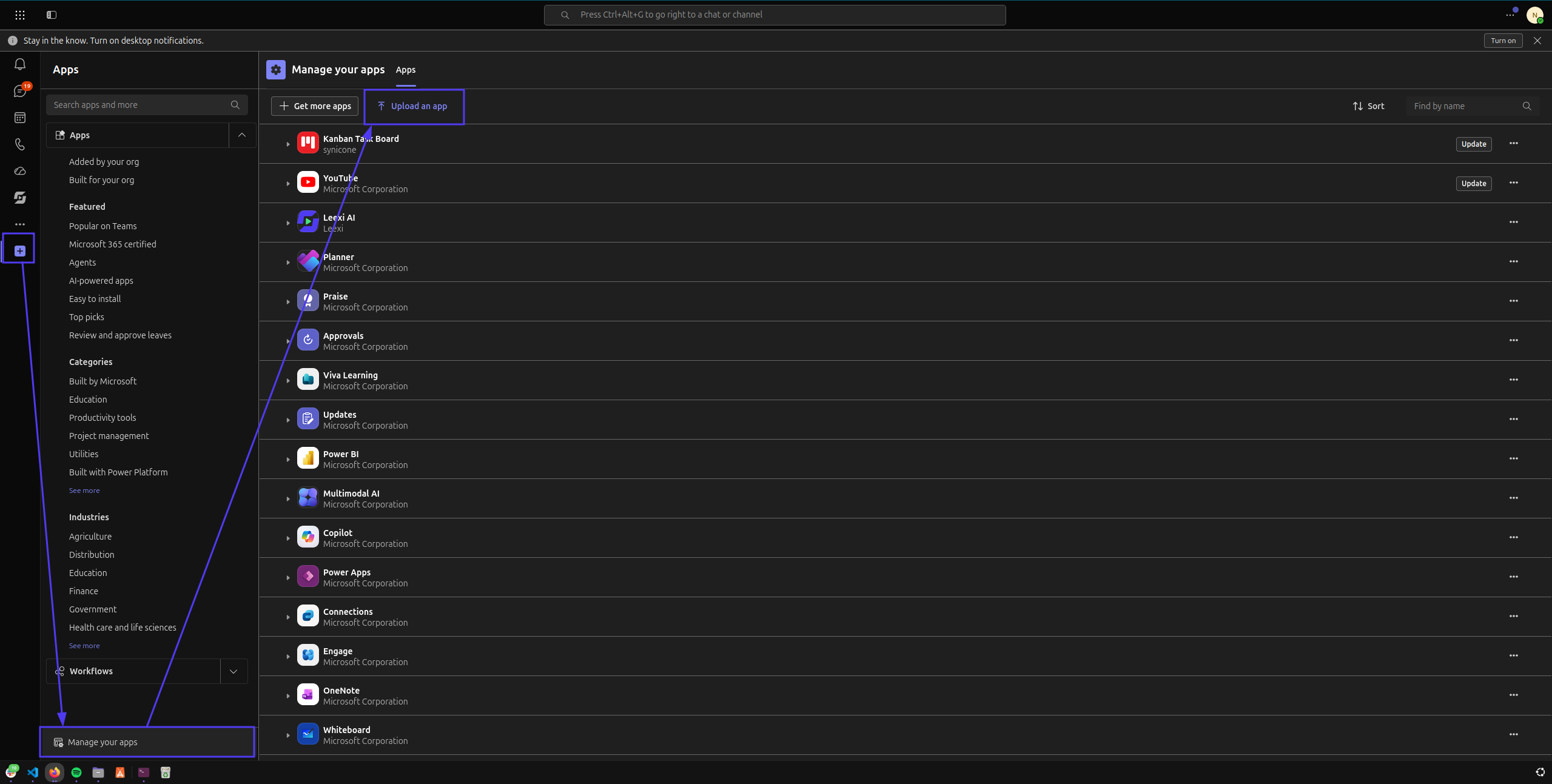
Go to teams.cloud.microsoft and, in the app bar of your home view on the left, click the + icon > Manage your apps > Upload an app.
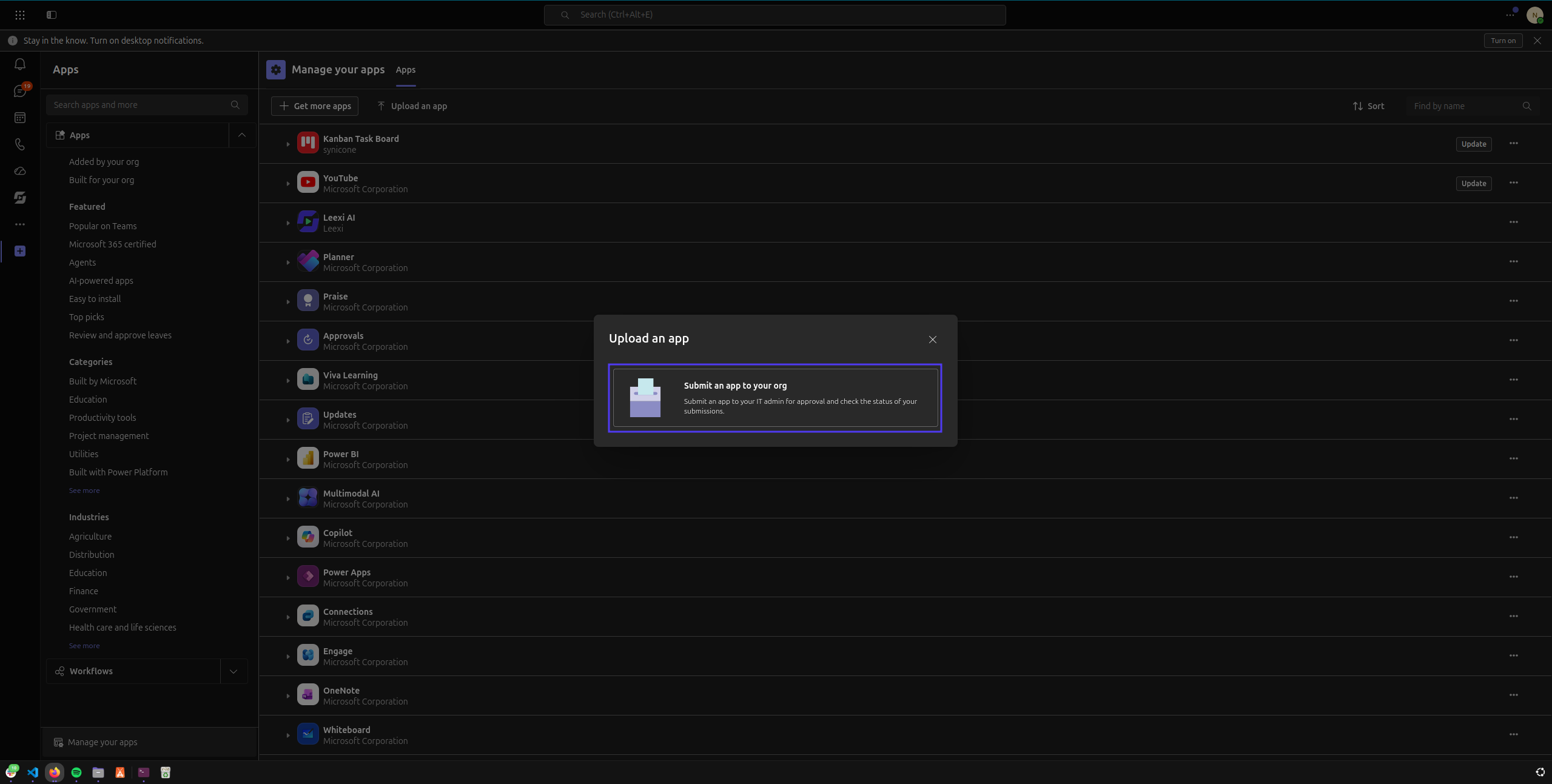
Click Submit this app to your org: this asks an administrator to approve adding the app for all Teams users in your organization. The app is the Leexi AI.zip file (version 1.2.1) provided by Leexi.
Approval makes the app available, but your administrator must also grant admin consent for its permissions (see the "Grant admin consent" step in the guide). Without this, the meeting side panel shows a permissions error even after approval.
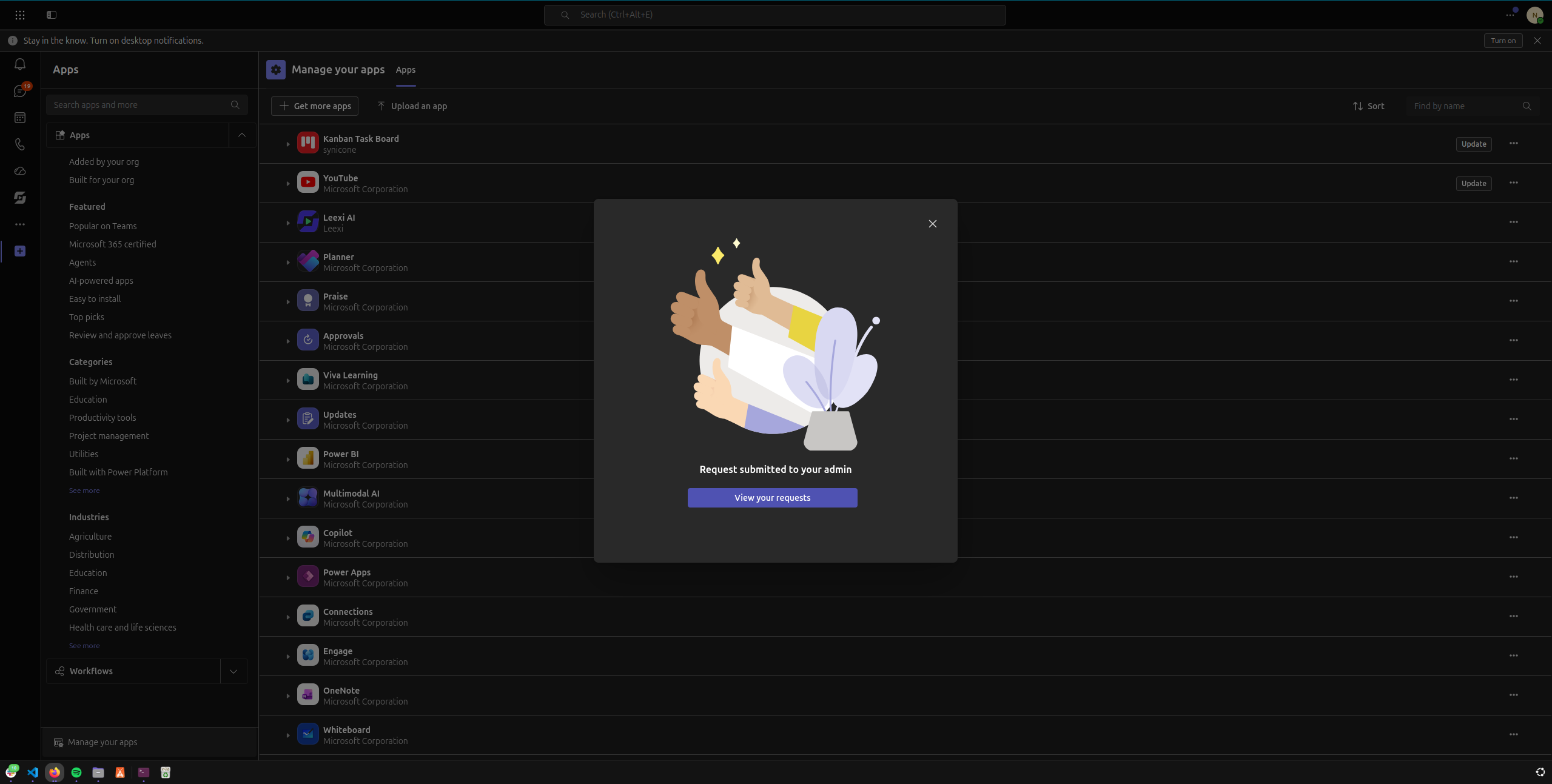
Once the file is selected and sent, a banner confirms that the request has been submitted to your organization's administrator.
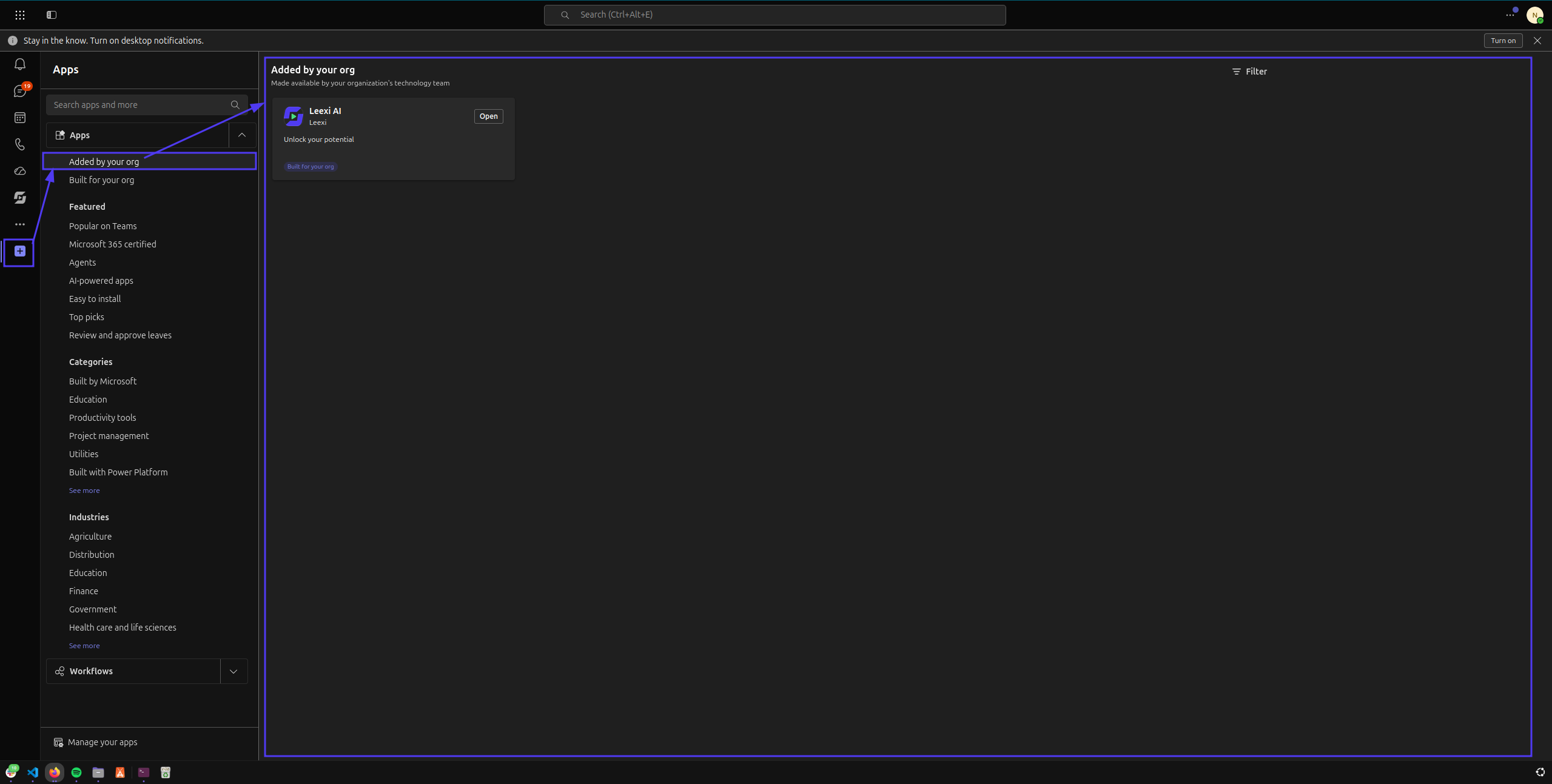
After the administrator approves it, you can use the Leexi AI app directly in Teams. Find it via the + icon in the home bar > Added by your organization.
Update Leexi AI (end user)
The process is identical to the installation above. The only difference: your administrator will see that your request is about updating an existing app rather than a new addition.
Pin Leexi AI (end user)
Once the app is open, pin it to avoid having to search for and open it every time you use it.
- For the app bar of the home view: open the app, then right-click its icon in the bar and select Pin.
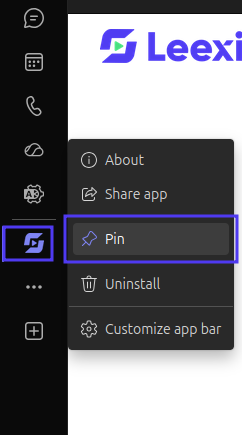
If the "Pin" option doesn't appear, no setup policy allows you to do so for the Leexi AI app: ask an administrator in your organization to create a setup policy allowing pinning (see the "Pin Leexi AI for your users" step in the guide). - For the top bar in a meeting: right-click the item in the meeting bar and select Pin. If the option doesn't appear, also ask your administrator to create the corresponding setup policy.
Frequently asked questions
Things to watch out for
- Without admin consent, the meeting side panel shows a permissions error and the assistant cannot be invited, even if the app is approved.
- After an app update or applying a setup policy, propagation to the organization's users takes some time.
- After importing a new version, reload the admin center page to see the updated published version.