Getting Started
How the Leexi Assistant Works
Understand how the Leexi assistant joins your meetings, records conversations, and generates deliverables after the call.
Definition: The Leexi assistant joins your meetings, captures audio, generates a transcript, structures a summary, and prepares follow-up actions without changing how you organize your meetings.
Feature video
No video is available at this time.
| Who is this for? | Required permissions and licenses |
|---|---|
| • All users who want to automatically record their meetings. • Managers and administrators who need to set recording rules for a team. | • License required: Starter, AI Meeting, Business, or Enterprise for transcription. • No special permission is needed to use your own assistant. • Team and company settings require a role with appropriate admin rights. |
How to use it
Connect your calendar
Connect Google Calendar or Outlook to allow Leexi to detect events containing a meeting link.
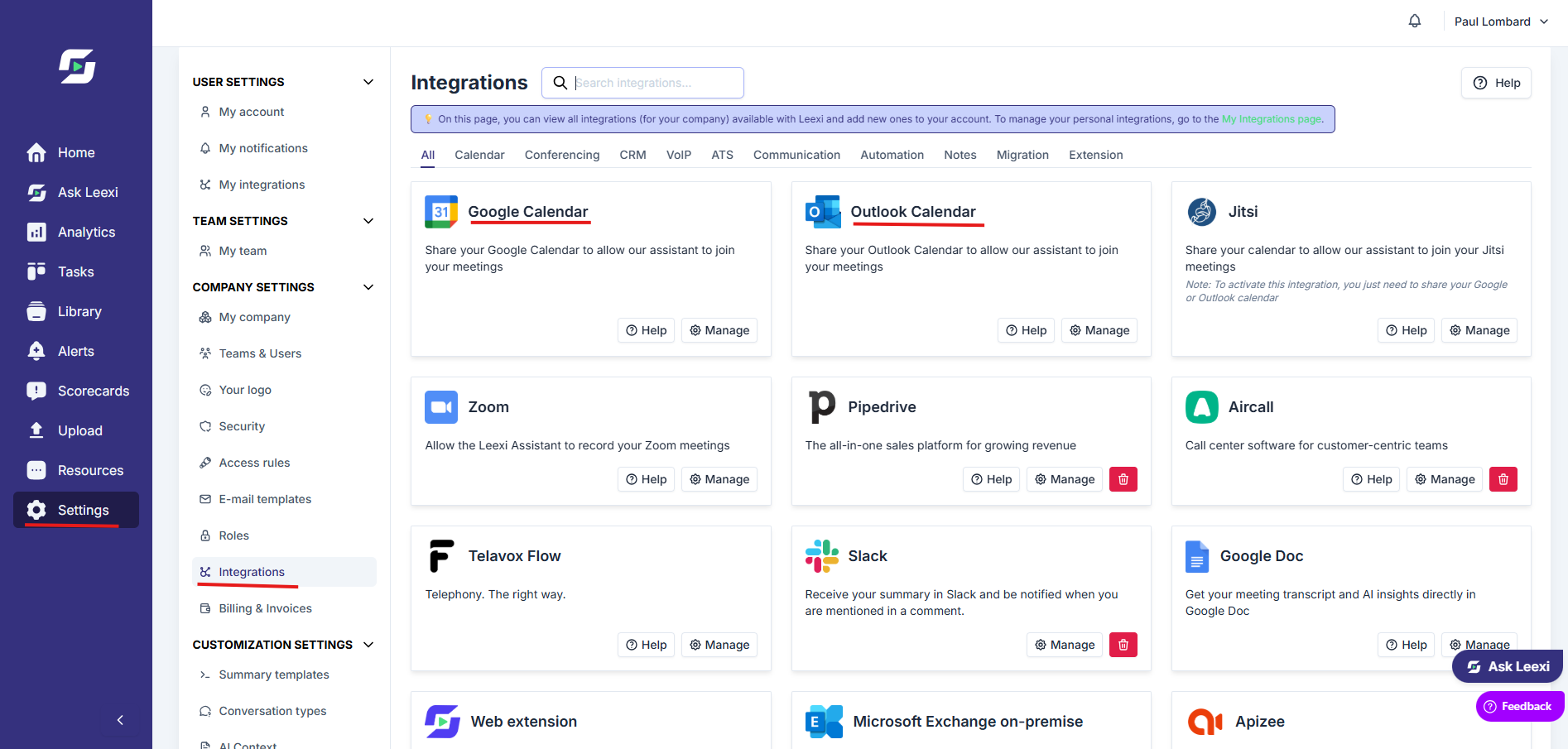
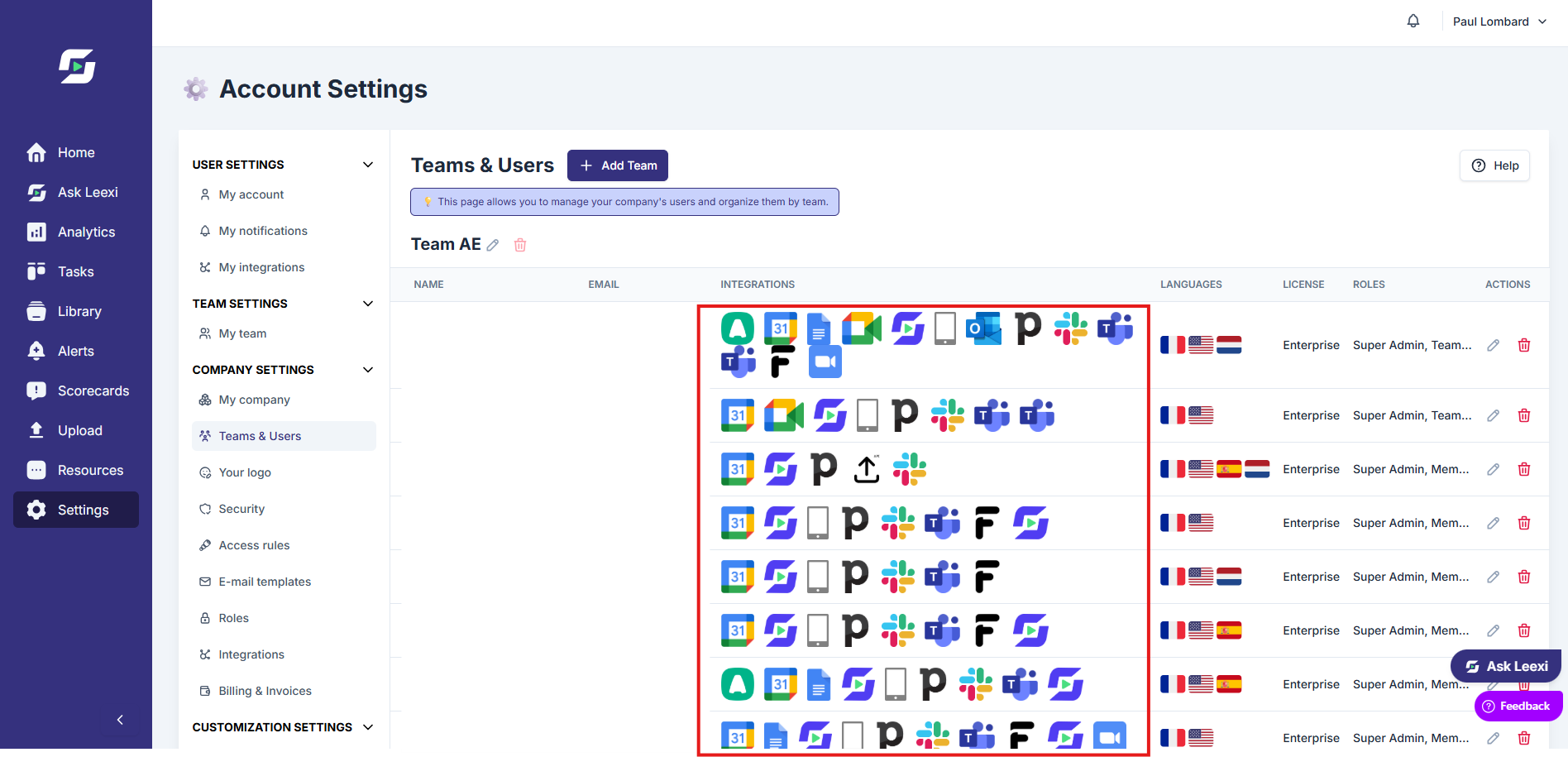
Define which meetings to record
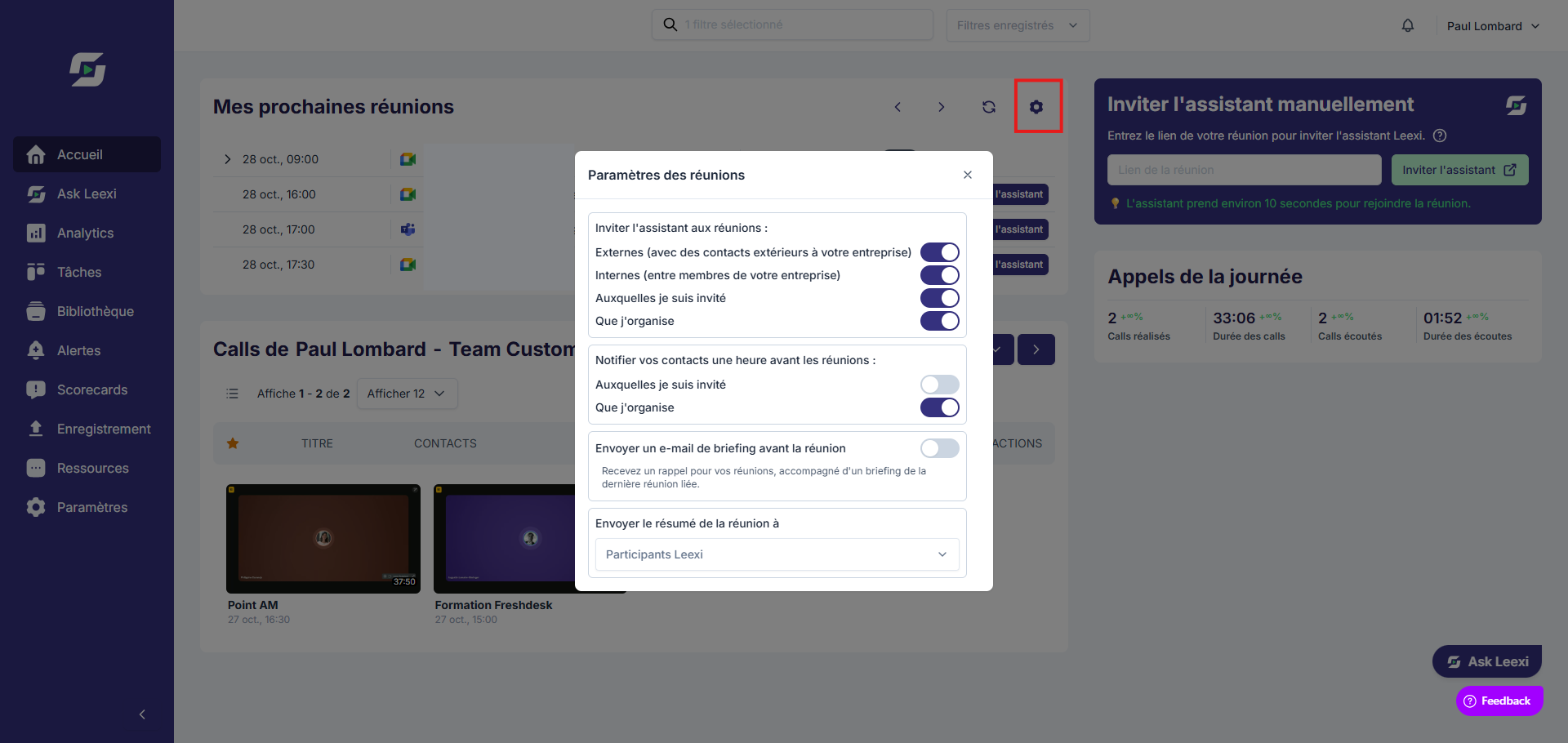
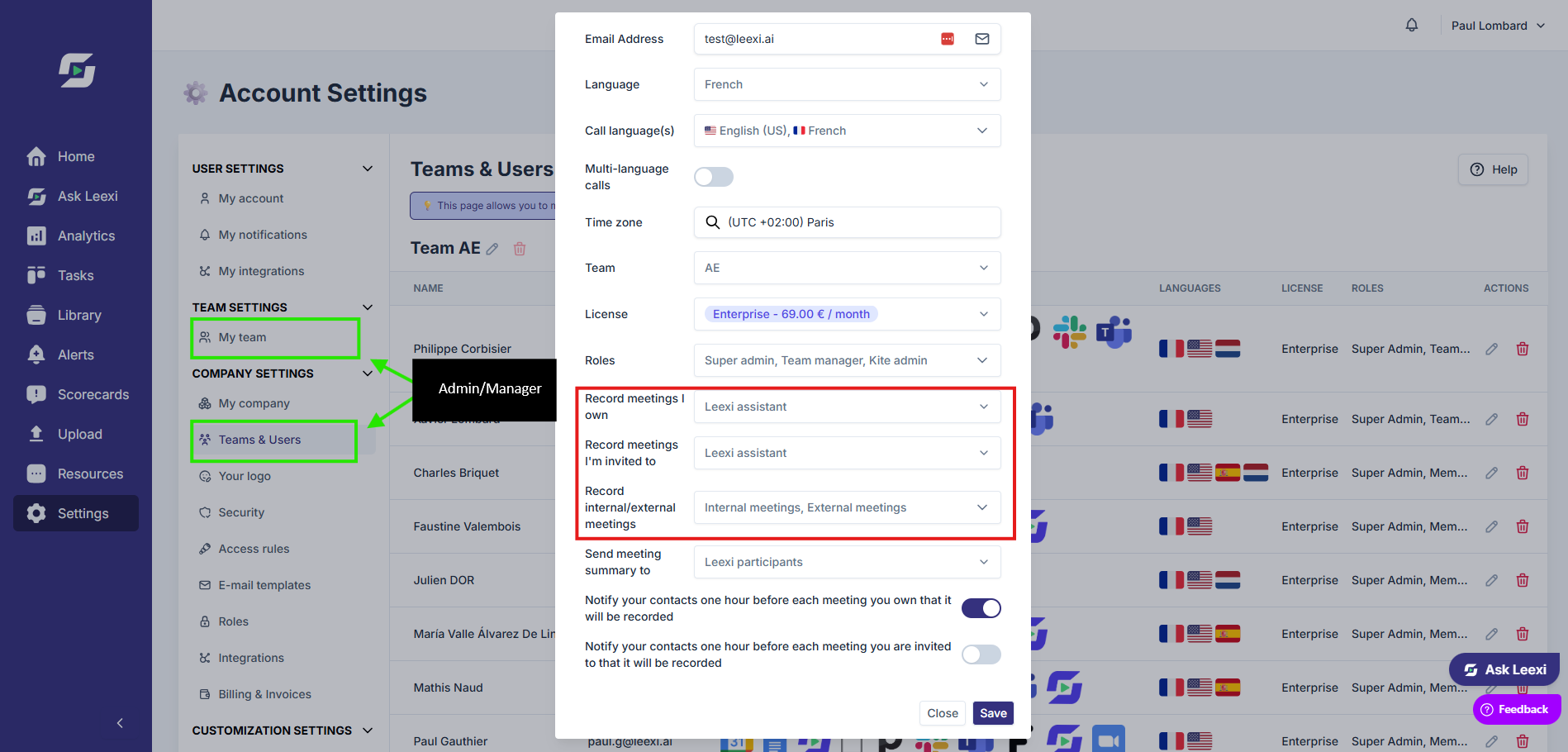
From your settings, choose whether Leexi should join meetings you organize, ones you participate in, internal meetings, and external meetings.
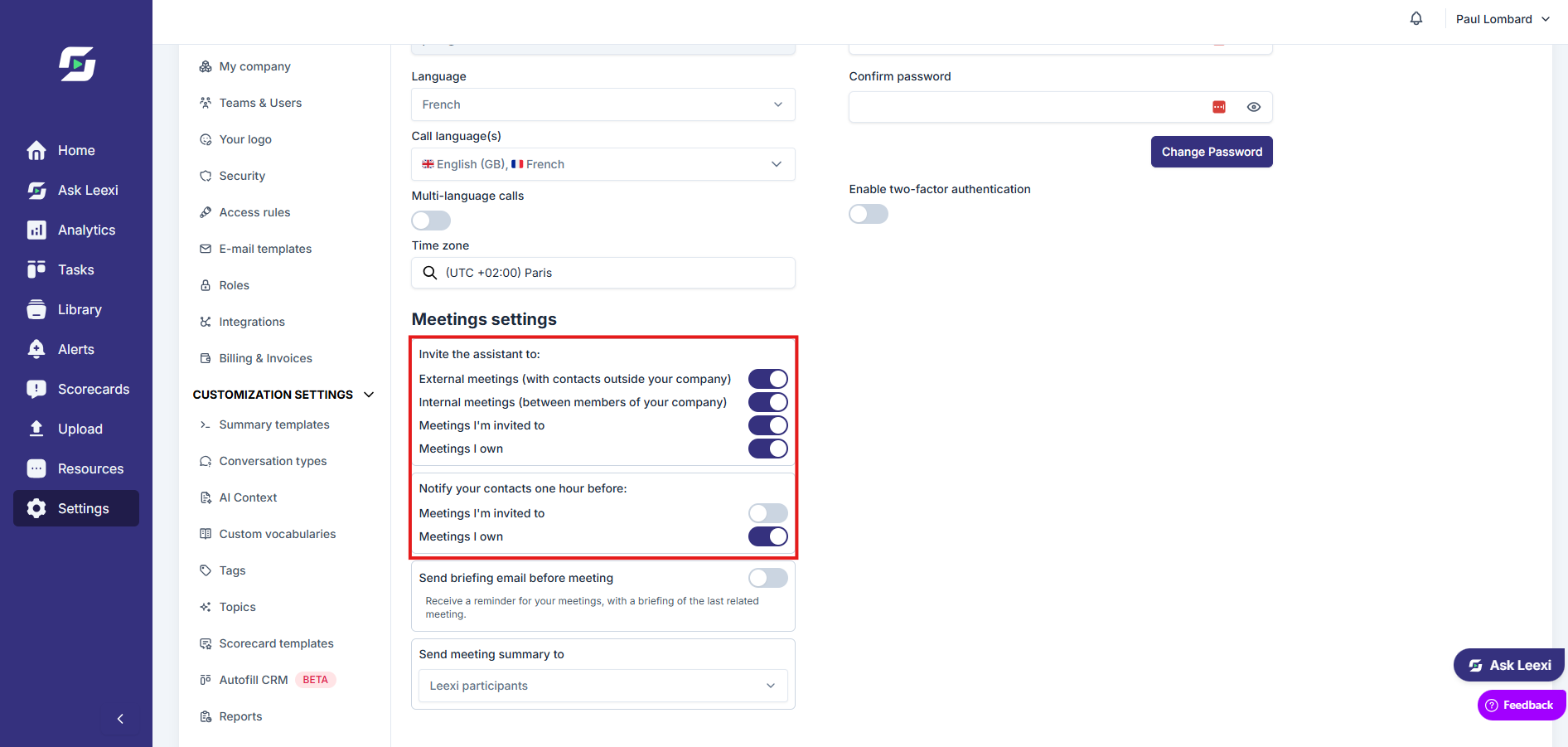
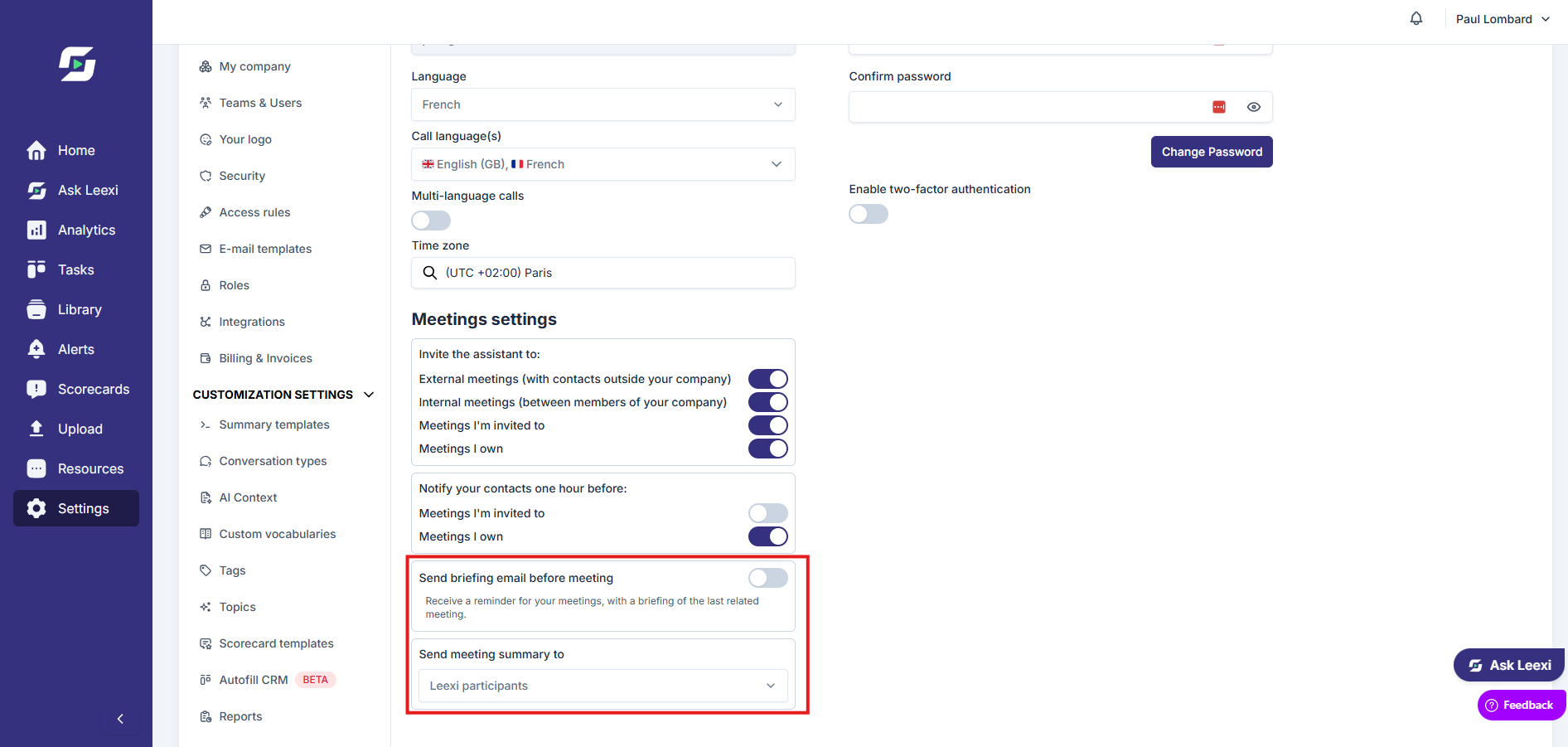
Check upcoming meetings
Visit the home page to see upcoming calls, confirm the assistant is expected, then disable a recording on a case-by-case basis if needed.
Send a manual invitation
If a meeting wasn't automatically detected, manually invite the bot with the video link. The bot arrives within seconds of the invitation.

Retrieve deliverables after the call
Once the meeting is over, find the transcript, summary, actions, and shared content directly on the call page.
Going further
- Leexi relies on the connected calendar and the meeting URL to prepare the bot's arrival.
- Summary recipients can be configured to include the call owner, Leexi users present, or all participants.
- The assistant's name, avatar, and certain messages can be customized at the company level.
- On Google Meet, you can pause the assistant during a call by typing
/pausein the chat, then/resumeto restart it. You can also do this on Teams thanks to the Teams integration.
Frequently asked questions
Check that your calendar is connected, that the event contains a valid meeting URL, and that your settings allow this type of meeting.
Yes. Upcoming meetings can be enabled or disabled individually from the interface.
Things to watch out for
- The Free license includes calendar integrations but not transcription.
- A different email address between your Leexi account, your calendar, and the meeting invitation can prevent correct detection. The address used in Leexi must be exactly the same as the one on your calendar and calls.
- Within the same company, if colleagues use emails with different domains (for example,
pierre@company1.frandpaul@company2.fr), Leexi may consider the meeting external. If you've configured Leexi to only record internal meetings, it won't be recorded — manually activate the bot if needed. - The calendar event must be created at least 15 minutes before the meeting for the assistant to join automatically on time. After that creation deadline, it may arrive a few minutes late.
- The bot waits up to 8 minutes in the waiting room before leaving on its own if it's neither accepted nor excluded. You can re-invite it from the home page.
- If a captcha is requested when entering the meeting, Leexi cannot automatically join the video conference.
- If the assistant detects no sound for 2 minutes, it sends a warning in the chat. After 7 minutes of total silence, it automatically disconnects — manually re-invite it if needed.
- When transitioning from trial to a paid license, the first call may not be recorded even if the bot showed up. Verify that your license has been activated in
Settings > Teams & Users. - If the bot came during your call but you can't find the call in your dashboard, check the active filters, including the time period on the right side of the screen.