Access rules
Feature video
| Who is this for? | Required permissions and licenses |
|---|---|
| • Administrators who need to organize cross-team sharing. • Companies that want to grant visibility without widening every role. | • Feature available on all plans. • Reading and especially writing rules requires dedicated rights on access rules. • These permissions are reserved for Admin and/or Manager profiles. |
Use cases
- Your company handles sensitive data and each person should only see their own calls.
- You are a manager and want visibility over your team's calls, but members shouldn't access their colleagues' calls.
- Your company has a collaborative culture that requires visibility over all meetings.
How to use it
Understand default visibility
The one fixed and immutable rule: a user always sees meetings they attended and those they were invited to, even if they didn't attend.
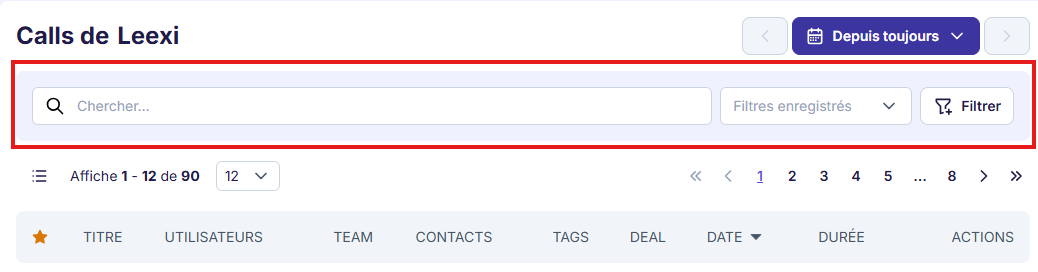
By default, each user only sees their own calls. They can browse the search bars to view other people's calls, within the limits of the access rules set for the company.
Identify the visibility need
List the teams, users or use cases that need to access calls outside their standard scope.
Create a rule
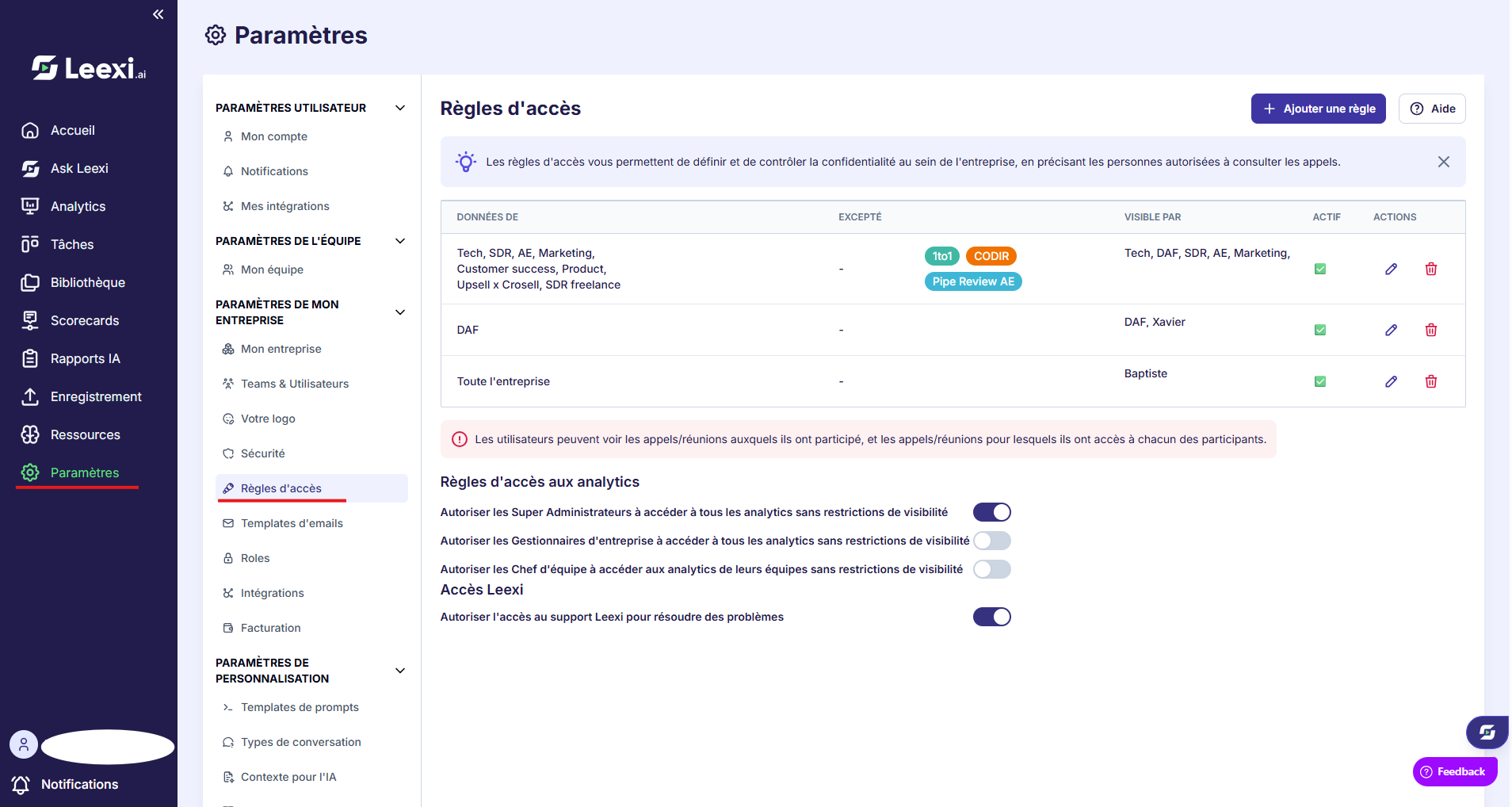
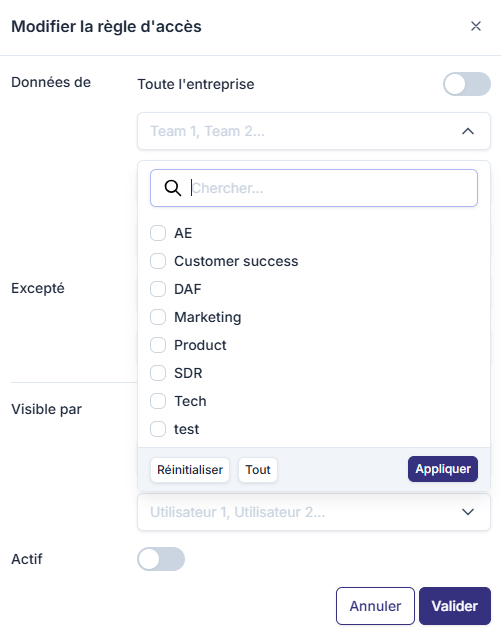
Access rules are found under Settings > My company settings > Access rules. Add a rule to open access to a target group, a team, or specific users.
Each rule has three sections:
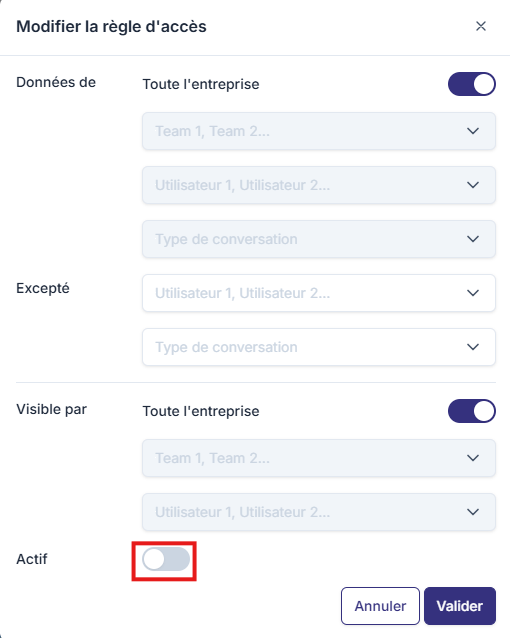
- Data from: the users whose meetings will be accessible.
- Visible by: the users granted access to these meetings.
- Except: lets you add an exception within the rule instead of creating a new one. Configurable at the individual level and via tags.
Permissions are granted at two levels: by team and individually.

Manage an existing rule
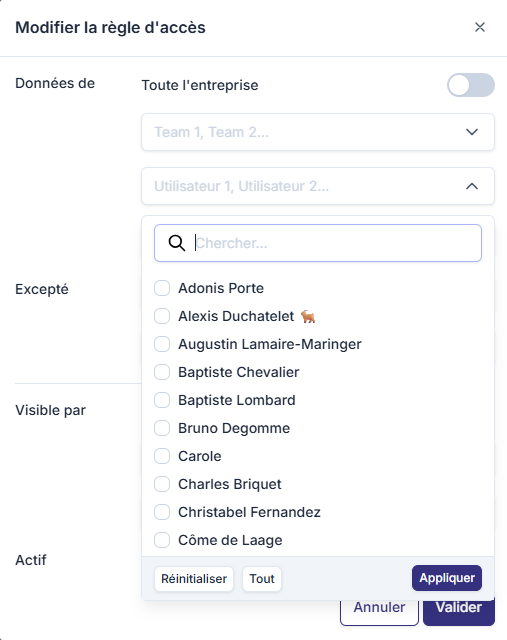
To delete a rule, click the trash icon. To temporarily disable it, click it, then click the "active" button.
Add access on a specific call
On a specific call, click the "Sharing & Access" button. A button lets you enable or disable custom access for this call. You can then add or remove members from the list manually.
Check the result
Check the behavior on the calls concerned to confirm that the rule does add the expected visibility.
Adjust over time
Review the exceptions and the groups concerned as your organization changes.
API key access rules
Access rules also apply to API keys, which let external tools consult your Leexi data.
Your visibility
Each API key must be associated with a user. By default, it inherits the access rights of the user who created it. Administrators can create application users to associate keys that don't correspond to a real person. Rights are defined via the "Access rules" page and evaluated at the time of each request.
Where to find them?
Go to the settings tab on the left of your screen, then click "My company settings" to display all the sub-sections. You'll find the access rules menu there. In this same sub-section, just below access rules, you'll find the API key access rules.
API access rule configuration
By clicking the trash icon, you can delete a rule: the access granted to that API key will no longer exist. You can also make the rule inactive by clicking it, then the "active" button.
Each rule has three sections:
- Data from: the users and/or company whose data is made accessible.
- Visible by: the API keys granted access to these meetings.
- Except: lets you add an exception within a rule instead of creating a new one.
Permissions are granted at four levels: by team, individually, by conversation type, or for the entire company.
Webhook access rules
Webhooks automatically send information about your meetings to your own tools. Their access rules control which data is transmitted.
Your visibility
Each webhook must be associated with a user (or an application user). This association determines which events and which calls are sent to the configured destination.
- Administrators can create global webhooks and manage application users.
- Standard users only see their own webhooks and those explicitly shared with them.
- Application users are intended for automations: their visibility and access are determined by access rules.
Where to find them?
Go to the settings tab on the left of your screen, then click "My company settings" to display all the sub-sections. You'll find the access rules menu there.
Rule configuration
By clicking the trash icon, you can delete a rule. You can also make the rule inactive by clicking it, then the "active" button.
Each rule has three sections:
- Data from: the users and/or company whose data is transmitted by the webhook.
- Visible by: the webhooks (or associated users) entitled to receive these meetings.
- Except: lets you define an exception within an existing rule (excluding certain users, teams or filters) without creating a whole new rule. This exception is configurable at the individual level and via tags: it lets you hide someone's data even though the rule grants access to others' data.
Permissions are granted at four levels: by team, individually, by conversation type, or for the entire company.
Going further
- Access rules complement roles, they don't replace them.
- They are useful for cross-functional managers, operations, or supervision needs.
- Well structured, they avoid oversizing admin roles.
Frequently asked questions
Things to watch out for
- Too many rules become hard to maintain.
- Systematically check the combined effect of roles and rules.
- Document sensitive exceptions to keep clear governance.