Roles
Feature video
| Who is this for? | Required permissions and licenses |
|---|---|
| • Administrators who assign rights. • Managers who want to understand the capabilities granted to their team. | • Viewing roles is reserved for administrators. • The available roles are: Basic member (base role), Member, Billing manager, Team leader, Company manager, User administrator, System administrator and Super administrator. • A user can hold multiple roles. • Available on all licenses: Free, AI Meeting, Business, Enterprise. |
Use cases
- Basic member (base role): view calls (as authorized by access rules), analytics and dashboards, manage their own libraries and alerts.
- Member: same as basic member, plus the ability to delete and edit their calls, and share them.
- Billing manager: manage billing.
- Team leader: view calls (authorized), manage the team's calls (edit, delete, change access), the team's libraries, scorecards, tags and topics. Receive team reports.
- Company manager: view calls (authorized), manage authorized calls, alerts, libraries, scorecards, tags, teams and topics. Receive team reports.
- User administrator: create teams, users and update user settings.
- System administrator: manage access groups, alerts, API keys, custom assistants, company settings, conversation types, CRM fields, custom vocabularies, email templates, integrations, libraries, scorecards, tags and topics. No access to calls, billing, or user management.
- Super administrator: full access to manage all the company account's settings.
How to use it
Identify the actual need
Separate the needs for reading, team management, configuration and billing.
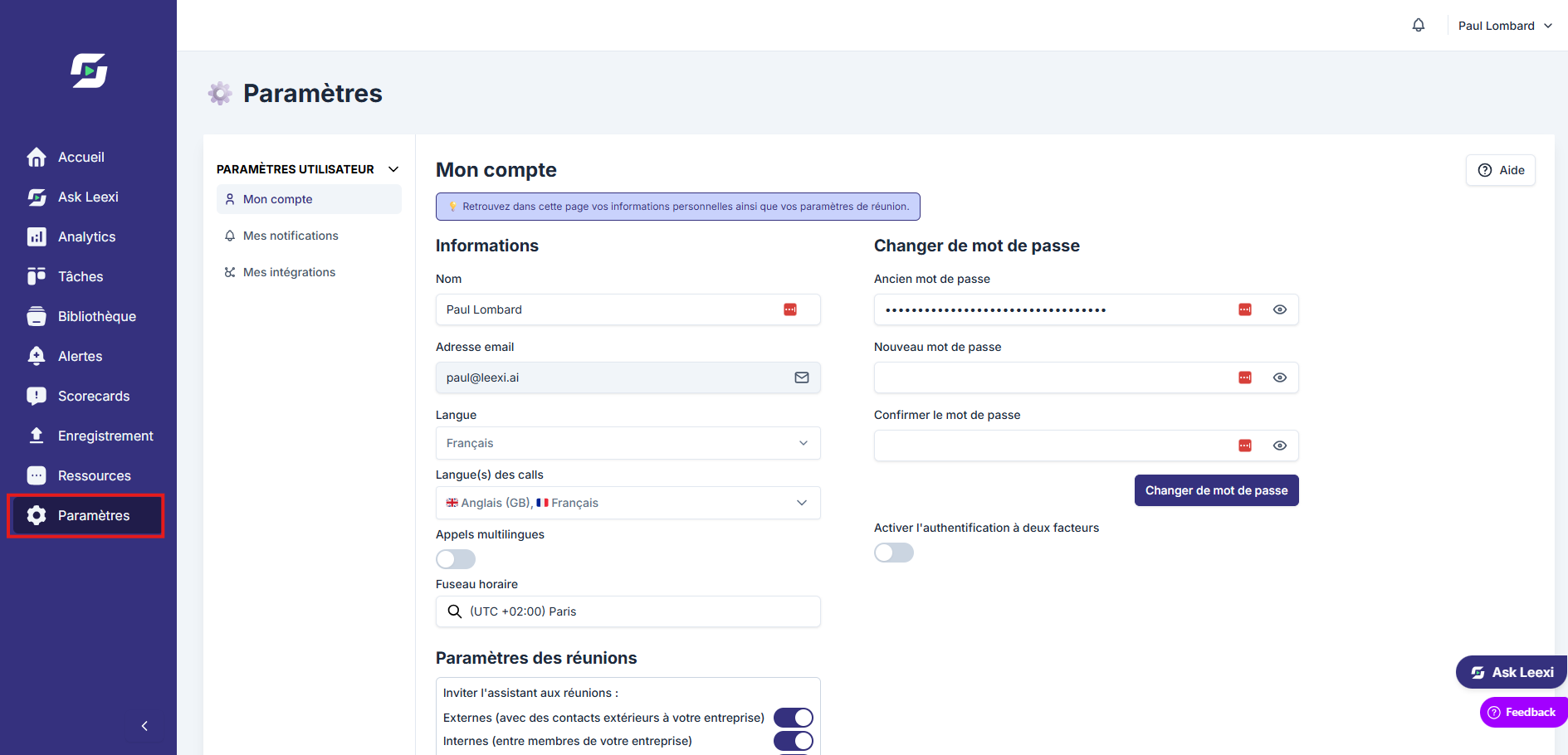
Choose the right role
Assign the most limited role that covers the need, then supplement with an additional role if necessary.
Basic member (base role): access to personal settings only. Can view calls authorized by access rules but cannot delete or edit them.
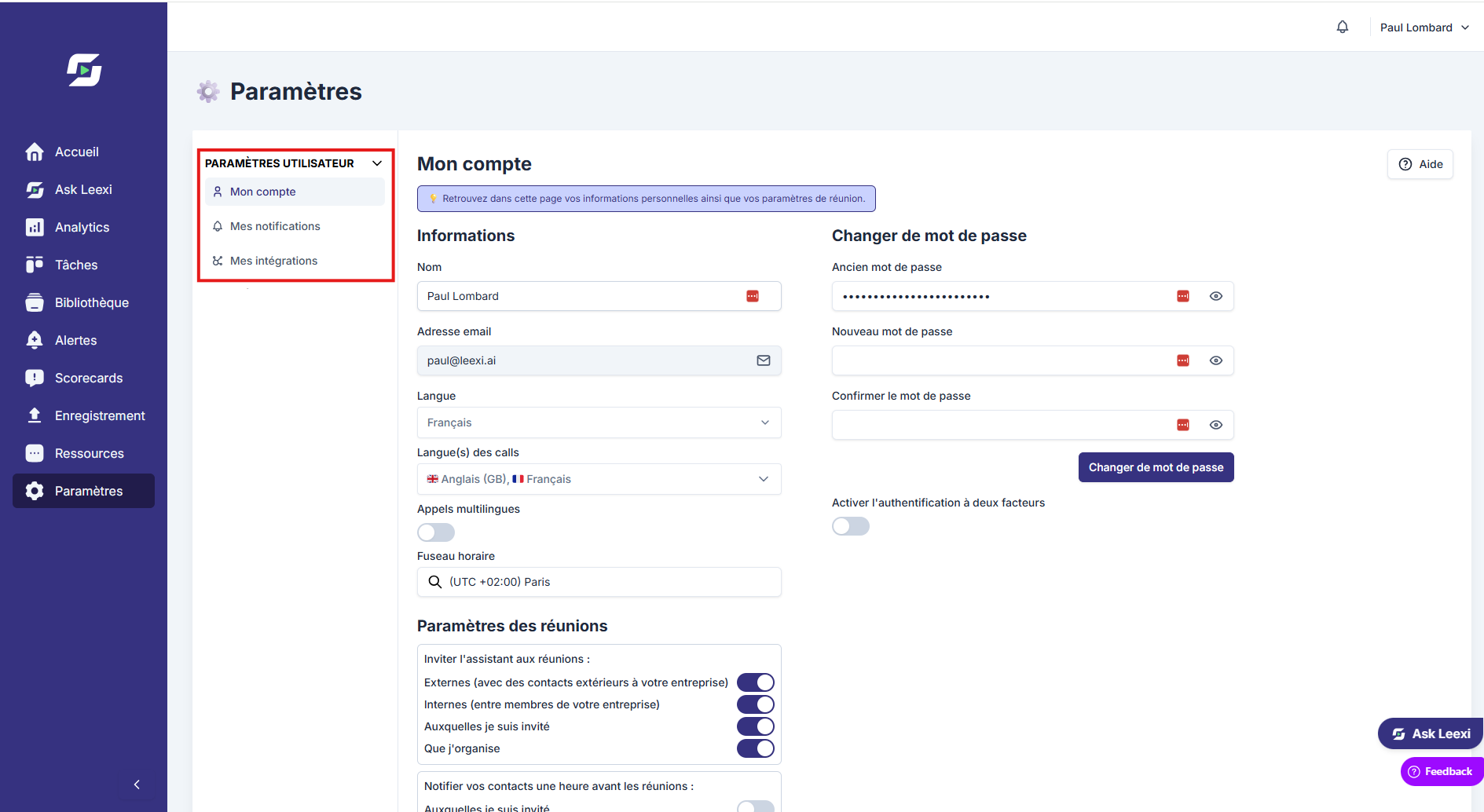
Member: same rights as the basic member, plus the ability to delete, edit and share their own calls.
Billing manager: access to personal settings (My account, My notifications, My integrations) and to billing.
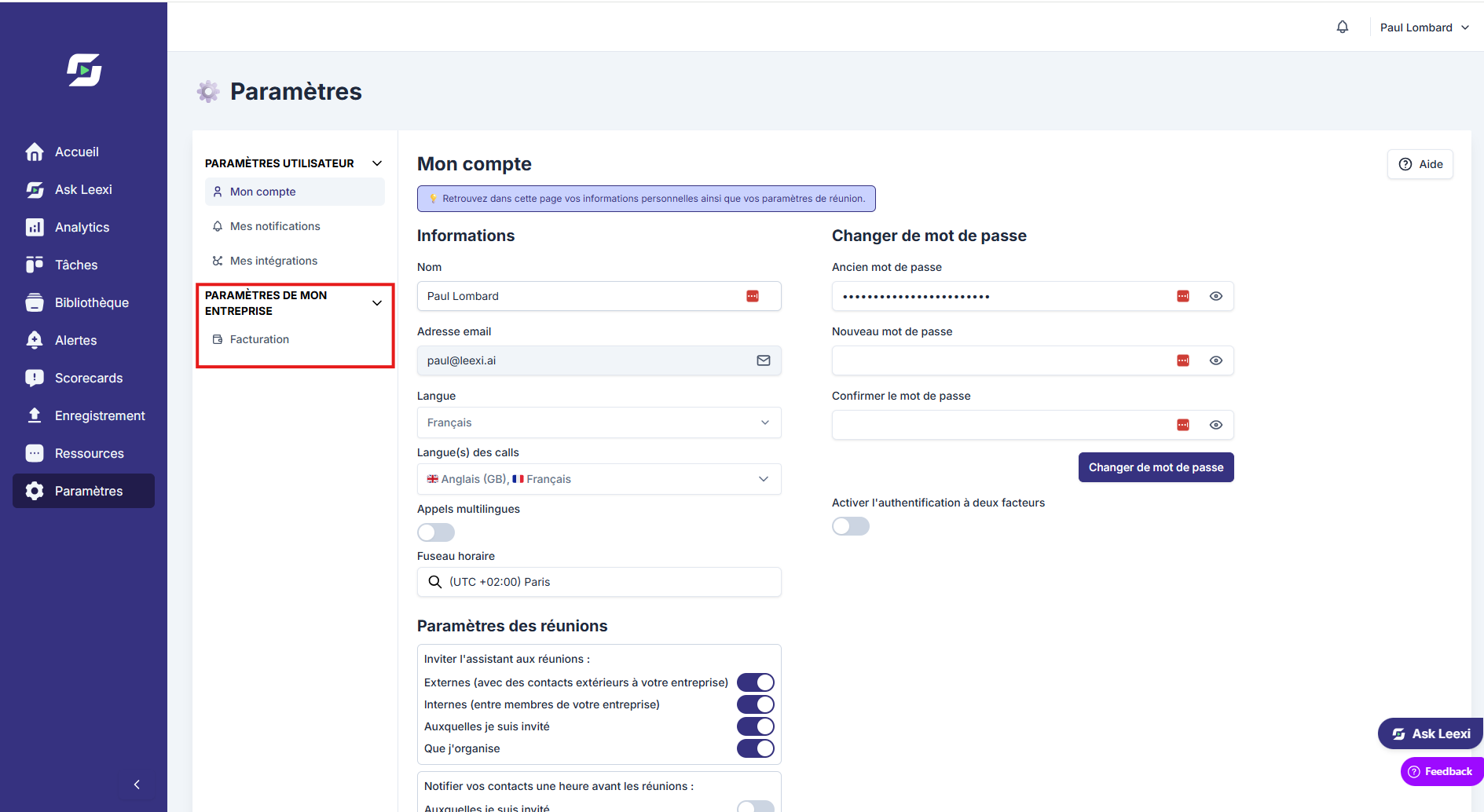
Team leader: additional access to team settings (My team). Can manage the team's authorized calls, libraries, scorecards, tags and topics. Receives team reports.
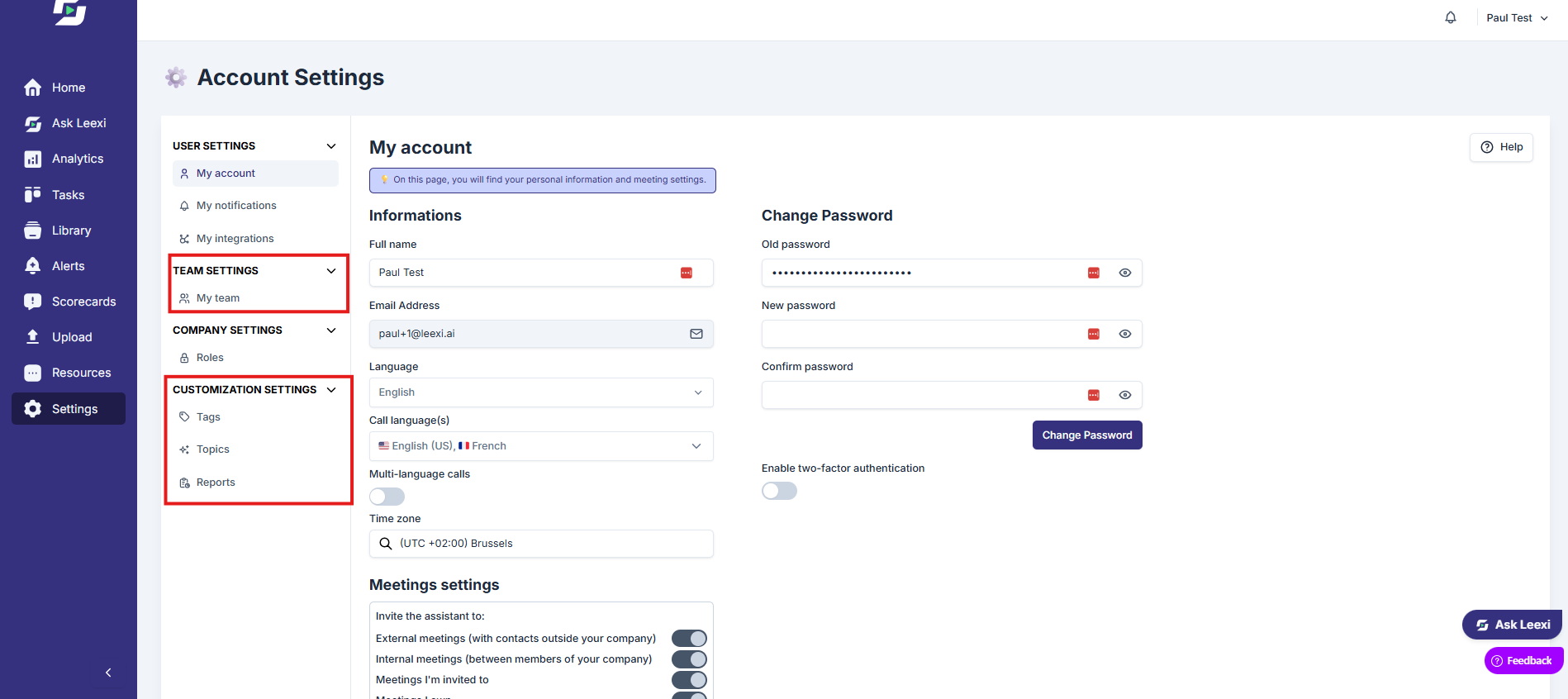
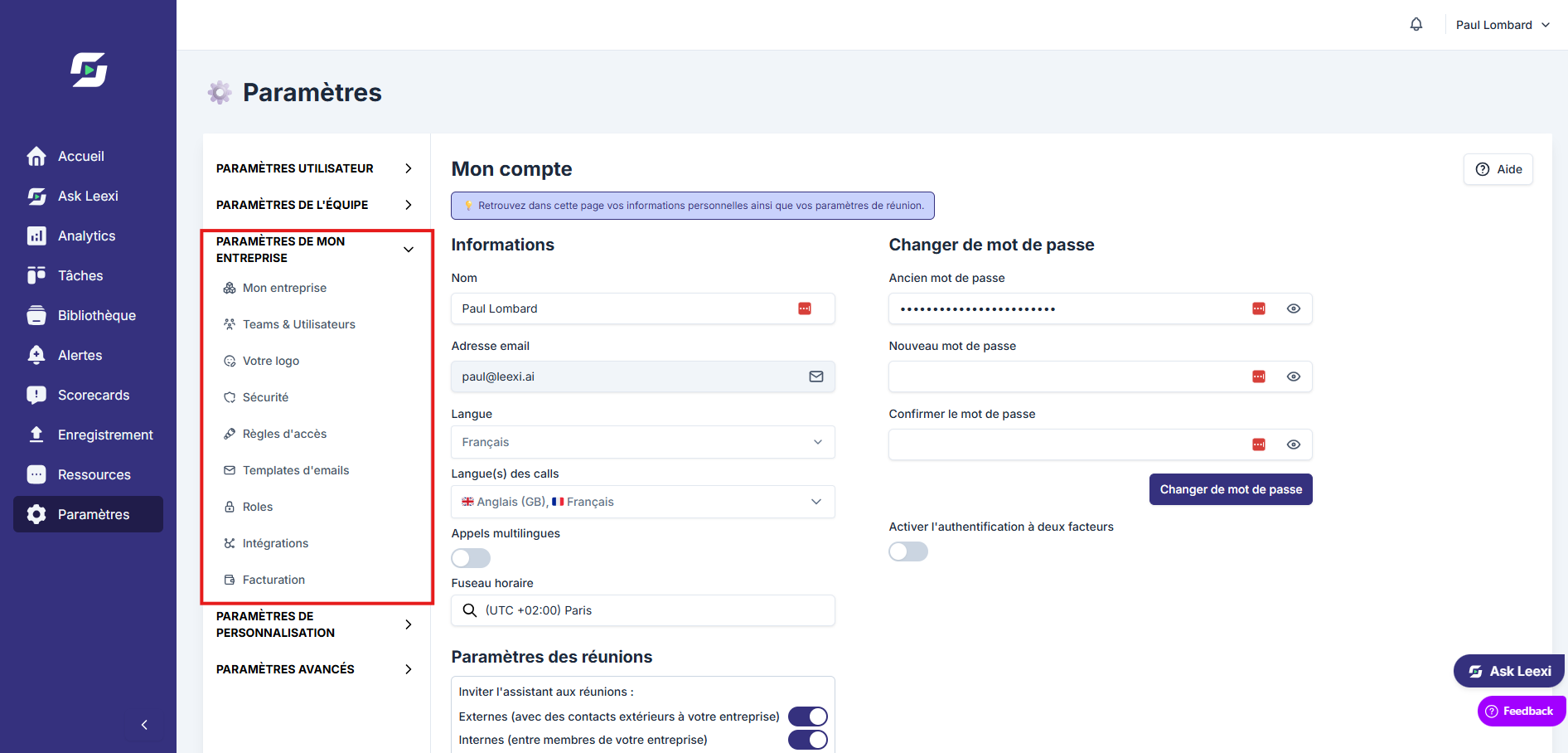
Company manager: access to company settings (Teams and users, Email templates, Roles) and to all customization settings (Prompt templates, Conversation types, AI Context, Custom vocabulary, Tags, Topics, Scorecard templates, CRM Autofill, Reports). Can view and manage authorized calls, libraries, dashboards, tags, teams and topics.
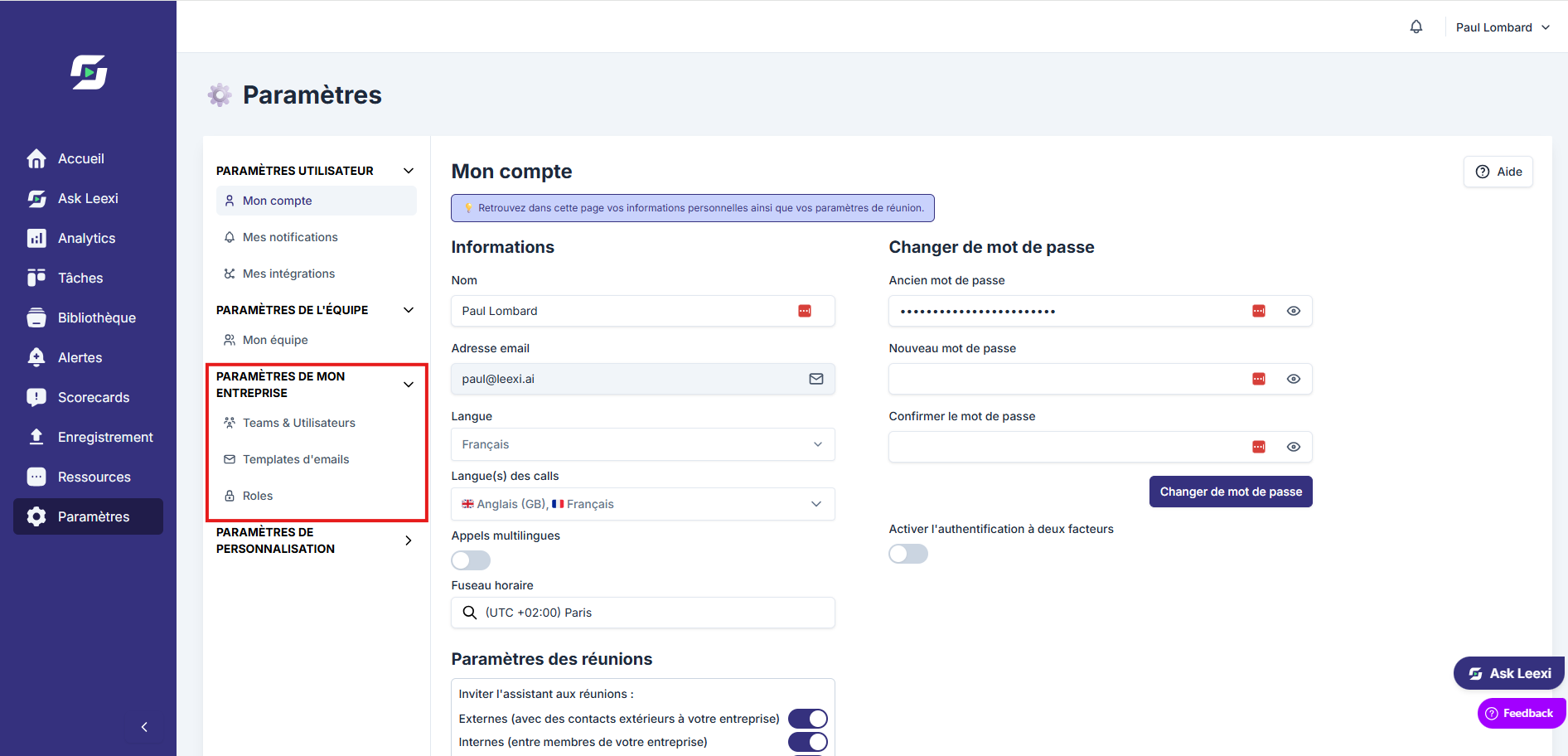
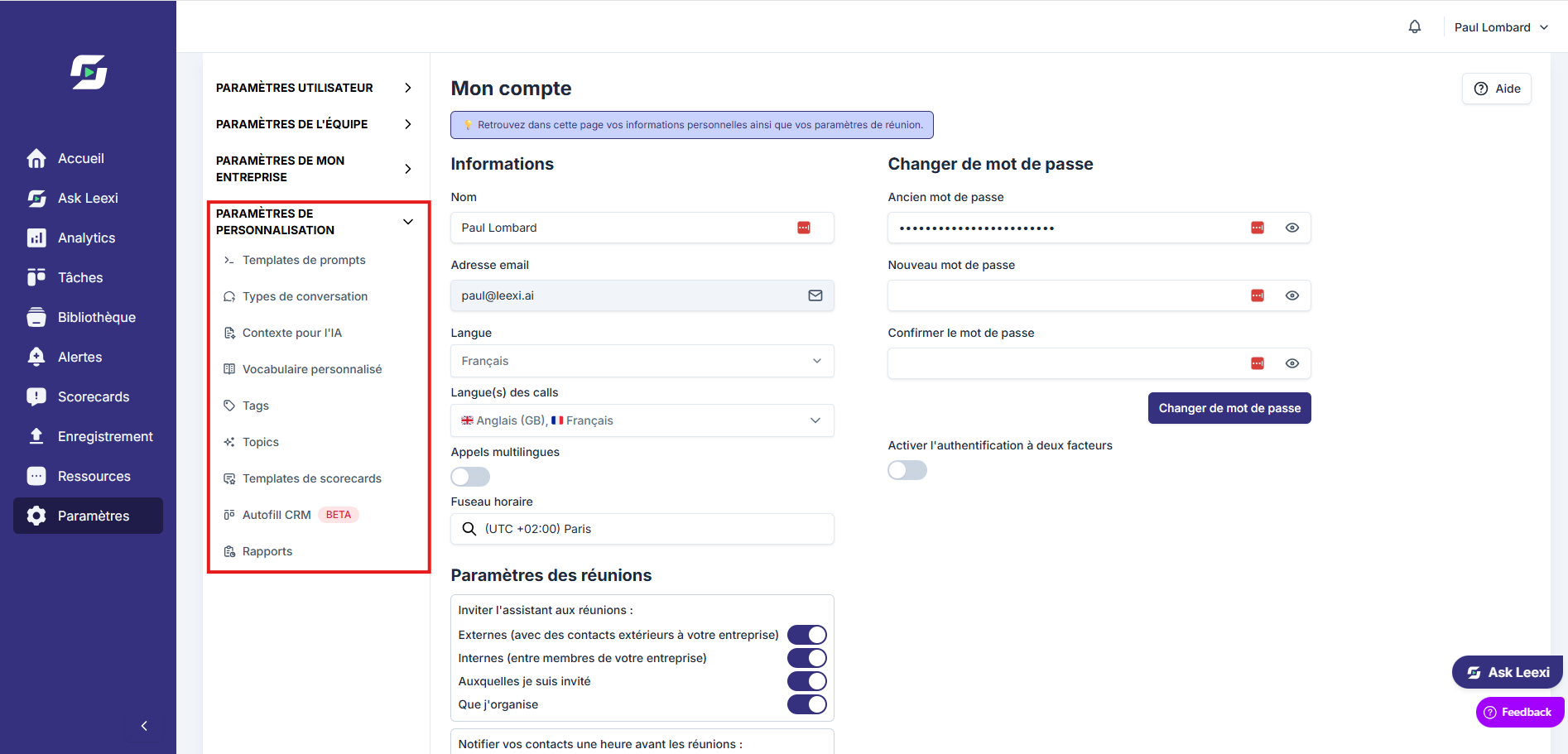
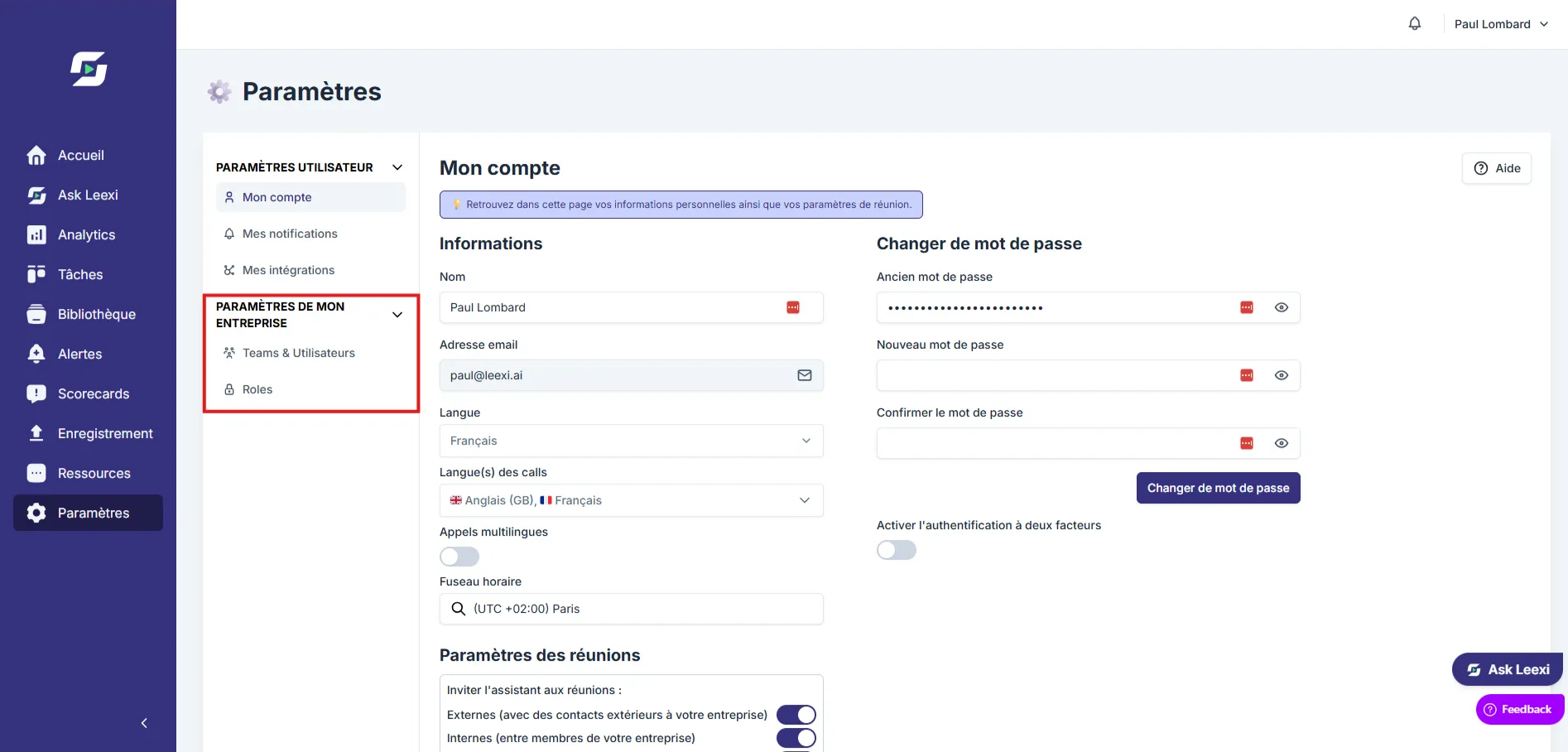
User administrator: access to company settings — Teams and users, Roles. Can create teams, users and update user settings.
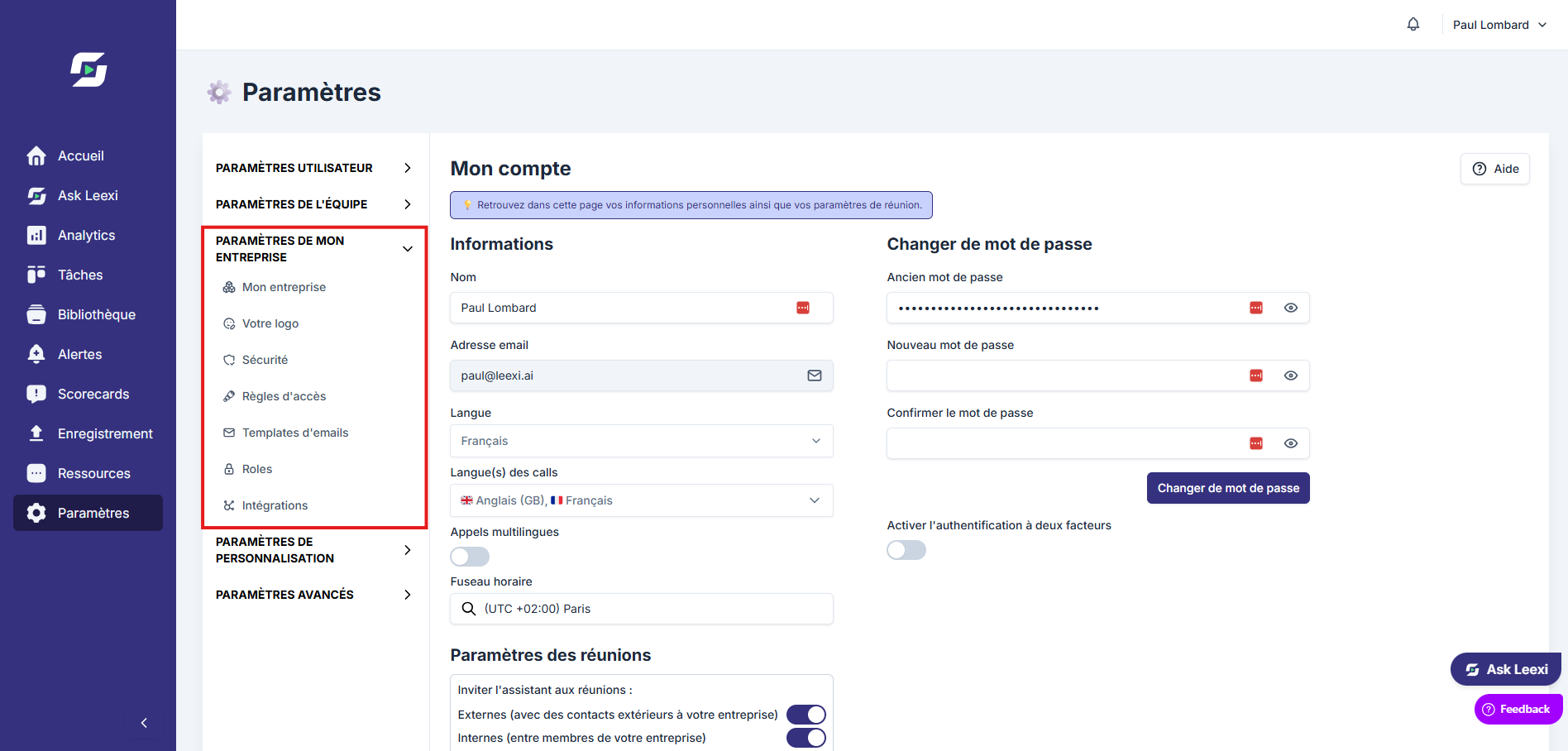
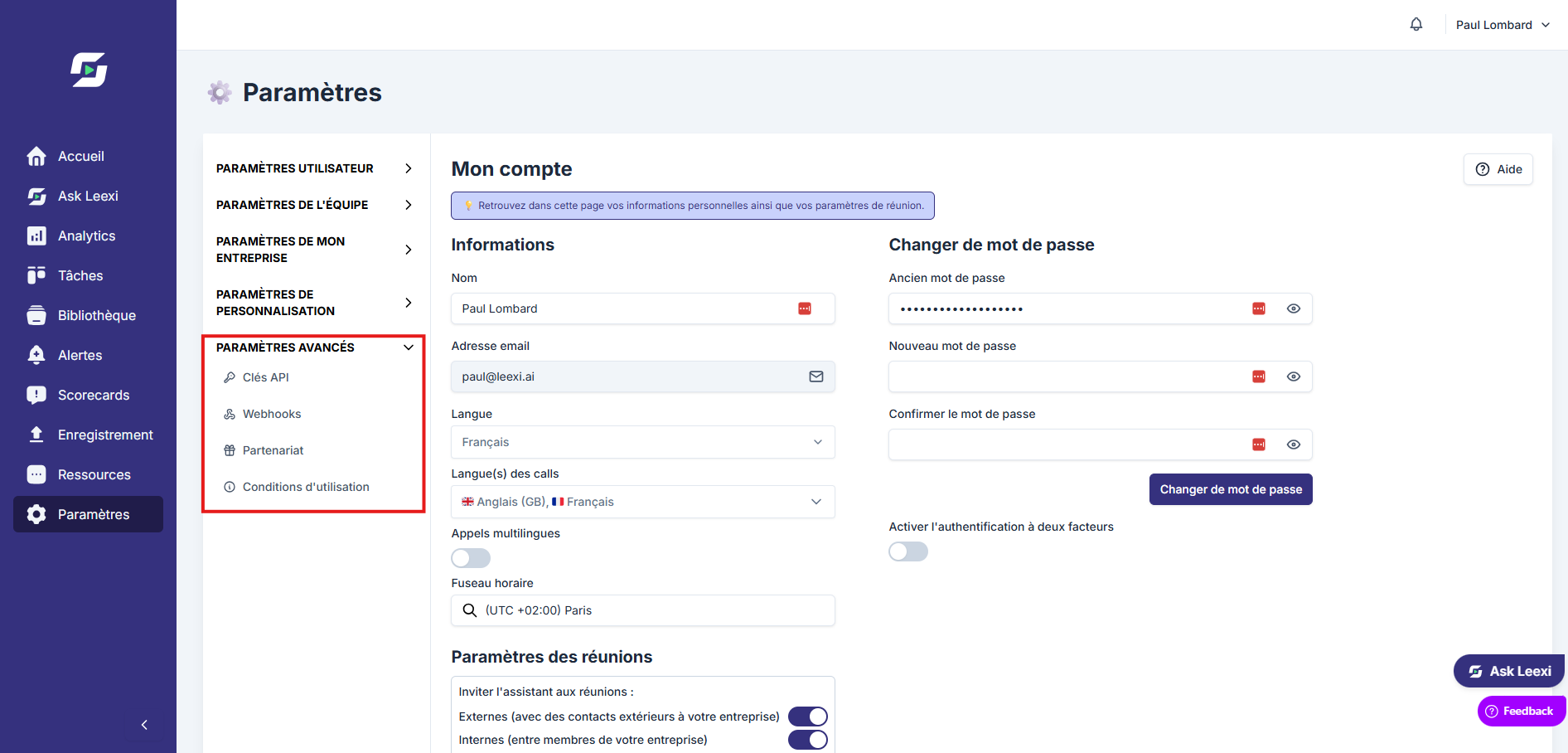
System administrator: access to company settings (My company, Your logo, Security, Access rules, Email templates, Roles, Integrations) and to advanced settings (API keys, Webhooks, Partnership, Terms of use). Can manage access groups, alerts, API keys, logo, global settings, SSO and integrations. Cannot view calls, manage billing, or create/manage users.
Super administrator: full access — My company, Teams and users, Roles, Integrations, Custom assistant, Billing, Security.
Check critical permissions
Check sensitive access rights such as user management, integrations, roles, prompts or access rules.
Review regularly
Update roles as the organization changes to keep a clean access model.
Going further
- The User administrator mainly covers team and user management.
- The Company manager and Team leader cover a lot of operational actions on business content and settings.
- The System administrator opens up cross-cutting capabilities on certain technical and security settings.
Frequently asked questions
Things to watch out for
- A role that's too broad increases the risk of error or scope leakage.
- Combining several roles remains useful, but must stay readable and documented.
- Roles alone don't organize detailed visibility on calls: access rules matter too.