General Settings
Teams & Users
Manage teams, licenses and users from the dedicated admin page.
Definition: This page is used to organize your company in Leexi by creating teams, inviting users and controlling their licenses, roles and main settings.
Feature video
No video is available at this time.
| Who is this for? | Required permissions and licenses |
|---|---|
| • Administrators who manage account organization. • Managers who oversee the scope of their team. | • Managing users is reserved for administrators authorized to manage users. • Managing teams is reserved for administrators authorized to manage teams. • Read rights on roles help verify the access levels granted. |
Use cases
- Add or remove a user.
- Change some of their settings, such as their language or role.
- Create a team.
- Assign specific summaries to each team.
- Set custom access rules for each group.
How to use it
Create or edit a team
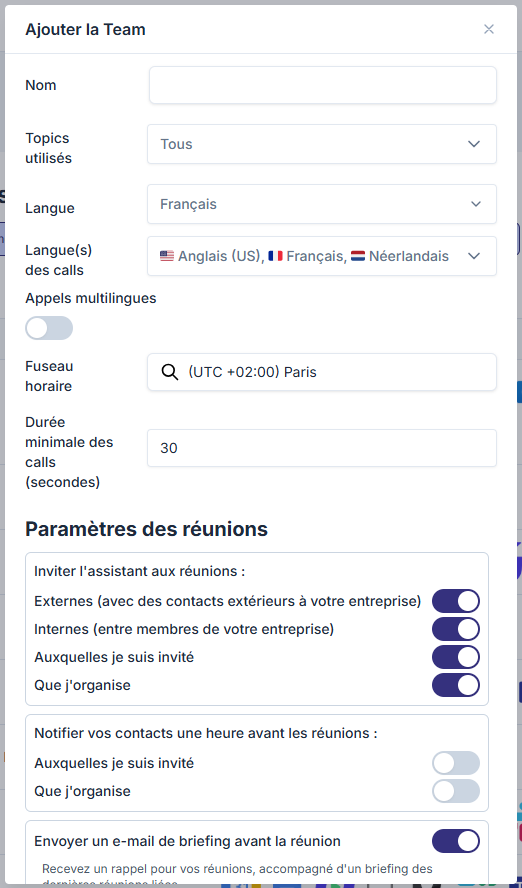
From Settings > My company settings > Teams and Users, click "Add a Team". The available settings are:
- Name: a clear team name (e.g., Sales, Customer Success...).
- Topics used: topics associated with the team, automatically visible on all calls of its members.
- Functions: the team's business category, used to determine which conversation types and prompts apply to this team.
- Platform language: default display language for the team's users.
- Call language: main language of calls made by this team.
- Multilingual calls: check this if members take part in calls in several languages.
- Time zone: the team's main time zone.
- Meeting settings: meetings the assistant automatically joins, sending of the GDPR email, pre-meeting briefing email, summary sending preferences after a call.
Important: To add a user, you must associate them with a team. If you want to group all users together without distinction, create a default team.
Invite a user
From a team's page, click "Add a user". The form contains the following fields:
- Name: the user's first and last name.
- Email: professional email address.
- Platform language: display language of the Leexi interface.
- Call language: main language of this user's meetings.
- Multilingual calls: check this if the person takes part in calls in several languages.
- Time zone: the time zone the user works in.
- Team: the team they belong to.
- License: Guest (free, limited access), Starter, AI Meeting, Business or Enterprise depending on your subscription.
- Role: determines the user's access rights in Leexi.
- Recording settings: meetings to record automatically, summary recipients, sending of the GDPR email.

Remove and reactivate a user
To remove a user, use the delete button on their profile. To reactivate a deleted account, go to the bottom of the page in the "Deleted operators" section and click "Reactivate".
Check the useful statuses
Review role, team and calendar connection information to steer the rollout.
Update over time
Reassign a license, change a role, or reactivate a user as the organization evolves.
Going further
- This page is the main entry point for scaling up a Leexi rollout.
- Team settings simplify harmonizing usage at scale.
- The combination of role plus license remains the foundation of your product rights.
Frequently asked questions
Yes. A user can be given multiple roles if you need to combine several permission families.
People authorized to manage teams, such as the User administrator, the Company manager or the Super administrator.
Things to watch out for
- A license that's too basic hides certain functions, even if the role is high-level.
- A role that's too broad potentially opens access to sensitive settings.
- Remember to check access rights after any team reorganization.