Call History
Feature video
| Who is this for? | Required permissions and licenses |
|---|---|
| • All users who want to find a past call. • Managers who monitor that recordings run smoothly. | • History depends on your visibility over calls. • Calls you can view and edit vary based on your roles and access rules. • Transcription features require a license with active transcription. |
How to use it
Open the call list
From the home page, view recent calls and their general status.

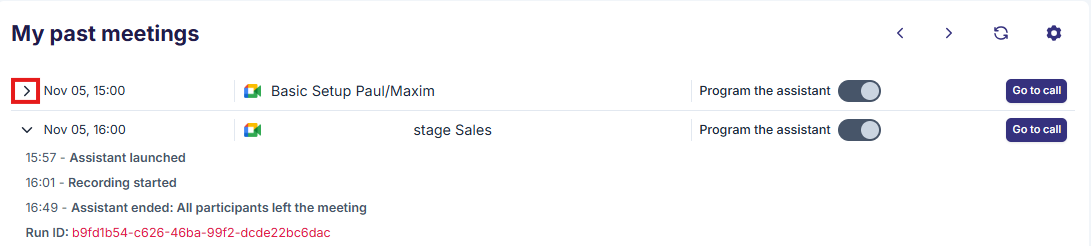
Check the processing of a call
Check whether the bot joined the meeting, whether the call is being processed, or whether the deliverables are already available.
Open the detailed page
Click on a call to access the transcript, summary, sharing, and related analytics.
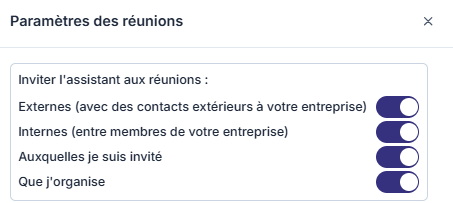
Configure the assistant's attendance
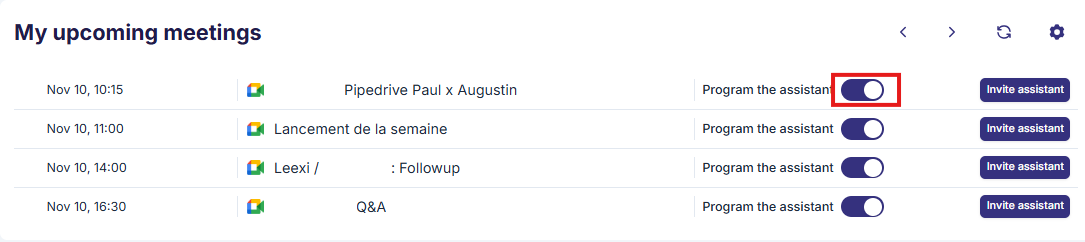
From history, you can control the assistant's attendance in two ways:
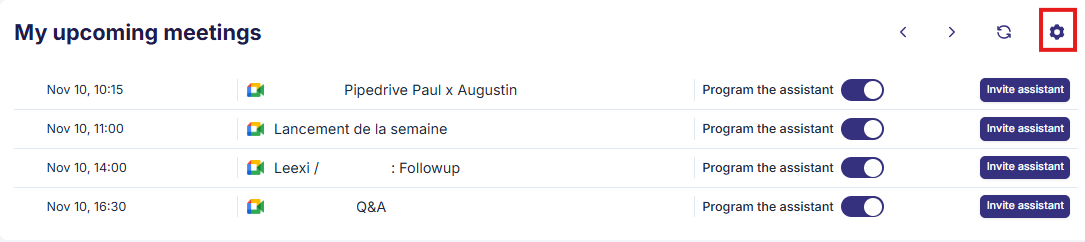
- Case by case: to prevent the assistant from joining a specific meeting, simply uncheck "Assistant enabled" on that meeting.
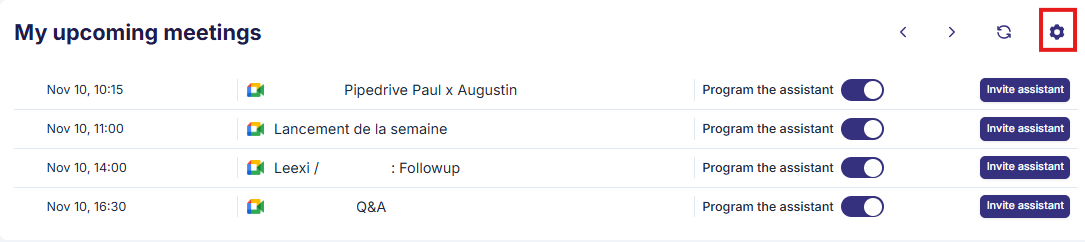
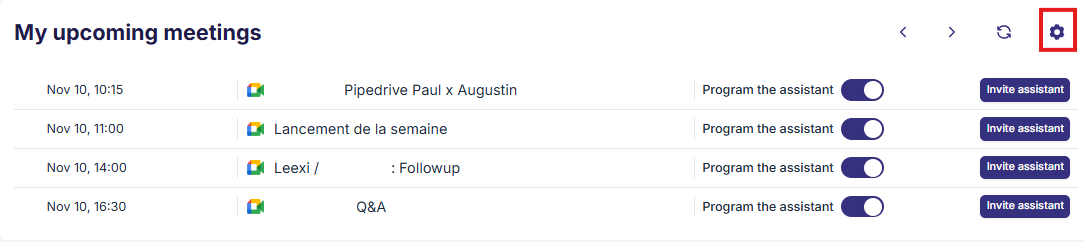
- Globally: click "Settings" above the history to control the assistant's attendance based on meeting types (internal/external, meetings you organize/meetings you're invited to).
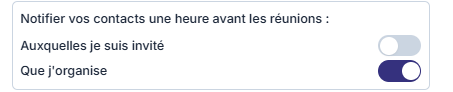
Configure the pre-meeting GDPR email
From "Settings", you can configure for which meeting types a notification email is sent to participants to let them know that an AI Notetaker assistant will take part in the meeting.
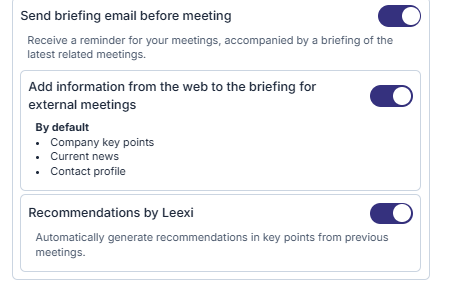
Configure the briefing email
You can configure your pre-meeting reminder email. Leexi will run a brief internet search on your contact along with a key-points summary of the latest related meetings.
Configure summary recipients
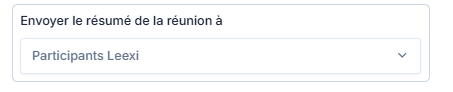
From "Settings", choose who receives the summary at the end of the meeting:
- All participants: the summary is sent to all meeting participants.
- Leexi participants: the summary is sent to members of your Leexi workspace who attended the meeting.
- Meeting owner: only the organizer receives the summary.
Invite the assistant to a specific meeting
You can manually invite the assistant to join one of your future meetings from the call history. Click "Invite" to the right of the relevant meeting.

Going further
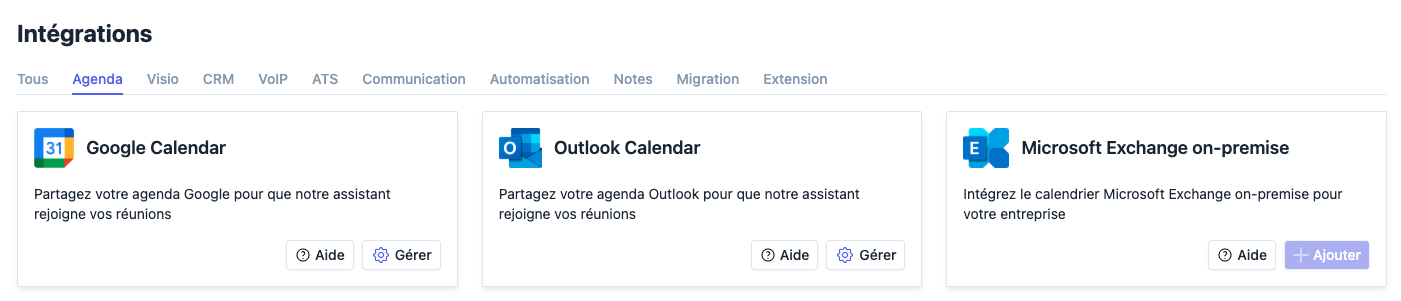
- History is useful for checking that calendar and video conferencing integrations are running correctly.
- It also serves as an entry point to sharing, tagging, and task workflows.
- The available filters make it easier to resume activity by time period or by user.
Frequently asked questions
Things to watch out for
- A call visible in the history isn't always fully processed.
- Statuses can change if an external integration finalizes syncing after the call.
- Active filters can hide calls that are already available.