Getting Started
Billing
View your subscription, invoices, and payment methods from the Leexi billing area.
Definition: The billing page centralizes your active plan, payment information, and the invoice history linked to your company account.
Feature video
No video is available at this time.
| Who is this for? | Required permissions and licenses |
|---|---|
| • Administrative and finance managers. • Administrators who manage the Leexi subscription for their company. | • The page is restricted to users authorized to manage billing. • This access is notably included in the Billing Manager and Super Administrator roles. • Access also depends on how your company account is organized. |
How to use it
Open billing
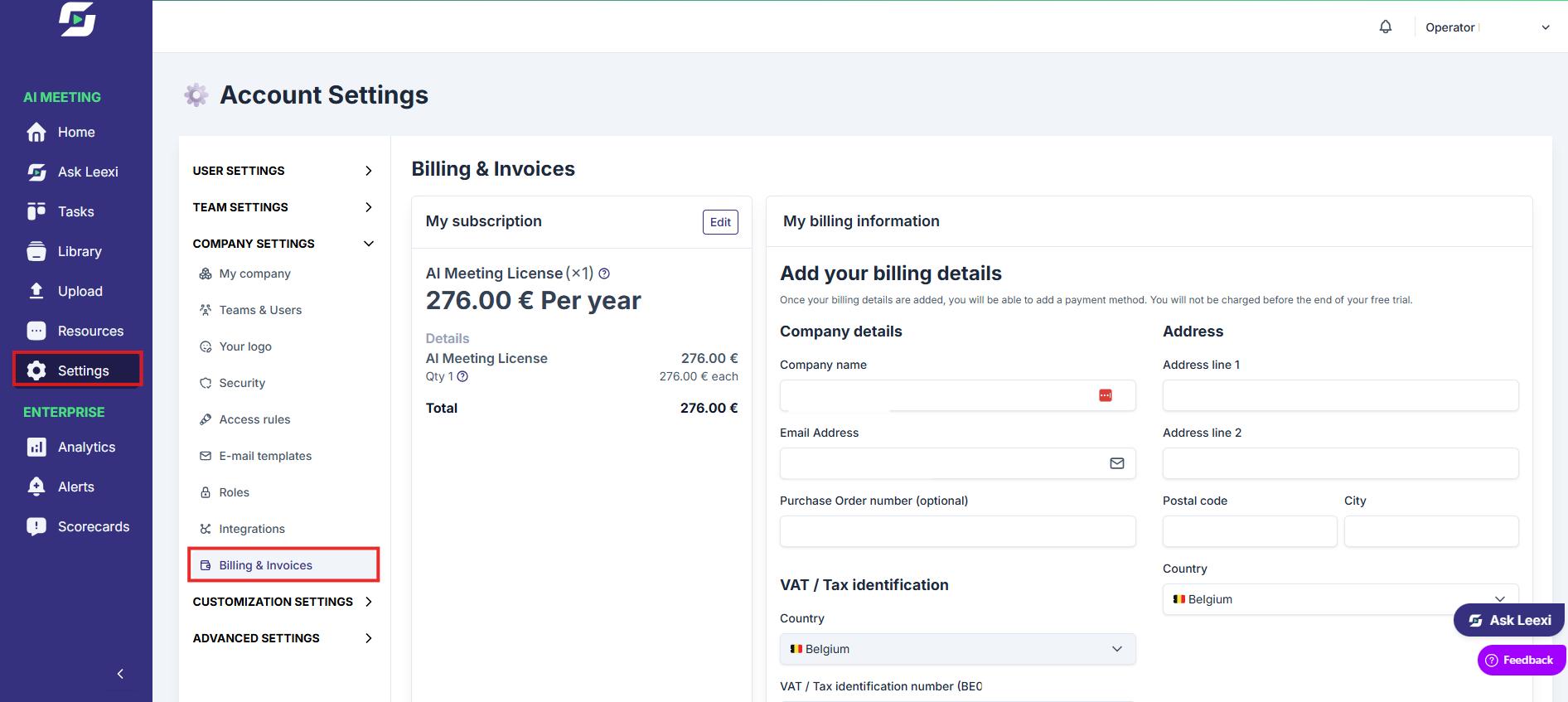
Go to Settings > My Company Settings > Invoices to view your current subscription.
Check the active plan
The Billing page is divided into four sections:
- Subscription details: shows the active plan, the number of licenses, and the total price. Use the "Edit" button to change plans.
- Billing information: contains the data that will appear on your invoices (company name, VAT number, address, contact person).
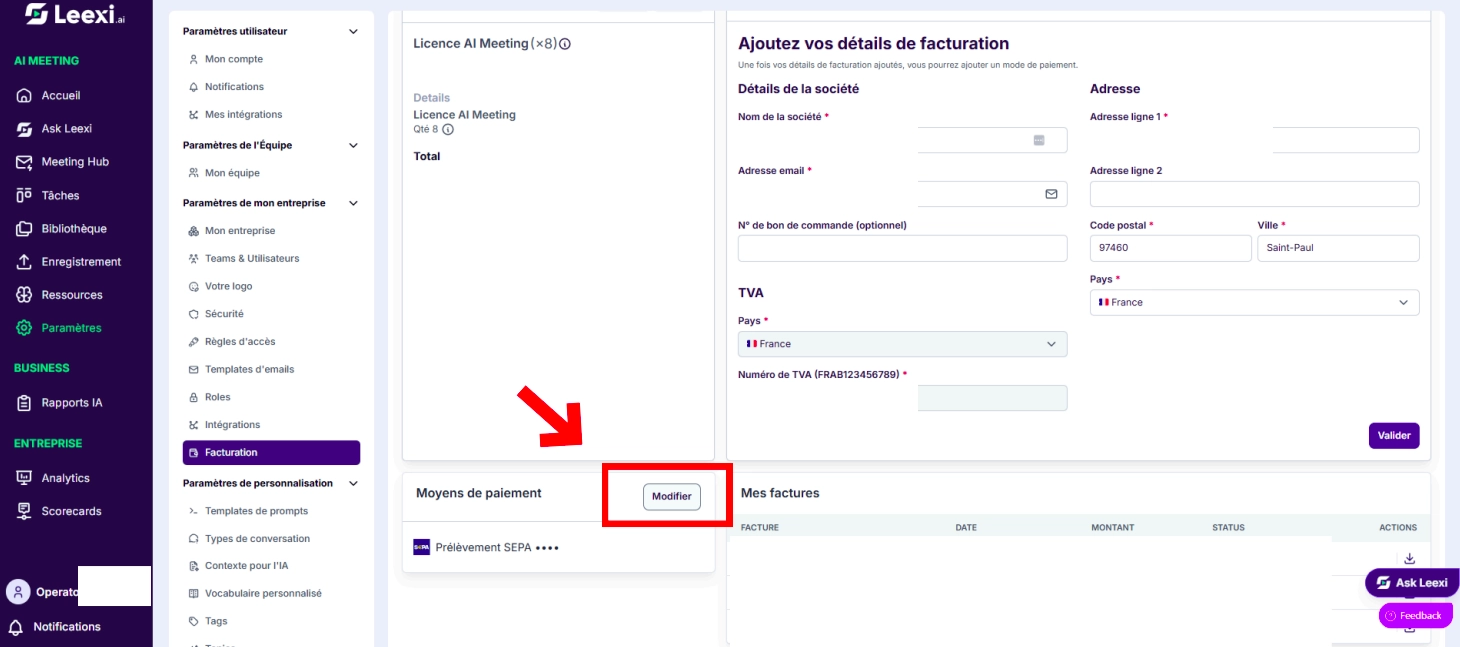
- Payment method: lets you view and update your payment method (card, SEPA, etc.).
- My invoices: lists all your invoices, with the option to download them as PDF or pay an unpaid invoice.
Update payment details
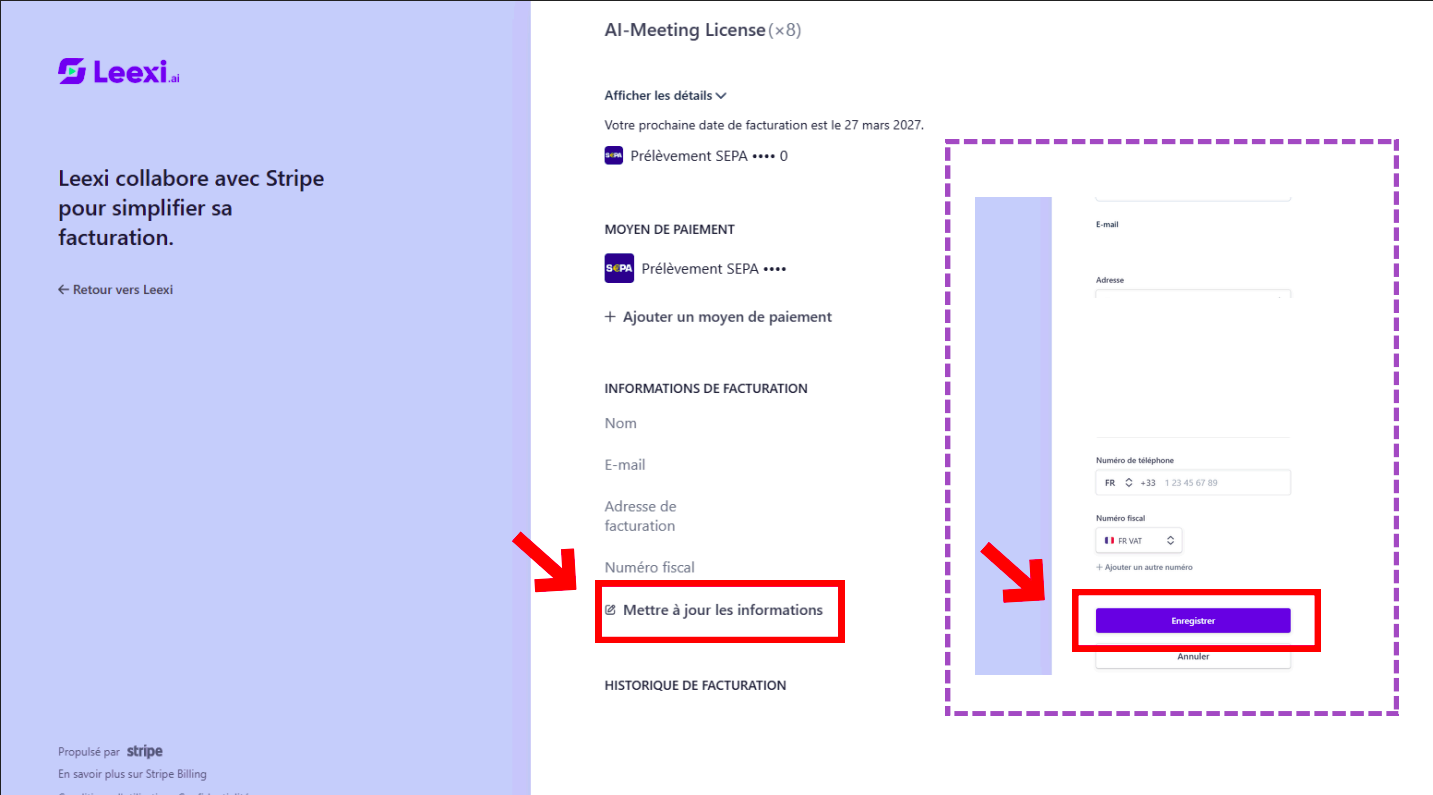
Open the billing portal to change the card, billing address, or legal information.
Retrieve invoices
Download invoices already issued for your accounting needs.
Manage the subscription
If your organization allows it, use the portal to upgrade, downgrade, or cancel the subscription.
Going further
- The payment process relies on a dedicated portal for sensitive operations.
- Billing is separate from product roles: you can delegate this access without opening up other technical settings.
- Plan changes have a direct impact on the features available.
- When transitioning from trial to a paid license, the first call may not be recorded. Wait a few minutes after activating the license before starting a new recording.
Frequently asked questions
Only users authorized to manage billing have access to this page.
Yes, if your billing portal is accessible from your customer area.
From the Billing page, click "Edit payment methods." A new page opens with your subscription's payment information. Then click "Update information" to change the VAT number, and save.
From
Settings > Company Settings > Invoices > My Subscription > Edit > Manage your billing, then click "Cancel subscription."Things to watch out for
- The Billing Manager role gives access to billing, not full administration of the platform.
- A plan change may modify the rights available to the affected users.
- Check the legal information before the final download of invoices.