Getting Started
Connecting Your Calendar
Link your calendar to Leexi to automatically detect meetings and send the assistant to them.
Definition: Calendar connection lets Leexi spot your events with a video link and automate the bot's arrival without a manual invitation.
Feature video
No video is available at this time.
| Who is this for? | Required permissions and licenses |
|---|---|
| • All users who want to automate the capture of their meetings. • Managers who want to track their team's calendar connection status. | • License required: all licenses, including Free, for calendar connection. • No special role is needed to connect your own calendar. • Checks on other users require appropriate admin rights. |
How to use it
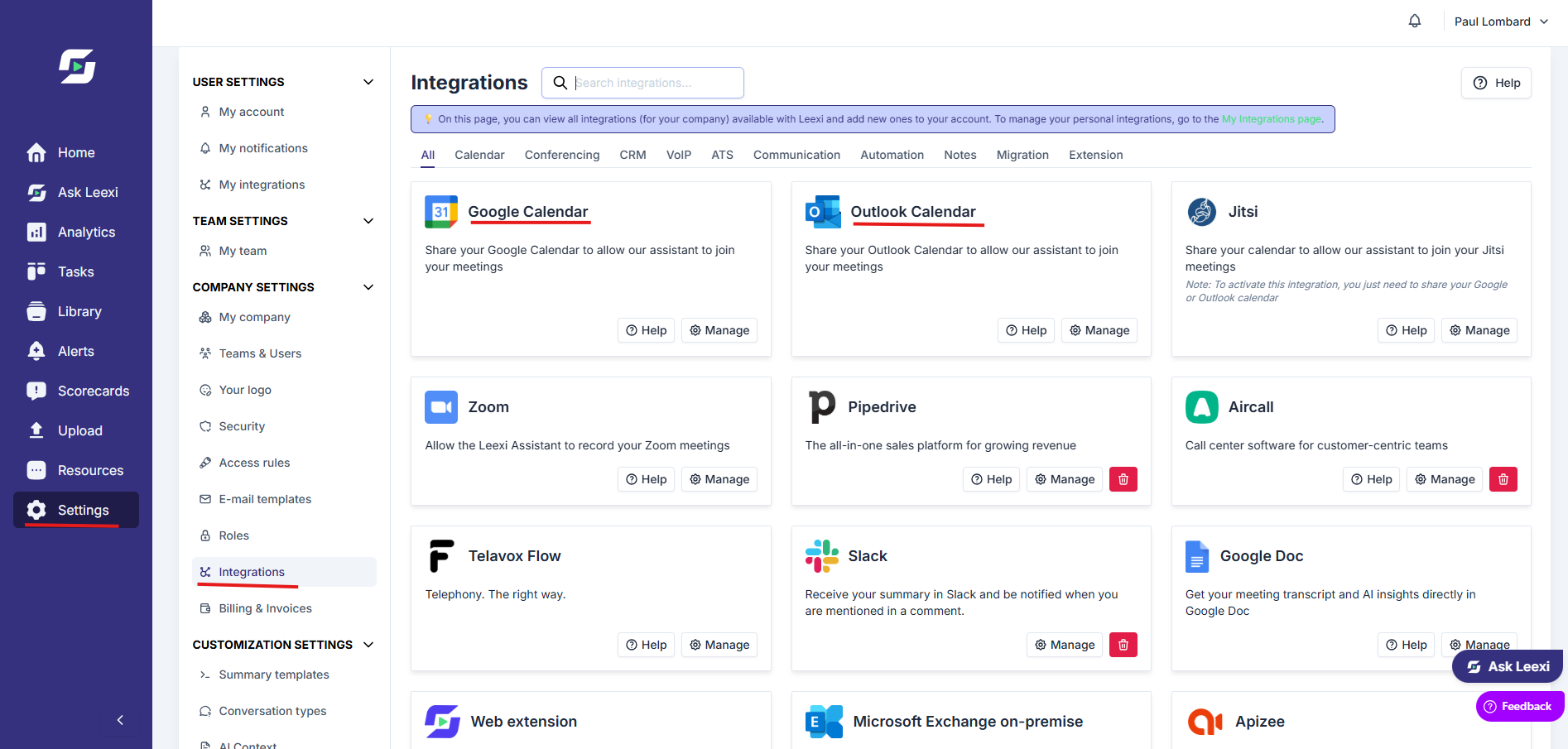
Open your personal integrations
Go to your user integrations to start connecting to Google Calendar or Outlook.
Authorize calendar access
Complete the authentication flow so Leexi can read your events and identify eligible meetings.
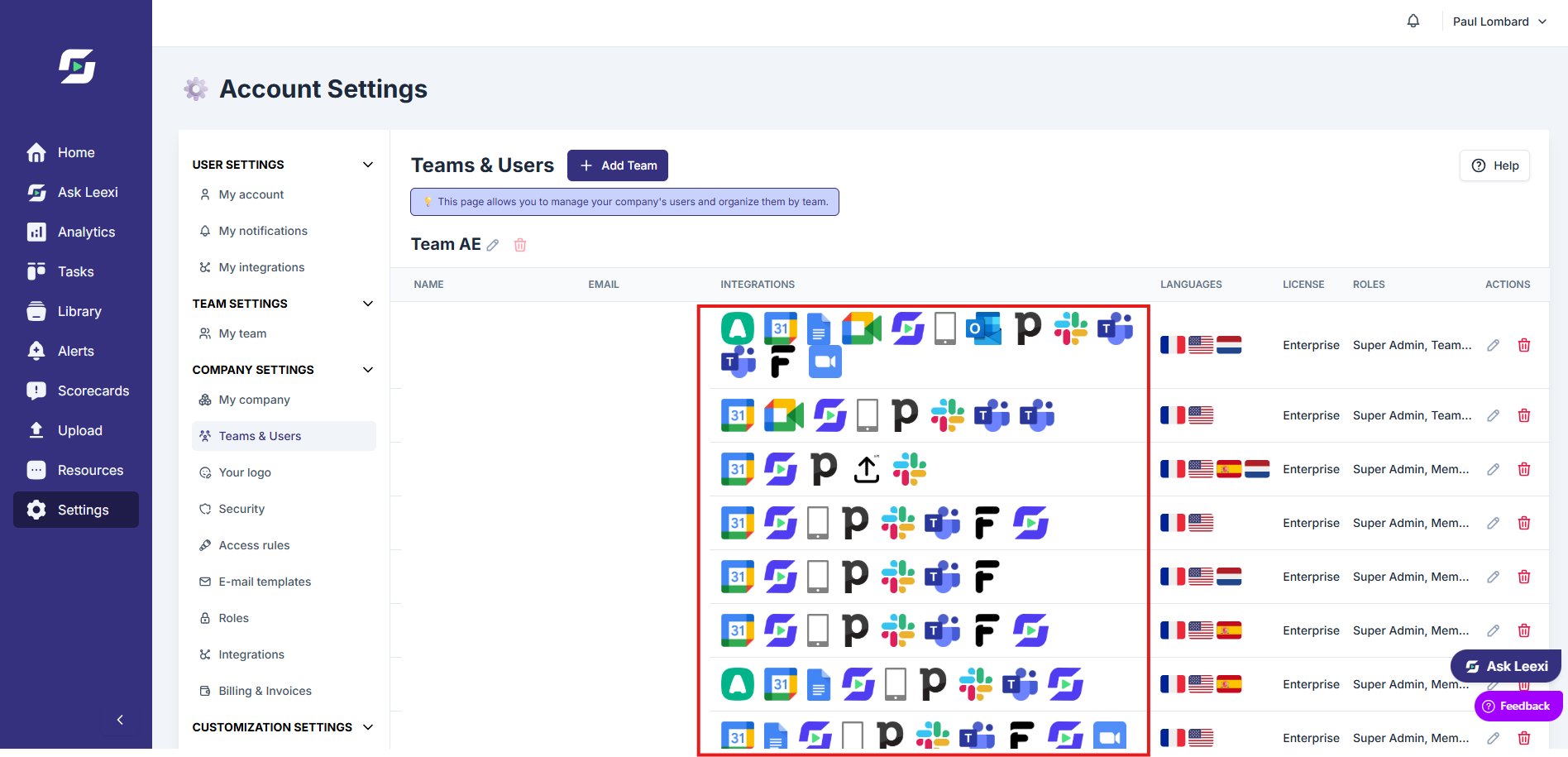
Confirm the sync
Check that your upcoming meetings appear on the home page or in Meeting Hub, depending on your plan.
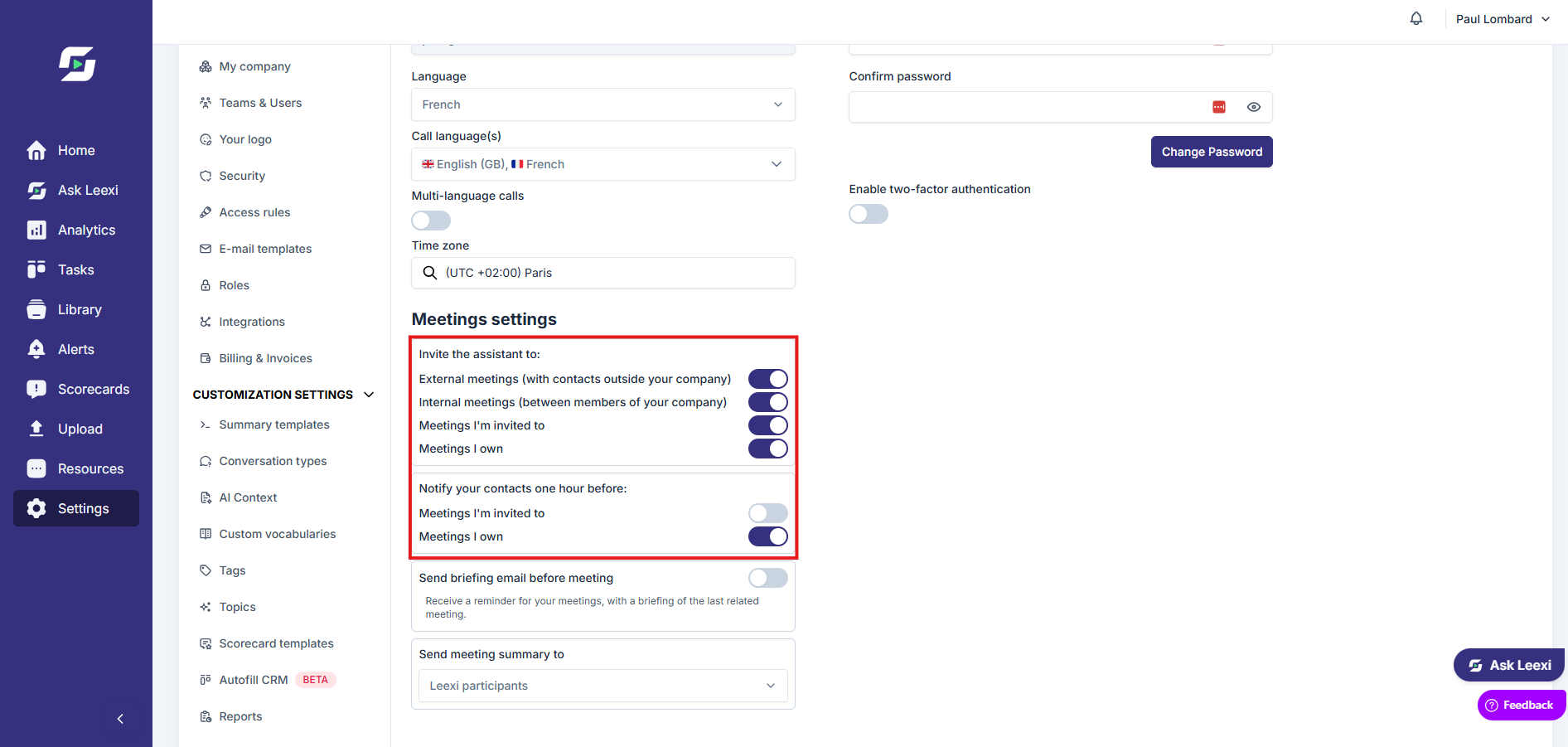
Adjust your recording preferences
Then choose which types of meetings should be recorded automatically.
Going further
- Calendar integrations are available on all plans.
- Leexi works with the main Google and Microsoft flows for user calendars.
- Calendar connection combines with video conferencing integrations and bot settings.
Frequently asked questions
Yes, but you'll need to manually invite the bot for meetings that aren't automatically detected.
Check the calendar connection, the presence of a valid meeting link, and your recording rules.
If colleagues use addresses with different domains (for example,
@company1.fr and @company2.fr), Leexi won't automatically recognize these meetings as internal. Manually activate the bot for these meetings from the home page.Yes, it's possible to connect several different calendars at the same time. However, for a given calendar integration, only one account can be active per user.
Things to watch out for
- Connecting your calendar isn't enough if the meeting doesn't contain a usable URL.
- An expired or revoked token cuts off syncing until you reconnect.
- Active filters on the home page can hide meetings that were still correctly detected.
- The Leexi account's email address must match the one used in the calendar and video conferencing tools: any mismatch prevents automatic meeting detection.
- The bot waits up to 8 minutes in the waiting room to be accepted. Beyond that, it leaves and must be manually re-invited.
- If the bot detects no sound for 2 minutes, it sends a warning in the chat; after an additional 5 minutes (7 minutes total from the start of the silence), it automatically disconnects.
- For the bot to join automatically on time, the calendar event must be created at least 15 minutes before the meeting starts.