Call page
Call page
Understand the structure of the Leexi call page and make the most of all the information available after a meeting.
Definition: The call page centralizes everything produced around a meeting: audio, transcript, summary, actions, comments, sharing, and analysis tools.
Feature video
No video is available at the moment.
| Who is this for? | Required permissions and licenses |
|---|---|
| • All users who view and use their calls. • Managers who review, comment on, or share meetings. | • Access to a call page depends on your visibility over the call. • Available content varies according to your license and active modules. • Editing or sharing actions depend on your permissions on calls. |
How to use it
Open a call
Access a call from the home page, the library, or an internal sharing link.
Read the main areas
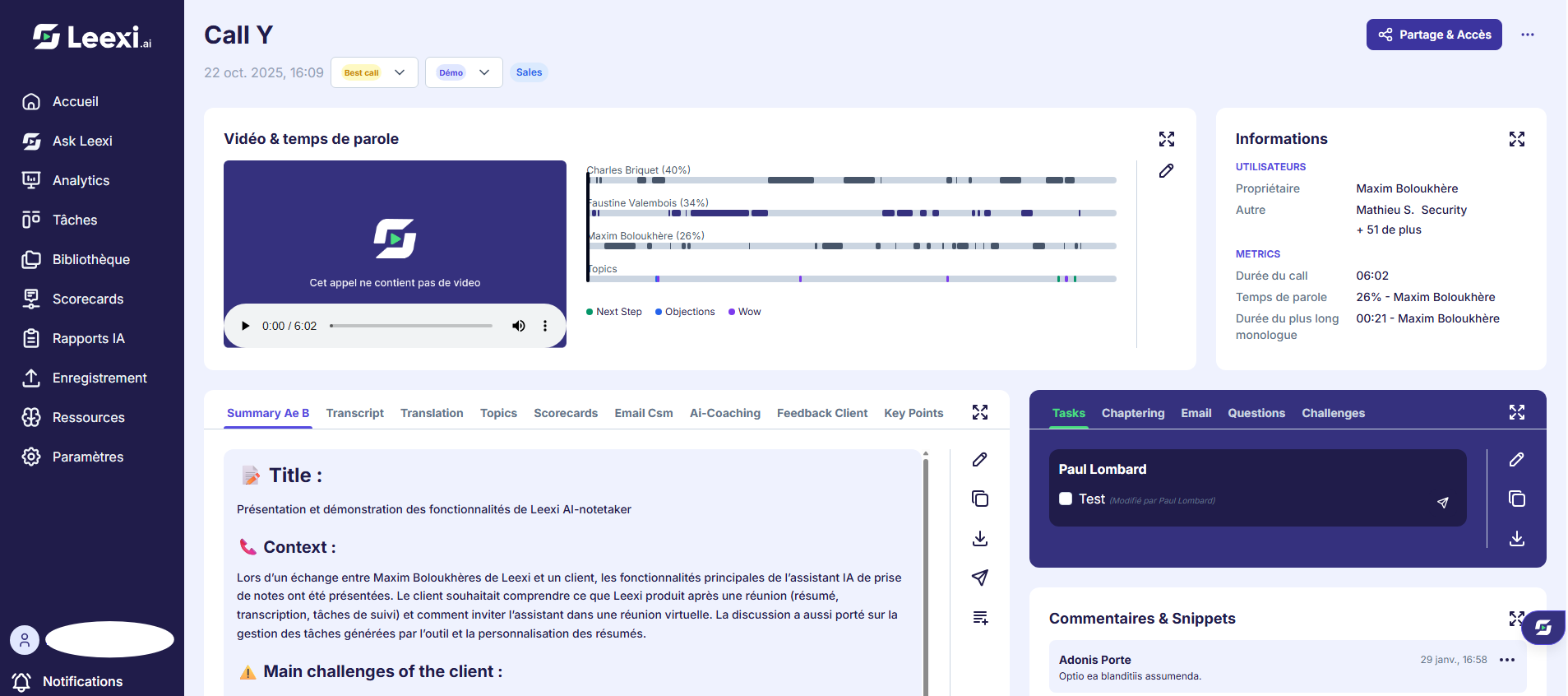
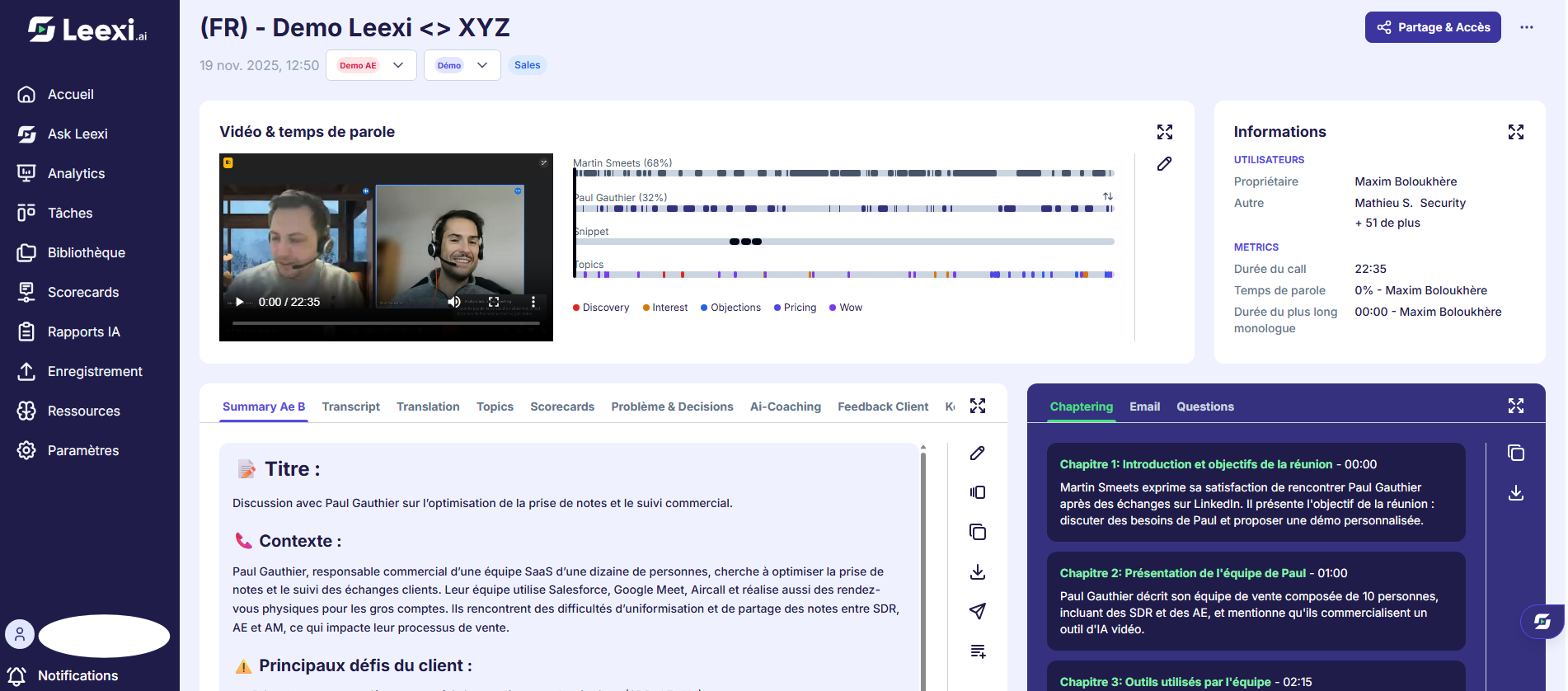
Locate the audio or video, the transcript, the summary blocks, the tasks, and the other available panels.
From the call page, you can in particular:
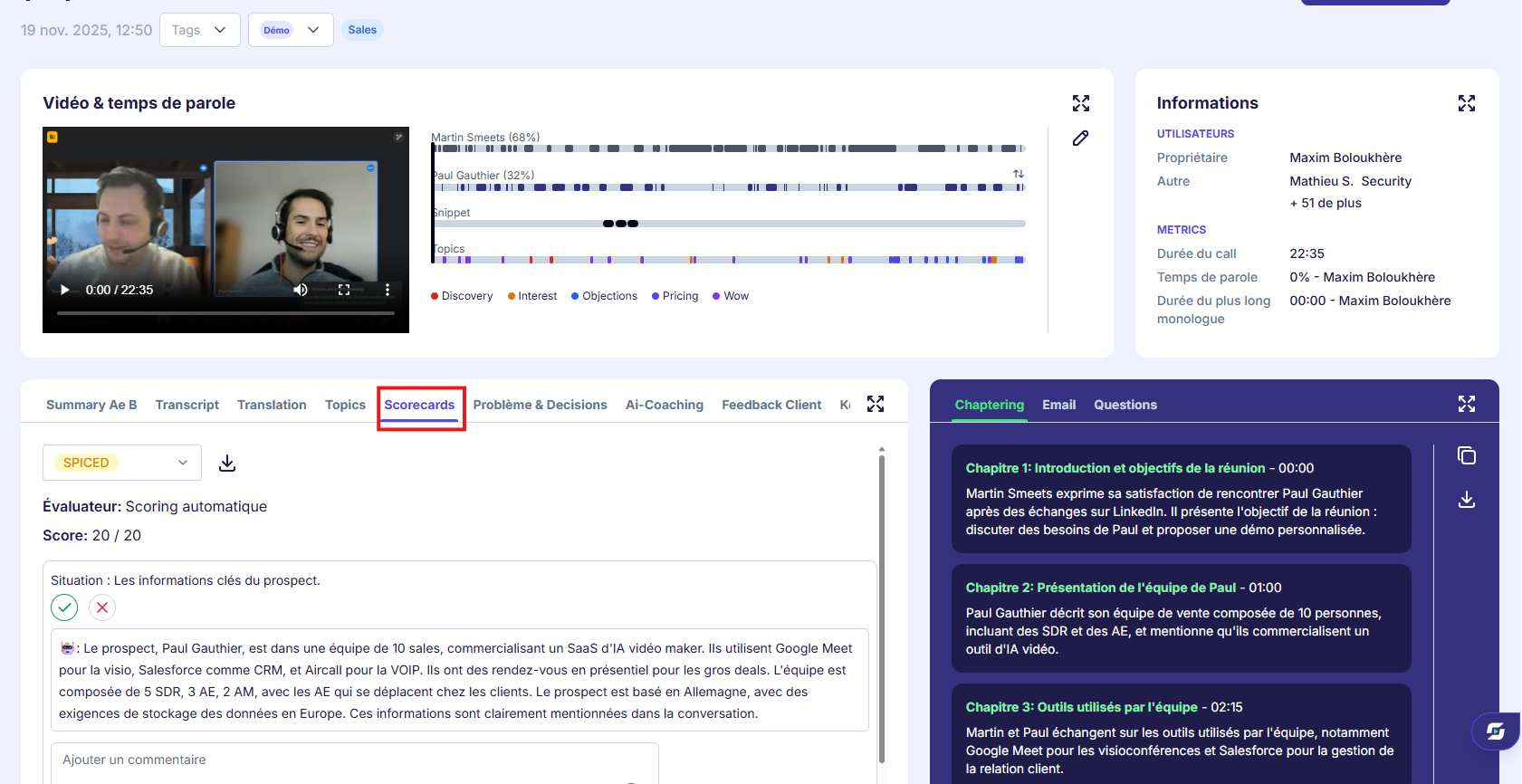
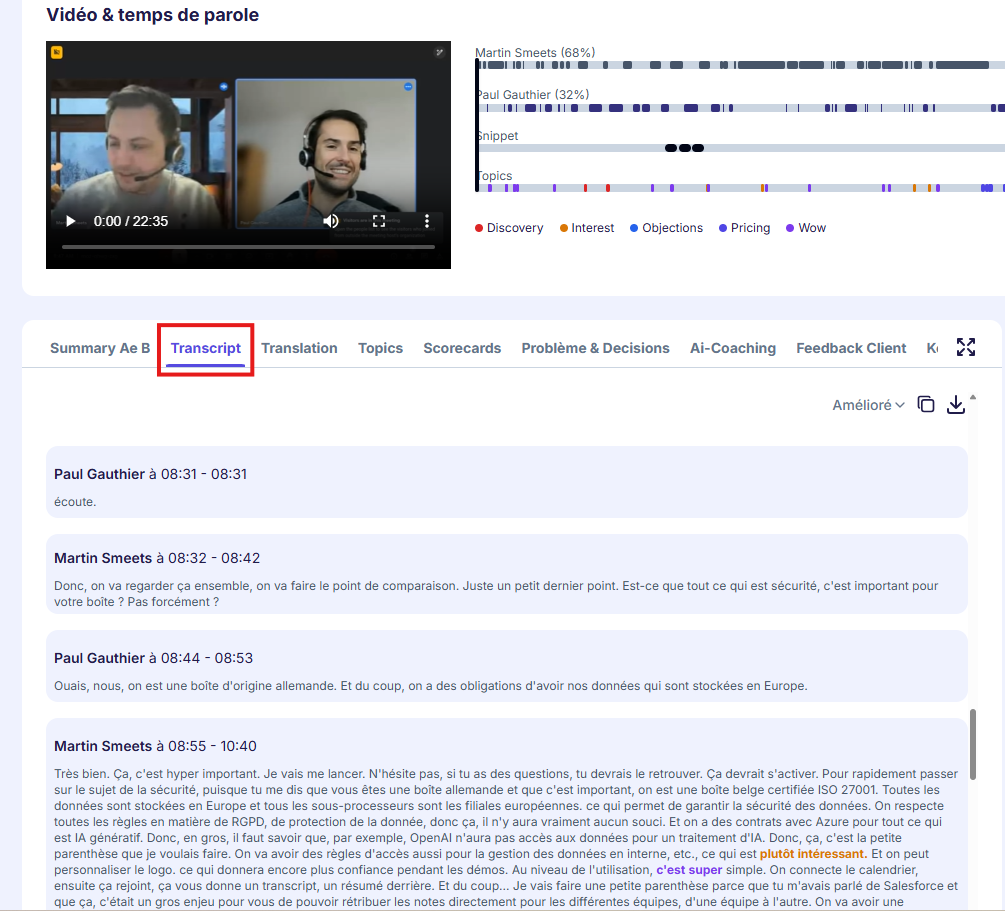
- Listen to the call, sped up or not, and access information in the "info" tab
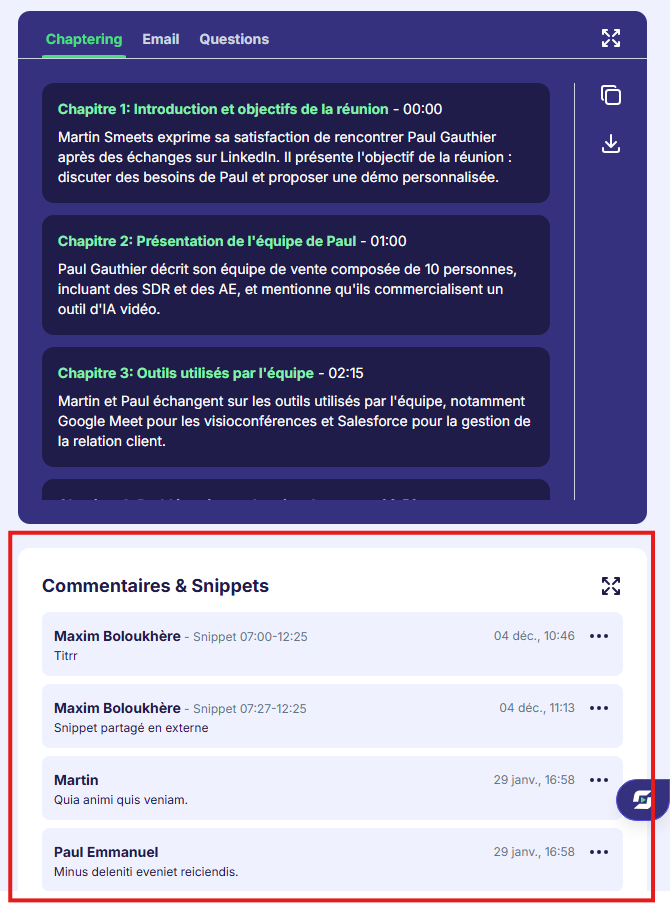
- Browse the main topics discussed in the "chapters" tab
- Read the transcript in the "transcript" tab and translate it into more than 40 languages
- Locate sentences containing topics in the "topics" tab
- Use "Ask Leexi" via the button at the bottom right of the page
- Check the conversation summary and all custom prompts on the right-hand side
- Access the follow-up email
- Post a comment and mention someone with "@+name"
- Share the call internally or externally
- Delete a call
- Add a structured comment via scorecards
- Change who can see and listen to the call via the "Access" button
- View the follow-up tasks discussed during the call
Correct or enrich the content
Add comments, edit certain elements, or apply additional tools depending on your rights.
Share or make use of the call
Then use the sharing, tags, prompts, or exports available to distribute the information.
Going further
- The call page is the entry point for most AI Meeting workflows.
- The blocks displayed change according to your plan and your integrations.
- This page is also where you launch several business actions such as sharing or follow-ups.
Frequently asked questions
Because they depend on your license, your role, or a module that is not active in your workspace.
Only if your permissions or access rules authorize you to act on that scope.
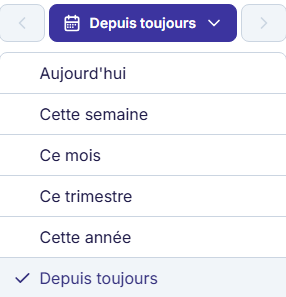
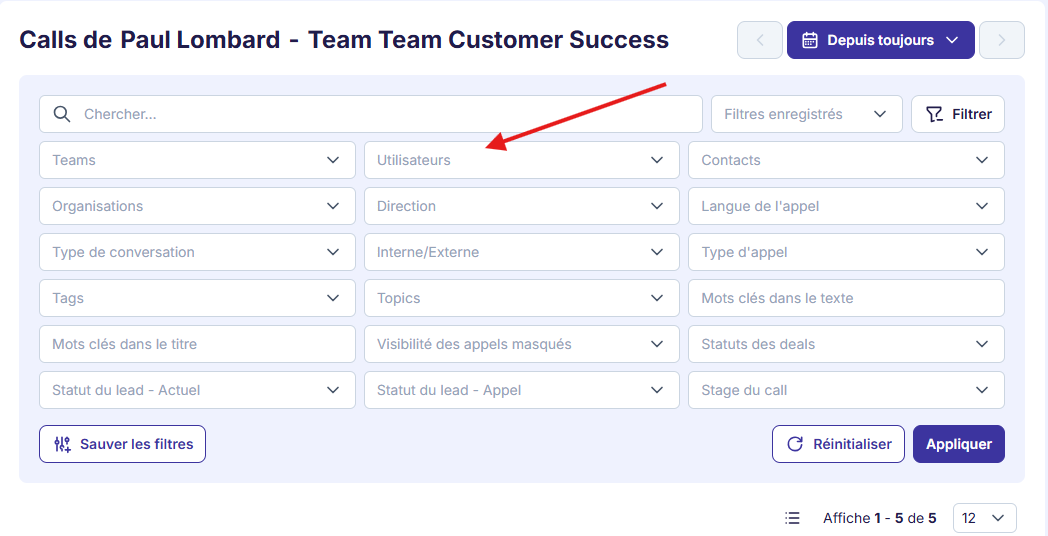
If the selected period is not correct (for example "Today"), change it to "This quarter". Also check that you haven't selected the wrong user or team via the filter bar.
Things to watch out for
- A rich call page doesn't mean every block is editable.
- AI-generated content must be reviewed before external distribution.
- Sharing a call must comply with your internal confidentiality rules.