Microsoft Exchange on-premise
| Who is this for? | Required permissions and licenses |
|---|---|
| • Administrators who manage the company's integrations: the integration is enabled once for the entire company. | • Administrator access to your Leexi account and to your Microsoft Exchange environment. • License required: depending on your plan, check availability in Settings > Integrations. |
If you use Microsoft Exchange on-premise, you cannot use the Outlook calendar integration: it relies on the Microsoft Graph API, which is not available with Microsoft Exchange on-premise. This integration works as follows: you create a service account, grant it access to your users' calendars, then provide its credentials to Leexi so it can read the calendars.
How to use it
Create a service account
Create a new user account in your Microsoft Exchange on-premise environment, with the recommended name leexi-service-account@your-domain.com. This account will cost you an additional Microsoft Exchange license. Choose a secure password and keep it for later. Two-factor authentication (2FA) must be disabled on this account.
Grant delegated access to calendars
You now need to give the service account access to the calendars of all the users in your account who will use the Leexi calendar integration.
If you are hosted with OVHcloud
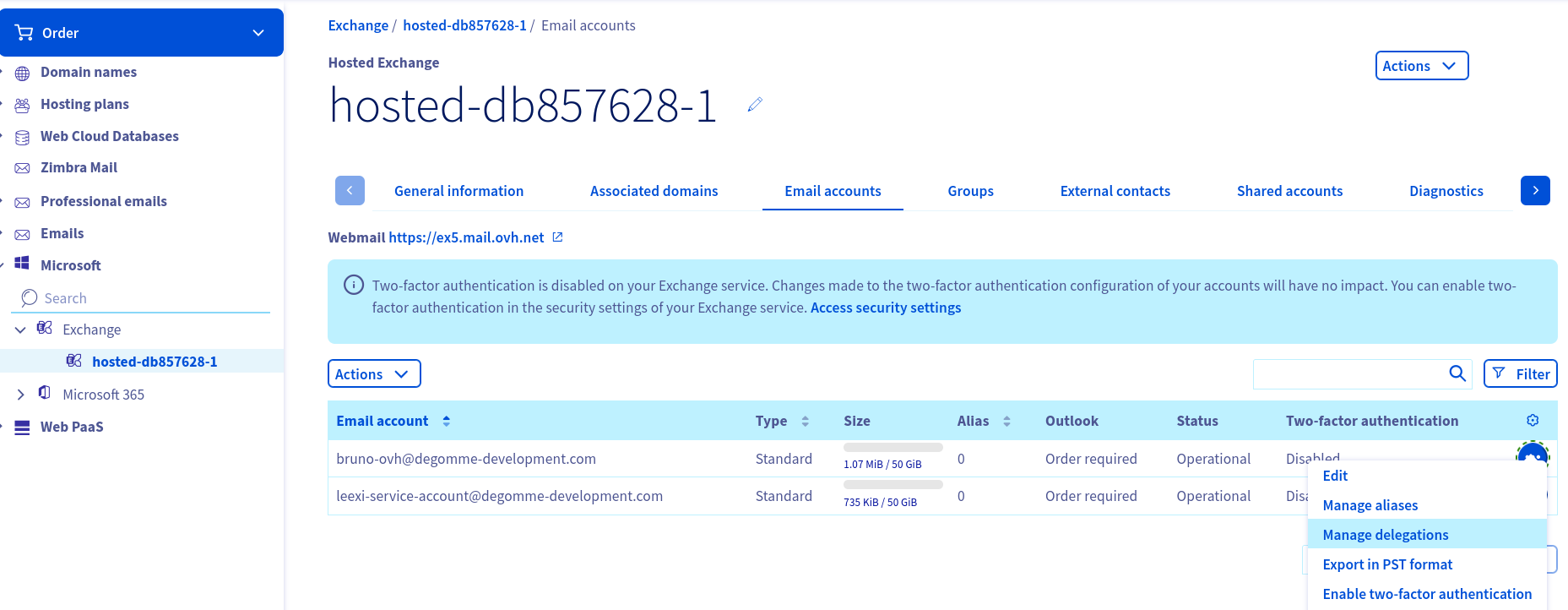
Go to your Exchange server, in Email accounts, click the three dots next to the user you want to grant access to, then select Manage delegations.
Check the Access permission box, then click Next and Confirm.
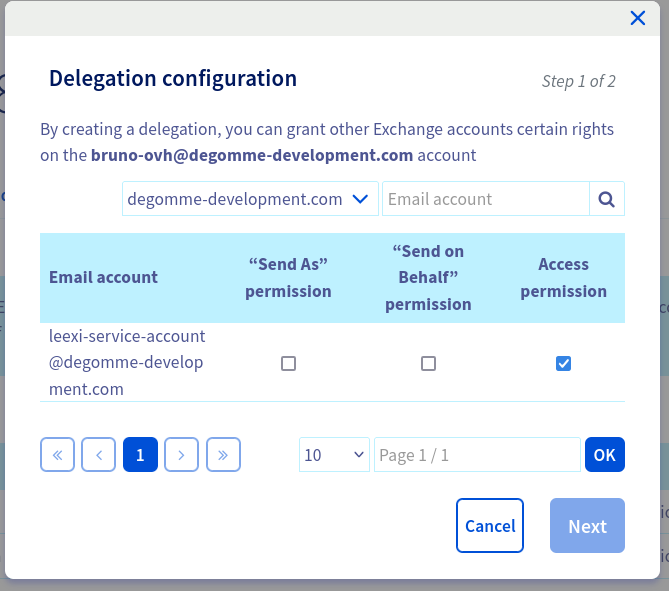
Repeat this operation for each user you want to connect. You will also need to do this when creating new user accounts.
If you are self-hosted
If a firewall or VPN restricts access to the Exchange Web Services (EWS) endpoint, add the following addresses to your allow list so that your Exchange server is visible to Leexi: 13.39.26.202, 15.188.160.114 and 15.236.114.242.
You can use the following script:
$connectionUri = "https://ex5.mail.ovh.net/powershell" # example

Install-Module -Name ExchangeOnlineManagement

# sign in as administrator
$UserCredential = Get-Credential
$Session = New-PSSession -ConfigurationName Microsoft.Exchange `
    -ConnectionUri $connectionUri `
    -Authentication Basic `
    -Credential $UserCredential `
    -AllowRedirection
Import-PSSession $Session -DisableNameChecking

$group = "LeexiAccessGroup"
# Create a security group
New-ADGroup -Name $group -GroupScope Global -GroupCategory Security
# Add members to the security group
Add-ADGroupMember -Identity $group -Members "user1@domain.com","user2@domain.com"

$serviceAccount = leexi-service-account@your-domain.com
# Grant calendar permissions to each member of the group
$members = Get-ADGroupMember -Identity $group
foreach ($member in $members) {
    $user = Get-Mailbox -Identity $member.SamAccountName
    if ($user) {
        Add-MailboxFolderPermission -Identity "$($user.UserPrincipalName):\Calendar" -User $serviceAccount -AccessRights Reviewer
    }
}
This script gives the service account access to all users in the group, but does not automatically track arrivals and departures. To automate onboarding for new users, you can build a scheduled task to manage groups and permissions, reusing the add commands above. To remove access:
Remove-MailboxFolderPermission -identity "$($user.UserPrincipalName):\Calendar" -User $serviceAccount
Enable the integration in Leexi
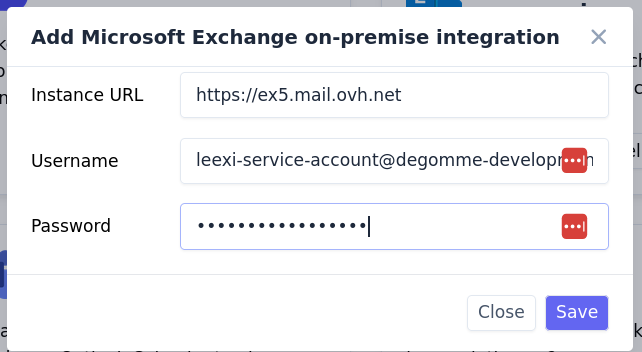
Go to Settings > Integrations, select the Microsoft Exchange on-premise integration and click Enable. Enter the credentials of the service account you created.
For the URL, enter the one you use to access your mailbox in the browser, for example https://ex5.mail.ovh.net.
Verify the match between Leexi and Exchange users
Click Manage on the integration to verify that each Leexi user is correctly matched to the corresponding Microsoft Exchange user. The match is automatic if the email addresses match; otherwise, you can change it manually.
That's it! You can verify that the integration is working by going to the main dashboard https://app.leexi.ai and checking that your upcoming meetings appear in the "Upcoming meetings" section.
Frequently asked questions
Leexi is unable to verify the certificate chain presented by your Exchange server. One of your certificates may be expired or self-signed; in the latter case, use a certificate signed by a certificate authority instead.
Contact your IT administrator to fix the server's certificate chain. You can check your SSL configuration on SSL Labs and try to resolve the issue by following these steps.
Leexi/* to your EwsAllowList.Things to watch out for
- The service account requires an additional Microsoft Exchange license and 2FA must be disabled on it.
- Delegated access must be granted for each new user: the provided script does not automatically track arrivals and departures.
- If a firewall or VPN restricts EWS access, Leexi's IP addresses must be added to your allow list.